Dear Mac Application Software Developers....
I know you are out there, and I know that on occasion you track blogs like this one - and I'm hoping you will happen by and read this post. I have a problem, and I'm sure one of you can solve it.
For a very long time (more years than I can recall), I've had a Palm Pilot. The exact model has changed over the years, and the current instance is a LifeDrive. This device serves several critical functions, and I do not leave the house without it. The function that I am interested in today is a set of three databases: DVDs, Fiction and NonFiction. Those databases hold what you might expect: the shelf lists of the thousands of books and hundreds of DVDs in my house. With publisher details. And ISBN numbers. Since bookshops hold a magnetic attraction for me, and I tend to buy faster than I read, I need to keep a list of what is already on my overloaded shelves.
I use a database called HanDBase3, from DDH Software. The integration between Mac OS X and the HanDBase desktop is pathetic, and to be frank, and the software is flaky. If you want to see a really ugly bit of software that claims to be for a Mac, go look at this. I have also started using the Delicious Library software, which is nice, but only exports to an iPod as Notes. Less than ideal if you are dealing with thousands of items.
What I really want is a database structure that I can define, and which I can access in some way either from my Palm Pilot, or from an iPhone or iPod Touch. I don't need to edit anything on the handheld, I just need to be able to search and view fairly simple records. I don't particularly want to use my Blackberry for this because it is not really mine - it is my employer's. I may not have it in my next job, and my current employer has security concerns about content on company owned devices (I don't blame them).
Recently, the FileMaker people released the beta of their Bento product. It looks OK, though it needs work, but you can't expect miracles from beta software. I could easily construct the sort of databases I need in Bento, but there is no way to export the data as anything but CSV. I'm guessing that the iPhone and iPod Touch will require XML.
So there's my challenge: a user defined database that can be searched on a Palm Pilot, an iPhone or an iPod Touch (just one will do, I don't need all three). Something stable, and with decent Mac integration.
Is that so hard? More detailed spec available on request.....
Monday, November 19, 2007

EagleFiler Update
In case you missed it, update 1.2.7 for EagleFiler is now available, and it includes a few bug fixes, and several improvements, including:
"Combined the three system services into one, which detects whether it was invoke with a file, text, or URL(s). The keyboard shortcut can now be configured using System Preferences rather than a separate utility."
Which I love, thank you, thank you.
In case you missed it, update 1.2.7 for EagleFiler is now available, and it includes a few bug fixes, and several improvements, including:
"Combined the three system services into one, which detects whether it was invoke with a file, text, or URL(s). The keyboard shortcut can now be configured using System Preferences rather than a separate utility."
Which I love, thank you, thank you.
Wednesday, November 14, 2007
Things that make me happy
I have a feeling that one of the tests of "real happiness" is to be aware that you are happy, rather than just "feeling OK". For the last few weeks I have been particularly aware that I am happy, and that things are going well for me (as opposed to last year, which was quite nasty). I am getting good feed back from customers and colleagues (they like my work), and I'm past that point in my new job when I don't feel properly engaged. I've finally found floor covering for my kitchen that accords with the vision I had in my head, and I should be able to get it installed soon. My cabinet maker's sketches for my new sideboard are just what I wanted, and he thinks he can have it finished before Christmas. All good.
And Stephen Fry has started to write a blog and someone has had the happy thought of getting him to write a column for The Guardian (and if you don't know who Stephen Fry is, I can do no better than to refer you to his performances in productions such as Jeeves and Wooster and Cold Comfort Farm). To find that he is a geek in the very best sense, and verily a Mac person as well - what can I say? It's like a very large, gift wrapped, completely undeserved present!
Closer to home, the lovely folks at Zengobi have issued forth version 4.1 of Curio, which includes the plugin necessary to make Curio documents visible in Leopard's CoverFlow and QuickLook, and numerous other enhancements. Love your work, people!
On a slightly downward note, I've been told that the LookSmart people are selling some of their assets to CNET, and that appears to include Furl. As my friend Alec Muffet says Back-Up Your Furl Databases, ASAP !!! (and his blog has the instructions). Unfortunately, Furl appears to be broken, and will not let me download the zip file of my saved content. Furl is aware of the problem, and one can only hope that there is someone there who can fix the system - they've laid off 25% of their staff in the last quarter, and in my experience engineers always get shafted long before managers.
I have a feeling that one of the tests of "real happiness" is to be aware that you are happy, rather than just "feeling OK". For the last few weeks I have been particularly aware that I am happy, and that things are going well for me (as opposed to last year, which was quite nasty). I am getting good feed back from customers and colleagues (they like my work), and I'm past that point in my new job when I don't feel properly engaged. I've finally found floor covering for my kitchen that accords with the vision I had in my head, and I should be able to get it installed soon. My cabinet maker's sketches for my new sideboard are just what I wanted, and he thinks he can have it finished before Christmas. All good.
And Stephen Fry has started to write a blog and someone has had the happy thought of getting him to write a column for The Guardian (and if you don't know who Stephen Fry is, I can do no better than to refer you to his performances in productions such as Jeeves and Wooster and Cold Comfort Farm). To find that he is a geek in the very best sense, and verily a Mac person as well - what can I say? It's like a very large, gift wrapped, completely undeserved present!
Closer to home, the lovely folks at Zengobi have issued forth version 4.1 of Curio, which includes the plugin necessary to make Curio documents visible in Leopard's CoverFlow and QuickLook, and numerous other enhancements. Love your work, people!
On a slightly downward note, I've been told that the LookSmart people are selling some of their assets to CNET, and that appears to include Furl. As my friend Alec Muffet says Back-Up Your Furl Databases, ASAP !!! (and his blog has the instructions). Unfortunately, Furl appears to be broken, and will not let me download the zip file of my saved content. Furl is aware of the problem, and one can only hope that there is someone there who can fix the system - they've laid off 25% of their staff in the last quarter, and in my experience engineers always get shafted long before managers.
Tuesday, November 13, 2007
On the slow corruption of the English language
I've been meaning to have a little whinge about this subject for a while, and since I have 10 spare minutes. here it comes. First let me state that I am English by birth and Australian by naturalization. I lived in England until I was nearly 12, when my family emigrated to Australia, so I did part of my education in each country. I've always loved the written word in almost any form, which is why I originally became a librarian. However, the years have passed, I somehow drifted into IT, and now I seem to read more words on computer screens than I do on paper.
The general standard of written English is not improving, it is getting steadily worse, and I do not understand this. Computer are particularly intolerant of errors in both spelling and grammar. Anyone who has ever mistyped a variable name, or made a syntax error in a bit of code will know that this is true, and not likely to change any time soon. I was once called out to a site to diagnose a problem with a Unix system. Some piece of software that the system administration folks were using to automate account creation was refusing to load on this machine, and things had reached the finger pointing stage between the operating system vendor and the application vendor. I poked about for a few minutes, and realized that some fool had edited the /etc/password file and changed a colon (:), the normal field delimiter for that file to a semi-colon (;). The application software was reading the file, and choking on the unexpected character. These things matter to computers.
So if we all work with these machines, strict enforcers of specific rules for spelling and grammar, why is the increasing sloppiness of the written word as we use it to communicate with one another tolerated? Written language matters, people: it is a communications protocol that we use to make sense of one another, and heaven knows that can be hard enough without having to cope with protocol errors.
And don't tell me you use a spell checker! A spell checker is worthless unless it is used intelligently, and by someone who understands their own language well enough to know when the program is wrong. I used to work for a senior manager who had the unfortunate habit of spell checking his written communications, and just accepting whatever the program suggested: this frequently resulted in hilariously nonsensical sentences, and the need for clarifications.
My current pet hate is the confusion that seems to have arisen around the words troll and trawl. Try this: go to Google, and search this phrase "troll through my archives". About 60 hits on this combination, and there are variations on this theme: try "trolling through my archives", for another 77.
Let us get this straight once and for all: if you are hunting through an archive, you are searching. You could say dredging, or hunting or trawling. These are all fine and appropriate words, which convey the sense of sifting through a collection of objects. What you are not doing is trolling. Trolling (which seems to have come down as a corruption from either Middle English or High German) means either to fish with a baited line - which is hardly comparable to a thorough search - or to stroll about. Trawling is a fishing activity, typically involving large nets which collect everything in their path, and the word has acquired the additional meaning of thorough searching.
Unfortunately the word "troll" already has a well established meaning across the Internet - those pathetic souls who derive personal gratification from stirring up flame wars by posting deliberately inflammatory comments online. And since most of the planet has apparently seen Peter Jackson's version of the Lord of the Rings, you would think that most people would have a mental image of a troll that did not include a capacity for patient searching as part of the feature set. This usage of the word "troll" derives from Norse mythology, and refers to something ugly that that lives in a cave, and seems quite apt for the sort of person whose most effective method of gaining personal attention is to annoy strangers.
I realize that all living languages evolve and mutate: one has only to look at the new words that have entered the dictionary in the last few years to understand that (spyware, ringtone, biodiesel - all recent additions). But the very richness and flexibility of the English language can only be maintained if we keep plenty of distinctive words in use. If we manage to collapse "troll" and "trawl", a little bit of colour and vitality drains away.
So let's keep our cave dwellers and our fishing nets separated, shall we?
I've been meaning to have a little whinge about this subject for a while, and since I have 10 spare minutes. here it comes. First let me state that I am English by birth and Australian by naturalization. I lived in England until I was nearly 12, when my family emigrated to Australia, so I did part of my education in each country. I've always loved the written word in almost any form, which is why I originally became a librarian. However, the years have passed, I somehow drifted into IT, and now I seem to read more words on computer screens than I do on paper.
The general standard of written English is not improving, it is getting steadily worse, and I do not understand this. Computer are particularly intolerant of errors in both spelling and grammar. Anyone who has ever mistyped a variable name, or made a syntax error in a bit of code will know that this is true, and not likely to change any time soon. I was once called out to a site to diagnose a problem with a Unix system. Some piece of software that the system administration folks were using to automate account creation was refusing to load on this machine, and things had reached the finger pointing stage between the operating system vendor and the application vendor. I poked about for a few minutes, and realized that some fool had edited the /etc/password file and changed a colon (:), the normal field delimiter for that file to a semi-colon (;). The application software was reading the file, and choking on the unexpected character. These things matter to computers.
So if we all work with these machines, strict enforcers of specific rules for spelling and grammar, why is the increasing sloppiness of the written word as we use it to communicate with one another tolerated? Written language matters, people: it is a communications protocol that we use to make sense of one another, and heaven knows that can be hard enough without having to cope with protocol errors.
And don't tell me you use a spell checker! A spell checker is worthless unless it is used intelligently, and by someone who understands their own language well enough to know when the program is wrong. I used to work for a senior manager who had the unfortunate habit of spell checking his written communications, and just accepting whatever the program suggested: this frequently resulted in hilariously nonsensical sentences, and the need for clarifications.
My current pet hate is the confusion that seems to have arisen around the words troll and trawl. Try this: go to Google, and search this phrase "troll through my archives". About 60 hits on this combination, and there are variations on this theme: try "trolling through my archives", for another 77.
Let us get this straight once and for all: if you are hunting through an archive, you are searching. You could say dredging, or hunting or trawling. These are all fine and appropriate words, which convey the sense of sifting through a collection of objects. What you are not doing is trolling. Trolling (which seems to have come down as a corruption from either Middle English or High German) means either to fish with a baited line - which is hardly comparable to a thorough search - or to stroll about. Trawling is a fishing activity, typically involving large nets which collect everything in their path, and the word has acquired the additional meaning of thorough searching.
Unfortunately the word "troll" already has a well established meaning across the Internet - those pathetic souls who derive personal gratification from stirring up flame wars by posting deliberately inflammatory comments online. And since most of the planet has apparently seen Peter Jackson's version of the Lord of the Rings, you would think that most people would have a mental image of a troll that did not include a capacity for patient searching as part of the feature set. This usage of the word "troll" derives from Norse mythology, and refers to something ugly that that lives in a cave, and seems quite apt for the sort of person whose most effective method of gaining personal attention is to annoy strangers.
I realize that all living languages evolve and mutate: one has only to look at the new words that have entered the dictionary in the last few years to understand that (spyware, ringtone, biodiesel - all recent additions). But the very richness and flexibility of the English language can only be maintained if we keep plenty of distinctive words in use. If we manage to collapse "troll" and "trawl", a little bit of colour and vitality drains away.
So let's keep our cave dwellers and our fishing nets separated, shall we?
Sunday, November 11, 2007
VMware Fusion: OS virtualization for Mac OS X
One of the biggest buzzes in IT at the moment is around virtualization. Server virtualization works like this: most computers in data centers are not really very busy: many of them are actually less than 15% utilized most of the time. There are many reasons for this. In the past, as a company started a new project, it was common to buy a complete set of new equipment for that project: a new web server, new application server, new database server, and in some cases two or more of each for redundancy. Plus firewalls and load balancers and such. I've built lots of these set ups and they are sold like this for three main reasons:
1. because it allows the purchaser to attribute all blame for anything that goes wrong to the vendor who sold "the solution"; this is known as "the one-throat-to-choke principal".
2. because whoever is funding the project wants to "own" the kit, and not share with anyone else; this is common in environments that aren't mature enough to have figured out how to bill for compute time and facilities as a service. We call this phenomenon "server hugging".
3. often no one has a clear idea of how the new environment will perform, what sort of load it will carry, or even if the service it provides will be popular enough to pay for the deployment. There is a desire to protect the known, stable part of the infrastructure from the new project, in case something goes wrong during the course of the build. This is warranted - I recall several new deployments that had unforeseen and regrettable impacts on the existing systems in the data center. If you don't have a good test environment, the only mitigation of this risk is physical separation.
So new systems go into production, and sit there at perhaps 15% utilization, often much less, consuming electricity and generating heat 24 hours a day, 365 days a year. This is a huge waste of money, and environmentally irresponsible. It's been common in the past because in the majority of companies, the IT department does not pay for electricity: power and cooling comes out of another budget, so IT has no incentive to do anything about it. It's not even terribly obvious if your servers are collocated in someone else's data center: there, you are typically charged for rack space, and sometime per CPU, and the data center owners will have factored power and cooling into their charges. But business owners are beginning to be aware of these details, and the accountants are sharpening their knives. If green computing can save money, they are all for it.
So if you take 4 machines that are only 15% utilized, and merge their workloads together onto one machine, that one machine will be a lot busier, but it will occupy less rack space, consume less electricity and produce less heat. When IT vendors wax lyrical about "green computing", this is generally part of what they are talking about.
Of course not all applications are suitable for virtualization: anything with very high I/O requirements should be tested carefully. Some applications just do not play well in a shared environment, and you need to consider what your security policies say about the separation of various services and components before you start consolidating things. Consider also that if you are going to put a lot of eggs into a single basket, it should be a very good quality basket, not some nameless beige box that you got cheap from a friend of a friend. But with sensible planning, testing and resourcing, server virtualization can save a great deal of money.
The leading vendor in this field is VMware, who produce the VMware Server products. There are other players, including Xen, IBM, Red Hat and Sun, but VMware (to the annoyance of their competitors) was first to market with a robust solution, and they have both market and mind share that others only can dream about. Their products are good, their support excellent, and as a vendor they are a joy to deal with. So when I found that their VMware Fusion product, VMware for Mac OS X, was about to be released, I was curious to see what it had to offer. I'd been dimly aware of the beta, but never looked at it, and the final release is an Intel binary, so when my new MacBook arrived in August I downloaded the demo and gave it a whirl.
Now I must confess to having followed standard engineering practice for installing this software
1. Download software
2. Glance at the first page of the vendor's doco, conclude that it looks simple, toss doco aside.
3. Install software by following the prompts and doing what seems obvious.
4. Reach the point where it prompts for a Windows installation CD.
5. Go round to the IT department and borrow media and software keys from those enormous folders of CDs that Microsoft ships people who take its products seriously.
6. Stick Windows XP disk into MacBook's DVD drive while thinking "what am I doing?"
7. Go through the usual messy and disgusting procedure of installing XP, Office, Project and Visio, and applying enough patches to choke a horse. I had to refer to the doco briefly at this point, to work out how to have the Mac send CTRL+ALT+DEL to the Windows virtual machine.
8. Watch XP boot in a window on my Mac desktop and realize with horror that I have loaded a petri dish onto my beautiful Mac.
9. Scrabble hastily for a distro of our preferred anti virus software, and get it going before something bad happens.
10. Tinker for a few minutes, to get the virtual machine to authenticate to Active Directory, and get a print queue and some file shares.
11. Build another virtual machine (VM), this one running Solaris 10 (you'll need the X86 media, not Sparc).
12. Download a pre-built VM of Ubuntu Linux from the VMware appliance site.
13. Start all three VMs simultaneously in different windows.
14. Try to engage the enthusiasm of the person at the next desk in how utterly cool this is.
15. Conclude that I shouldn't have tried step 14 on a business development manager.
Now you may well ask "why would I do this?", or "why not use Parallels or Boot Camp or whatever?" Taking those questions in reverse order:
Boot Camp gives you a dual boot machine: you have to stop one operating system to start the other one. Life is too short.
Parallels only supports 32 bit guest operating systems, it's a notorious resource hog, and I have heard horror stories about its stability, or lack thereof. Fusion is highly configurable, doesn't bog my machine down, and is stable. Also, and Parallels doesn't have very many pre-built virtual appliances available. VMware has hundreds, many of them free, including VMs of all sorts of operating systems and networking kit. This gives me the opportunity to tinker with things that I might otherwise never get to try.
Furthermore, VMware is a large and successful company: they have recently completed their IPO, and are going from strength the strength. The other players in this space have interesting products, but big businesses like to buy software from other big businesses: it gives them a cosy feeling that there will be ongoing support, if they need it. And since I have a lot of customers who use VMware in their production environments, it's handy for me to use some of the software myself: helps me stay current on the products.
For me the ability to run multiple operating systems on the Mac is wonderful. For example, I'm in the throes of updated a training course that I wrote years ago, 'The General Introduction to Unix', which I am generalising (it was originally written for SCO Unix and Solaris in the late 90's) to cover Solaris, Linux and Mac OS X. I need to check every bit of syntax, update screen shots, and in some cases remind myself how things work in different operating systems. Not having to power up the old Ultra 10 in my study to look at Solaris saves time and electricity.
Then there are the cases where you need to run some piece of software that will only run on Windows. To be honest, the only thing I really need on Windows is Visio. Anything else either runs natively on a Mac, or there is a better alternative on a Mac. Visio however I do use, and it is pretty much the standard diagramming package used across the industry - you even see it as a required skill set in job descriptions. I use OmniGraffle on my Mac, but until Omnigraffle can give me a Size and Position dialog like Visio's, I will never be able to get the level of precise control that I need. Also, customers frequently send me Visio diagrams and just assume that everyone can read them, because Visio is "the standard". And it is a good piece of software (I note that Microsoft bought the product, they did not create it).
Furthermore, running Windows in a VM on my Mac allows me to get past a problem that has annoyed me since the day I started this job: the local IT folk refuse to add my Mac to Active Directory, so I have never been able to map a file share or print (and yes, I have tried direct IP printing; we have particularly nasty brand of printers that do not support direct IP printing from Macs; the vendors published "work around" is "do not print from Mac". I kid you not). But as soon as the VM of Windows booted, AD recognized it, and allowed me to map drives and set up a print queue. The VM looks just like a PC to AD, and it treats it as such.
And it just works. A few weeks back, I took my Mac to a training course, and when I got it out, the instructor's face fell. The software we were supposed to be learning had a client interface that ran on Windows, and he didn't think it would work on a Mac. So I started my Windows VM, loaded the client, and it worked perfectly (and the other people on the course were jealous, because they had the usual Windows based laptops: slow, ugly and flaky). I had to allocate a bit more memory to the Windows VM for the duration of the course (the client software was a real hog), but once I had done that, my virtual Windows box could easily keep up with their physical ones.
Fusion allows you to emulate all sorts of things, which is handy if you need to do demonstrations. I recently attended a presales demo by an antivirus vendor. The customer wanted to buy antivirus software for their fleet of Microsoft machines. The antivirus presales guy turned up to the demo with a Mac, started up a hoard of Microsoft VMs, and demonstrated his products using them. It worked brilliantly - he had a demo lab in a box, something that it would have taken days to build physically (and he closed the sale, against stiff competition).
The arrival of Leopard has made using Fusion even easier, because I can park the VMs in a Spaces pane until I need them, and they don't even clutter up my desktop. If you haven't tried Fusion, there is a 30 day evaluation version available from the VMware website: give it a try, I think you'll like it.
One of the biggest buzzes in IT at the moment is around virtualization. Server virtualization works like this: most computers in data centers are not really very busy: many of them are actually less than 15% utilized most of the time. There are many reasons for this. In the past, as a company started a new project, it was common to buy a complete set of new equipment for that project: a new web server, new application server, new database server, and in some cases two or more of each for redundancy. Plus firewalls and load balancers and such. I've built lots of these set ups and they are sold like this for three main reasons:
1. because it allows the purchaser to attribute all blame for anything that goes wrong to the vendor who sold "the solution"; this is known as "the one-throat-to-choke principal".
2. because whoever is funding the project wants to "own" the kit, and not share with anyone else; this is common in environments that aren't mature enough to have figured out how to bill for compute time and facilities as a service. We call this phenomenon "server hugging".
3. often no one has a clear idea of how the new environment will perform, what sort of load it will carry, or even if the service it provides will be popular enough to pay for the deployment. There is a desire to protect the known, stable part of the infrastructure from the new project, in case something goes wrong during the course of the build. This is warranted - I recall several new deployments that had unforeseen and regrettable impacts on the existing systems in the data center. If you don't have a good test environment, the only mitigation of this risk is physical separation.
So new systems go into production, and sit there at perhaps 15% utilization, often much less, consuming electricity and generating heat 24 hours a day, 365 days a year. This is a huge waste of money, and environmentally irresponsible. It's been common in the past because in the majority of companies, the IT department does not pay for electricity: power and cooling comes out of another budget, so IT has no incentive to do anything about it. It's not even terribly obvious if your servers are collocated in someone else's data center: there, you are typically charged for rack space, and sometime per CPU, and the data center owners will have factored power and cooling into their charges. But business owners are beginning to be aware of these details, and the accountants are sharpening their knives. If green computing can save money, they are all for it.
So if you take 4 machines that are only 15% utilized, and merge their workloads together onto one machine, that one machine will be a lot busier, but it will occupy less rack space, consume less electricity and produce less heat. When IT vendors wax lyrical about "green computing", this is generally part of what they are talking about.
Of course not all applications are suitable for virtualization: anything with very high I/O requirements should be tested carefully. Some applications just do not play well in a shared environment, and you need to consider what your security policies say about the separation of various services and components before you start consolidating things. Consider also that if you are going to put a lot of eggs into a single basket, it should be a very good quality basket, not some nameless beige box that you got cheap from a friend of a friend. But with sensible planning, testing and resourcing, server virtualization can save a great deal of money.
The leading vendor in this field is VMware, who produce the VMware Server products. There are other players, including Xen, IBM, Red Hat and Sun, but VMware (to the annoyance of their competitors) was first to market with a robust solution, and they have both market and mind share that others only can dream about. Their products are good, their support excellent, and as a vendor they are a joy to deal with. So when I found that their VMware Fusion product, VMware for Mac OS X, was about to be released, I was curious to see what it had to offer. I'd been dimly aware of the beta, but never looked at it, and the final release is an Intel binary, so when my new MacBook arrived in August I downloaded the demo and gave it a whirl.
Now I must confess to having followed standard engineering practice for installing this software
1. Download software
2. Glance at the first page of the vendor's doco, conclude that it looks simple, toss doco aside.
3. Install software by following the prompts and doing what seems obvious.
4. Reach the point where it prompts for a Windows installation CD.
5. Go round to the IT department and borrow media and software keys from those enormous folders of CDs that Microsoft ships people who take its products seriously.
6. Stick Windows XP disk into MacBook's DVD drive while thinking "what am I doing?"
7. Go through the usual messy and disgusting procedure of installing XP, Office, Project and Visio, and applying enough patches to choke a horse. I had to refer to the doco briefly at this point, to work out how to have the Mac send CTRL+ALT+DEL to the Windows virtual machine.
8. Watch XP boot in a window on my Mac desktop and realize with horror that I have loaded a petri dish onto my beautiful Mac.
9. Scrabble hastily for a distro of our preferred anti virus software, and get it going before something bad happens.
10. Tinker for a few minutes, to get the virtual machine to authenticate to Active Directory, and get a print queue and some file shares.
11. Build another virtual machine (VM), this one running Solaris 10 (you'll need the X86 media, not Sparc).
12. Download a pre-built VM of Ubuntu Linux from the VMware appliance site.
13. Start all three VMs simultaneously in different windows.
14. Try to engage the enthusiasm of the person at the next desk in how utterly cool this is.
15. Conclude that I shouldn't have tried step 14 on a business development manager.
Now you may well ask "why would I do this?", or "why not use Parallels or Boot Camp or whatever?" Taking those questions in reverse order:
Boot Camp gives you a dual boot machine: you have to stop one operating system to start the other one. Life is too short.
Parallels only supports 32 bit guest operating systems, it's a notorious resource hog, and I have heard horror stories about its stability, or lack thereof. Fusion is highly configurable, doesn't bog my machine down, and is stable. Also, and Parallels doesn't have very many pre-built virtual appliances available. VMware has hundreds, many of them free, including VMs of all sorts of operating systems and networking kit. This gives me the opportunity to tinker with things that I might otherwise never get to try.
Furthermore, VMware is a large and successful company: they have recently completed their IPO, and are going from strength the strength. The other players in this space have interesting products, but big businesses like to buy software from other big businesses: it gives them a cosy feeling that there will be ongoing support, if they need it. And since I have a lot of customers who use VMware in their production environments, it's handy for me to use some of the software myself: helps me stay current on the products.
For me the ability to run multiple operating systems on the Mac is wonderful. For example, I'm in the throes of updated a training course that I wrote years ago, 'The General Introduction to Unix', which I am generalising (it was originally written for SCO Unix and Solaris in the late 90's) to cover Solaris, Linux and Mac OS X. I need to check every bit of syntax, update screen shots, and in some cases remind myself how things work in different operating systems. Not having to power up the old Ultra 10 in my study to look at Solaris saves time and electricity.
Then there are the cases where you need to run some piece of software that will only run on Windows. To be honest, the only thing I really need on Windows is Visio. Anything else either runs natively on a Mac, or there is a better alternative on a Mac. Visio however I do use, and it is pretty much the standard diagramming package used across the industry - you even see it as a required skill set in job descriptions. I use OmniGraffle on my Mac, but until Omnigraffle can give me a Size and Position dialog like Visio's, I will never be able to get the level of precise control that I need. Also, customers frequently send me Visio diagrams and just assume that everyone can read them, because Visio is "the standard". And it is a good piece of software (I note that Microsoft bought the product, they did not create it).
Furthermore, running Windows in a VM on my Mac allows me to get past a problem that has annoyed me since the day I started this job: the local IT folk refuse to add my Mac to Active Directory, so I have never been able to map a file share or print (and yes, I have tried direct IP printing; we have particularly nasty brand of printers that do not support direct IP printing from Macs; the vendors published "work around" is "do not print from Mac". I kid you not). But as soon as the VM of Windows booted, AD recognized it, and allowed me to map drives and set up a print queue. The VM looks just like a PC to AD, and it treats it as such.
And it just works. A few weeks back, I took my Mac to a training course, and when I got it out, the instructor's face fell. The software we were supposed to be learning had a client interface that ran on Windows, and he didn't think it would work on a Mac. So I started my Windows VM, loaded the client, and it worked perfectly (and the other people on the course were jealous, because they had the usual Windows based laptops: slow, ugly and flaky). I had to allocate a bit more memory to the Windows VM for the duration of the course (the client software was a real hog), but once I had done that, my virtual Windows box could easily keep up with their physical ones.
Fusion allows you to emulate all sorts of things, which is handy if you need to do demonstrations. I recently attended a presales demo by an antivirus vendor. The customer wanted to buy antivirus software for their fleet of Microsoft machines. The antivirus presales guy turned up to the demo with a Mac, started up a hoard of Microsoft VMs, and demonstrated his products using them. It worked brilliantly - he had a demo lab in a box, something that it would have taken days to build physically (and he closed the sale, against stiff competition).
The arrival of Leopard has made using Fusion even easier, because I can park the VMs in a Spaces pane until I need them, and they don't even clutter up my desktop. If you haven't tried Fusion, there is a 30 day evaluation version available from the VMware website: give it a try, I think you'll like it.
Tuesday, October 30, 2007
Happy Leoparday
I got my copy of Leopard on Friday, and spent much of the weekend upgrading and testing my old 15" Powerbook and my new 15" MacBook Pro. I started on the Powerbook, because I wanted some confidence that my critical apps would work, and retain their data, before I hosed my MacBook: that's my "production" machine, and if it doesn't work, neither do I.
And I wanted to do a clean install, rather than an upgrade, because I was pretty sure that I had some old and ugly kernel level stuff (from some work I did last year) that had migrated from the Powerbook to the MacBook when I transitioned a few months back. I had some problems with drivers for my Huawei wireless modem, and there were some apps installed via Fink, and a shattered copy of Nmap that never compiled cleanly, and caused the Mac to lock solid. I wanted a fresh start, so I started by doing a full backup of the MacBook to an external drive, and while that was running, I sat down with the Powerbook and made sure that there was nothing on it that I didn't have backed up somewhere. I made notes of some config settings (not enough, as it turned out). Then I put the disk in the drive, and did a fresh install.
Leopard installed without problems. I logged in, resisted the urge to play with it (well, mostly), and started installing test apps. The Powerbook spends most of its life in a drawer - it had zero battery charge when I got it out - and I would only use it now if the MacBook died (perish the thought!) or I had to test something requiring two Macs; I'm afraid I don't even keep the machines in sync. The things I cared most about were DevonThink and EagleFiler: as long as I could install them, and restore their data, I knew I could proceed safely. Neither app had a problem, I restored their data from backups, and everything worked.
I moved on to installing a few other things, Firefox, Thunderbird and so on. Then I loaded iWork'08 and iLife'08 (family pack licenses, I'm legal). Everything worked, except iMovie, which said the Powerbook's processor was too slow, and refused to install.
Once the MacBook had finished backing up, I installed Leopard on it, and started doing a proper restore of everything I use every day, starting with CleanApp: I wanted a good understanding of where every package had put every file on the disk. I loaded DevonThink and EagleFiler, and restored their data. I loaded Microsoft Office, iWork and iLife, and OpenOffice. I loaded Firefox and Thunderbird and Curio. I loaded VMware fusion, and restored my virtual machines (they work fine). I imported my iPhoto library, and a whole bunch of other photos that were lying about the place. I spent a long time waiting for iTunes to grind through all my music. In fact I spent a lot of the weekend waiting for data to move from one disk to another, to import or reindex or whatever. I got quite a bit of house cleaning done while I was waiting.
Things that didn't work: iMovie flatly refused to launch on the MacBook, and I was just sitting there thinking "well that seems a bit sad" when Software Update woke up and offered me a bunch of patches: I loaded them, and they sorted iMovie out. Launch2Net, which is what I use to manage the Huawei modem is not quite ready for Leopard, but the nice people at Nova Media have a beta of their next version available, and it seems pretty stable. This is where I found out that I had forgotten to note down how I had got the modem going in the first place. For reasons that elude me, Optus ship this wireless modem to customers and they only support it under Windows. Vodaphone ship the same unit with Mac support. I work for a subsidiary of Optus (and we use these modems for remote access).It's taken me a while to get it going under Mac OS X, and the final answer was to install it on a Windows machine, look at the configuration it used there, get the name of the Optus APN, and then put that into the Launch2Net config on the Mac. Tiresome, but it works.
It looks like I may have problems with the drivers for my CanoScan 9900F. Canon's Mac support is pathetic. I haven't attempted to install the software, I'm going to wait a few days, and see if anyone else has anything to report. The VueScan folks don't seem to be quite ready, either, but I shall compose myself in patience for now. This scanner, its software and I have never entirely got along, so its days may be numbered.
Adobe have not covered themselves in glory, either. I have a copy of Acrobat 6.0 Standard, which includes both the Mac and Windows versions. Acrobat 8 standard is Windows only, so if I want to upgrade, I have to go to Acrobat 8 Professional. Not happy, and haven't decided what to do yet. Adobe reckons that Photoshop Elements 3.0 isn't supported on Leopard, but it seems to work for me - I only need basic functions most of the time.
I haven't had time to test everything, or even try somethings, yet. However, the machine seems faster, I love the new Spaces feature, Spotlight is much better - boolean searching! - and Cover Flow is great. Time Machine is absolutely awesome. Many people have complained about the new transparent dock. I'm reserving judgement for now. I'm not keen on the transparent menu bar and I absolutely hate, loathe and abominate the semi transparency of right click pop up menus. The person who thought this up should be forced to do Windows installs for a few months, and who ever approved the idea and let it into the final product should be compelled to do level 1 Windows technical support for a couple of years. Semi transparent menus are beyond stupid, they are twee: cute for the sake of cuteness, while meaningfully degrading the user experience. If I open a menu, it's because I want to see what is on it, which I cannot do if the text is tangled up with the image behind it. Wrong, bad, inexcusably stupid: how did this feature survive beta testing? Did you do user acceptance testing, and if so, who wrote the test plan? Were they sober when they did it? If there is a way to disable this ridiculously pretentious bit of business, please tell me. My eyeballs are approaching their half century, and I need nice clear type (and new glasses).
But over all, fantastic. There are so many new things to look at that I hardly know where to start. When I've had a chance to try things out (and I'm on a training course for the next two days), I will try to report in more detail.
Thursday, October 18, 2007
More feedback
A couple more questions have come in. Nick says "I'm curious to know why don't you use Curio for filing as well. It seems to me that it can keep track of files and docs as well or better than Eagle Filer (which I have tried at least four times in the past 6 months and found to be too buggy)."
First of all, Nick, what bugs are you seeing? I run EagleFiler constantly, and I haven't had a single problem - is there some subtle thing that I am missing? Now, to answer your question: Curio is not designed as a "filing" application, but as a visual thinking environment. Certainly you could use it to organize files, but in my mind the Curio metaphor is a bit like pinning documents to a cork board, rather than placing them in a filing cabinet, which is the way I think of Eaglefiler. Further more, Curio does not lend itself to creating simple text documents on the fly - it needs to create a whole idea space every time. I use Curio to capture bulk information (I'm in a training course now, and Curio has my morning's notes in it), but if I just need to scribble down a URL or a password, it goes to EagleFiler. I think what I am trying to say is that EagleFiler suits the way my brain works when it comes to litter sorting. Your mileage may vary.
TheWolf asks "What I'm wondering is why you gave up using DevonThink Pro, because all the other software you reviewed was discussed more, but because Devon was your older software, it didn't seem to be mentioned much. What makes EagleFiler so much better than DevonThink? I'm trying to decide if I should try DevonThink or not. It seems to have a learning curve."
In answer: I haven't stopped using DevonThink Pro, but I use it in slightly different ways. I think I am using DT less, now that I have EagleFiler, but DevonThink still provides me great functionality for specific purposes. I find DT slower to start up than EagleFiler, but that is probably because I use DT to store and manage really big documents, mostly technical manuals in PDF format. The problem I had with DevonThink (apart from its learning curve, which is steeper than EagleFiler's) is that it doesn't always let you get a document back out in quite the same format that it went in. I just retested this, by importing and then exporting a fairly simple Word document. DevonThink preserved the text pretty well, but ate the footers. This was a show stopper for me. I've also had a couple of incidents where the database corrupted, and I had to restore from backups.
I'm happy to expand on this if anyone needs more detail. If you want to chat offline, look me up on LinkedIn, and you should be able to work out my email address.
A couple more questions have come in. Nick says "I'm curious to know why don't you use Curio for filing as well. It seems to me that it can keep track of files and docs as well or better than Eagle Filer (which I have tried at least four times in the past 6 months and found to be too buggy)."
First of all, Nick, what bugs are you seeing? I run EagleFiler constantly, and I haven't had a single problem - is there some subtle thing that I am missing? Now, to answer your question: Curio is not designed as a "filing" application, but as a visual thinking environment. Certainly you could use it to organize files, but in my mind the Curio metaphor is a bit like pinning documents to a cork board, rather than placing them in a filing cabinet, which is the way I think of Eaglefiler. Further more, Curio does not lend itself to creating simple text documents on the fly - it needs to create a whole idea space every time. I use Curio to capture bulk information (I'm in a training course now, and Curio has my morning's notes in it), but if I just need to scribble down a URL or a password, it goes to EagleFiler. I think what I am trying to say is that EagleFiler suits the way my brain works when it comes to litter sorting. Your mileage may vary.
TheWolf asks "What I'm wondering is why you gave up using DevonThink Pro, because all the other software you reviewed was discussed more, but because Devon was your older software, it didn't seem to be mentioned much. What makes EagleFiler so much better than DevonThink? I'm trying to decide if I should try DevonThink or not. It seems to have a learning curve."
In answer: I haven't stopped using DevonThink Pro, but I use it in slightly different ways. I think I am using DT less, now that I have EagleFiler, but DevonThink still provides me great functionality for specific purposes. I find DT slower to start up than EagleFiler, but that is probably because I use DT to store and manage really big documents, mostly technical manuals in PDF format. The problem I had with DevonThink (apart from its learning curve, which is steeper than EagleFiler's) is that it doesn't always let you get a document back out in quite the same format that it went in. I just retested this, by importing and then exporting a fairly simple Word document. DevonThink preserved the text pretty well, but ate the footers. This was a show stopper for me. I've also had a couple of incidents where the database corrupted, and I had to restore from backups.
I'm happy to expand on this if anyone needs more detail. If you want to chat offline, look me up on LinkedIn, and you should be able to work out my email address.
Sunday, October 14, 2007
How small is this planet???
I lived in Perth, in Western Australia from 1971 to 1984. I completed high school and an undergraduate degree, got my first job, and in 1984 I moved to Canberra in the Australian Capital Territory. In 1985 I moved to Sydney, in New South Wales. I've been back to Perth a few time, usually for work, but I have made no attempt to stay in touch with the people I went to school with.
There are currently around 20 million people living in Australia.
So I'm in Western Australia, for an all too brief holiday, and we've detoured to the Capel Vale Winery, to taste and buy wine, and to get lunch in their (excellent) restaurant. It's a lovely place, you can see part of it on the right of this picture - the restaurant overlooks part of the vineyard:

When we've finished eating, someone at another table calls out to me. It's Gillian Mills - we went to high school together. I wouldn't have recognized her, though she says I haven't changed a bit (in 31 years? Hmm.....). She's in Capel Vale as part of a book club event, she doesn't live locally - we're 3 or 4 hours drive south of Perth.
Anyone care to calculate the odds on meeting up like that?
Sunday, October 07, 2007
Feedback
The last post generated a few comments, and I have time to answer those now. It's Sunday evening, I've just finished prepping our tax paperwork, to go our accountant tomorrow and somewhere outside I just heard a kookaburra "laughing" maniacally. It's probably hunting in the twilight, and I wish it well - I think there is a mouse living in my compost bin!
First, thank you all for your feedback - it's nice to know that I'm not talking to myself!
There is a question from Brab, who asks how I use Curio beyond note taking, and how I decide whether to start a document in Curio or EagleFiler. The first thing I "drew" in Curio, almost the first time I used it, was a 3 page layout of how I thought a web site should look. It was extremely basic, just boxes and text, with a bit of coloured fill. I PDF'd the result and sent it to the man who owned the budget that was supposed to pay for a particular marketing campaign. Next thing knew, I'd been asked to attend a meeting with the marketing people, who seemed astounded to find an engineer who they could talk to; I'm still working with them, and so far as I'm concerned, that 3 page layout paid for Curio right then and there. I'd only been in my current job a few weeks, and I was still in that odd phase that you get at the beginning of a new job, where most of your coworkers know nothing about you, other than what they read in the welcome email that your manager broadcast: nobody is quite sure what your skill set is, or how to engage with you usefully. I needed to demonstrate a general willingness to do whatever needed doing, which I find is the secret to success in most jobs, and to raise my profile within the organization. Curio helped me do that, getting me introductions to people who I otherwise might not have met for months..
I also use Curio when I need to "collage" something together, so I can see all the related bits. And if it happens to be open when I take a phone call, I'll take notes directly into it, or jot down phone numbers, though they will probably get moved somewhere else pretty quickly.
In 2005, I had to study for the CISSP exam, which is a 5 hour marathon and not something I want to repeat (see www.isc2.org for details, basically CISSP is a well thought of security qualification). To get the huge amount of information requiredto pass the exam to stay in my brain, I drew a series of mind maps, on large pieces of paper, with markers and coloured pencils. It must have worked, because I passed the exam (to my great relief, my then employer had mandated that the entire security practice had to pass this exam, so it was a bit public, and I'm not good with personal failure). However, the mind maps (which I am reluctant to destroy) are a nuisance to store, so I am converting them to Curio documents.
Finished Curio documents get stored in EagleFiler, and Curio gets used to bring documents from EagleFiler together on one page. Not many documents get started in EagleFiler, with the exception of login credentials, which I store as text files. Generally, if I am starting a document, I start in Word if I only expect to need text and I will need to send the results to a colleague; in Notebook if I am drafting a blog or an email; or in Curio if I expect to need diagrams or graphics. I should state that mine is currently the only Mac on the corporate network, so I have to use applications that give me some degree of portability with the PC users around me (though I do believe that some of my co-workers may be considering a change of platform).
For me, EagleFiler is the giant filing drawer where web pages, receipts, passwords, cartoons, Office documents and PDFs get dumped. My main database contains everything from knitting patterns to technical documents.
Dana asked what I draw with. Because my work is technical, much of what I need to draw lends itself to simple boxes and lines: flow charts and network diagrams for the most part. Those can easily be drawn with Curio's shape and line tools. If I need to mark up a graphic, I can usually manage with my mouse and the highlighter tool. If I want to draw "properly", I have a Wacom Graphire 4 pad. I'm teaching myself to use this, but because I am not burdened with any talent for drawing, it's up hill work.
I also see a note from Greg at Zengobi in the comments. He has answered Dana's questions about Curio versions Thanks Greg, love your work!
Next week I am on leave, and my husband and I are going to Western Australia for a few days. I haven't been to Perth since 1998, and I am told that it is much changed So look out for some pictures of WA next week.
The last post generated a few comments, and I have time to answer those now. It's Sunday evening, I've just finished prepping our tax paperwork, to go our accountant tomorrow and somewhere outside I just heard a kookaburra "laughing" maniacally. It's probably hunting in the twilight, and I wish it well - I think there is a mouse living in my compost bin!
First, thank you all for your feedback - it's nice to know that I'm not talking to myself!
There is a question from Brab, who asks how I use Curio beyond note taking, and how I decide whether to start a document in Curio or EagleFiler. The first thing I "drew" in Curio, almost the first time I used it, was a 3 page layout of how I thought a web site should look. It was extremely basic, just boxes and text, with a bit of coloured fill. I PDF'd the result and sent it to the man who owned the budget that was supposed to pay for a particular marketing campaign. Next thing knew, I'd been asked to attend a meeting with the marketing people, who seemed astounded to find an engineer who they could talk to; I'm still working with them, and so far as I'm concerned, that 3 page layout paid for Curio right then and there. I'd only been in my current job a few weeks, and I was still in that odd phase that you get at the beginning of a new job, where most of your coworkers know nothing about you, other than what they read in the welcome email that your manager broadcast: nobody is quite sure what your skill set is, or how to engage with you usefully. I needed to demonstrate a general willingness to do whatever needed doing, which I find is the secret to success in most jobs, and to raise my profile within the organization. Curio helped me do that, getting me introductions to people who I otherwise might not have met for months..
I also use Curio when I need to "collage" something together, so I can see all the related bits. And if it happens to be open when I take a phone call, I'll take notes directly into it, or jot down phone numbers, though they will probably get moved somewhere else pretty quickly.
In 2005, I had to study for the CISSP exam, which is a 5 hour marathon and not something I want to repeat (see www.isc2.org for details, basically CISSP is a well thought of security qualification). To get the huge amount of information requiredto pass the exam to stay in my brain, I drew a series of mind maps, on large pieces of paper, with markers and coloured pencils. It must have worked, because I passed the exam (to my great relief, my then employer had mandated that the entire security practice had to pass this exam, so it was a bit public, and I'm not good with personal failure). However, the mind maps (which I am reluctant to destroy) are a nuisance to store, so I am converting them to Curio documents.
Finished Curio documents get stored in EagleFiler, and Curio gets used to bring documents from EagleFiler together on one page. Not many documents get started in EagleFiler, with the exception of login credentials, which I store as text files. Generally, if I am starting a document, I start in Word if I only expect to need text and I will need to send the results to a colleague; in Notebook if I am drafting a blog or an email; or in Curio if I expect to need diagrams or graphics. I should state that mine is currently the only Mac on the corporate network, so I have to use applications that give me some degree of portability with the PC users around me (though I do believe that some of my co-workers may be considering a change of platform).
For me, EagleFiler is the giant filing drawer where web pages, receipts, passwords, cartoons, Office documents and PDFs get dumped. My main database contains everything from knitting patterns to technical documents.
Dana asked what I draw with. Because my work is technical, much of what I need to draw lends itself to simple boxes and lines: flow charts and network diagrams for the most part. Those can easily be drawn with Curio's shape and line tools. If I need to mark up a graphic, I can usually manage with my mouse and the highlighter tool. If I want to draw "properly", I have a Wacom Graphire 4 pad. I'm teaching myself to use this, but because I am not burdened with any talent for drawing, it's up hill work.
I also see a note from Greg at Zengobi in the comments. He has answered Dana's questions about Curio versions Thanks Greg, love your work!
Next week I am on leave, and my husband and I are going to Western Australia for a few days. I haven't been to Perth since 1998, and I am told that it is much changed So look out for some pictures of WA next week.
Monday, October 01, 2007
EagleFiler and Curio: 6 month update
And it's the Labour Day long weekend here in Sydney, so I have time to catch up a bit on this blog. Outside in the garden, Spring is springing: everything seems to be flowering or putting out new shoots. The macadamia tree at the front of the house has flowered profusely, bringing bees from far and wide. The flowers are now fading (and dropping all over my Prius), and soon the nuts will begin to set. From where I sit, I can see the big magenta and orange flower that one of my bromeliads has produced this week, and beyond that, Percy's pink and white ears sticking up from the long grass under the lilli pilli tree. Now Mungo has turned up to give Percy a wash: shortly there will be inter-cat biffage.
It's now been 6 months since I started using EagleFiler and Curio regularly, and I seem to recall at least one person requesting an update on how I found the products as I became more familiar with them. I have to say that I am still delighted with both. I do have to have a regular filing session for EagleFiler, where I sit down and categorize and tag all the things that have been tossed in randomly, and this is an ideal background task for conference calls and unproductive meetings. But even if documents are still sitting in the Unfiled bucket, they are still locatable. EagleFiler has proved stable: several updates have been released (now on 1.2.5), though I haven't noticed any bugs myself. Verdict: no regrets, I'd buy it again.
Curio has probably made more of an impact on my life. EagleFiler has helped me enforce order, but Curio has actually changed the way I work. I use it constantly, more every day as I find new ways to harness its power. I have stopped taking a notebook to meetings - now I take my Mac with Curio open. It is fantastic for taking notes, because you can draw little diagrams as you go, without needing to open a separate app. A few days back, I was sitting in a training session at HDS. The purpose of the session was for a senior HDS storage engineer to brief a group of us, all consutants working for distributors, on the features and application of a new piece of hardware. I took my notes direct into Curio, copying the diagrams off the white board using Curio's drawing tools. The engineer on my right, using a Windows machine, had to stop and get Visio started to copy the diagrams.
And Curio diagrams look nice: I was at a meeting on Friday, with several senior people from my company, and I was using a Curio diagram to explain the data flows for a particular solutions. They all asked for a copy of the diagram before the end of the meeting. Last week I spent three days in a training course for the ArcSight Enterprise Security Management product (this is of no interest to anyone except the people who have to take care of security in big network - it costs a great deal of money to implement - so I will not be blogging about it). Again, I took my notes straight into Curio, illustrated with screen shots. Being able to "draw" on the screen shots with the pen tool is really helpful for explaining how something on a complex interface is supposed to work.
I have one simple Curio tip to offer: set the idea space to show pages breaks (View -> Show Page Breaks) if you want to be able to print things easily, other wise you may have to move things around to get them within page boundaries.
Verdict: I love it, and I would buy it again.
And it's the Labour Day long weekend here in Sydney, so I have time to catch up a bit on this blog. Outside in the garden, Spring is springing: everything seems to be flowering or putting out new shoots. The macadamia tree at the front of the house has flowered profusely, bringing bees from far and wide. The flowers are now fading (and dropping all over my Prius), and soon the nuts will begin to set. From where I sit, I can see the big magenta and orange flower that one of my bromeliads has produced this week, and beyond that, Percy's pink and white ears sticking up from the long grass under the lilli pilli tree. Now Mungo has turned up to give Percy a wash: shortly there will be inter-cat biffage.
It's now been 6 months since I started using EagleFiler and Curio regularly, and I seem to recall at least one person requesting an update on how I found the products as I became more familiar with them. I have to say that I am still delighted with both. I do have to have a regular filing session for EagleFiler, where I sit down and categorize and tag all the things that have been tossed in randomly, and this is an ideal background task for conference calls and unproductive meetings. But even if documents are still sitting in the Unfiled bucket, they are still locatable. EagleFiler has proved stable: several updates have been released (now on 1.2.5), though I haven't noticed any bugs myself. Verdict: no regrets, I'd buy it again.
Curio has probably made more of an impact on my life. EagleFiler has helped me enforce order, but Curio has actually changed the way I work. I use it constantly, more every day as I find new ways to harness its power. I have stopped taking a notebook to meetings - now I take my Mac with Curio open. It is fantastic for taking notes, because you can draw little diagrams as you go, without needing to open a separate app. A few days back, I was sitting in a training session at HDS. The purpose of the session was for a senior HDS storage engineer to brief a group of us, all consutants working for distributors, on the features and application of a new piece of hardware. I took my notes direct into Curio, copying the diagrams off the white board using Curio's drawing tools. The engineer on my right, using a Windows machine, had to stop and get Visio started to copy the diagrams.
And Curio diagrams look nice: I was at a meeting on Friday, with several senior people from my company, and I was using a Curio diagram to explain the data flows for a particular solutions. They all asked for a copy of the diagram before the end of the meeting. Last week I spent three days in a training course for the ArcSight Enterprise Security Management product (this is of no interest to anyone except the people who have to take care of security in big network - it costs a great deal of money to implement - so I will not be blogging about it). Again, I took my notes straight into Curio, illustrated with screen shots. Being able to "draw" on the screen shots with the pen tool is really helpful for explaining how something on a complex interface is supposed to work.
I have one simple Curio tip to offer: set the idea space to show pages breaks (View -> Show Page Breaks) if you want to be able to print things easily, other wise you may have to move things around to get them within page boundaries.
Verdict: I love it, and I would buy it again.
Wednesday, September 19, 2007
Personal Brain
First, my thanks to Stan Hoffman for bringing this most interesting piece of software to my attention. Personal Brain is produced by The Brain , and is their personal/home office offering. It runs on both Mac OS X and Windows, and combines mind mapping with document organization. The basic version, which does mind mapping but does not allow you to store attachments, is free. This is amazingly generous, because it is a beautiful and extremely useful piece of software. The Core version, which allows you to attach files and folders to your "thoughts", and has a host of other features is $US149.95. The Pro version, with yet more features and the right to run the software on 2 machines, is $US249.95. See the FAQ for the full description. There is a 30 day demo version, and I am currently running it on my Mac Book Pro and on my office Windows XP laptop.
When I first loaded this software, I was pretty sure that I would buy it before the end of the trial, but after a month I'm afraid it has not managed to win me over. I don't think that that reflects any problems with the software - it's a great product - but says more about the way I work. I've used mind mapping techniques for years, having learned them from Tony Buzan's books. If you haven't seen these, look for either "How to Mind Map" or "The Mind Map Book" as a starting point; or for instant gratification, go to James Cook University's JCU Study Skills Online. I believe I've said this before: if you don't "get" mind mapping on paper, I don't think you will like it in software. Try a low tech, paper and pencil, approach before investing in software. I find mind maps useful for some things, such as helping me memorize large chunks of theory for exams, or for organizing disparate bits of information if I'm writing something complicated, like an operations manual. But I don't find the technique useful for day-to-day life.
Furthermore, when I draw a mind map it always has little pictures and symbols, not just boxes. Buzan recommends the use of colour and pictures, and I'm used to working that way, so I find Personal Brain a bit limiting: you can't draw in it in the way you can in Curio.
Other problems: Personal Brain can only index the contents of documents if it imports them, and on import it moves the document into a subdirectory in its own directory. It doesn't change the name or format of the document, but it does relocate it, which means that the only simple way to access the document henceforth is through Personal Brain. Personal Brain's directory structure is part of its internal organization, and not intended to be accessed by humans:

Which is going to annoy me, it's another layer of abstraction I can do without. EagleFiler works for me because, while the contents are held in a dedicated directory structure, the structure uses my folder names as directory names, so I can browse it raw on the disk if I need to; this also means that I can easily access the files for use in Curio (of which more, later). Personal Brain can't index Open Office documents - it's a PC application that has been ported to Mac, and while the port is good (it seems faster on the Mac than on a Windows machine), the heritage shows a bit.
And worst of all: no workflow. No way to save documents from the web directly to the Brain, everything has to be saved to disk and imported or linked to the Brain. Personal Brain is not meant to be a litter sorter, so the developers have not included any workflow for litter "collection".
I like Personal Brain. But I can't find a place for it in my working life. Your mileage may vary: I can commend the product for stability on both platforms, and it's certainly worth a look.
First, my thanks to Stan Hoffman for bringing this most interesting piece of software to my attention. Personal Brain is produced by The Brain , and is their personal/home office offering. It runs on both Mac OS X and Windows, and combines mind mapping with document organization. The basic version, which does mind mapping but does not allow you to store attachments, is free. This is amazingly generous, because it is a beautiful and extremely useful piece of software. The Core version, which allows you to attach files and folders to your "thoughts", and has a host of other features is $US149.95. The Pro version, with yet more features and the right to run the software on 2 machines, is $US249.95. See the FAQ for the full description. There is a 30 day demo version, and I am currently running it on my Mac Book Pro and on my office Windows XP laptop.
When I first loaded this software, I was pretty sure that I would buy it before the end of the trial, but after a month I'm afraid it has not managed to win me over. I don't think that that reflects any problems with the software - it's a great product - but says more about the way I work. I've used mind mapping techniques for years, having learned them from Tony Buzan's books. If you haven't seen these, look for either "How to Mind Map" or "The Mind Map Book" as a starting point; or for instant gratification, go to James Cook University's JCU Study Skills Online. I believe I've said this before: if you don't "get" mind mapping on paper, I don't think you will like it in software. Try a low tech, paper and pencil, approach before investing in software. I find mind maps useful for some things, such as helping me memorize large chunks of theory for exams, or for organizing disparate bits of information if I'm writing something complicated, like an operations manual. But I don't find the technique useful for day-to-day life.
Furthermore, when I draw a mind map it always has little pictures and symbols, not just boxes. Buzan recommends the use of colour and pictures, and I'm used to working that way, so I find Personal Brain a bit limiting: you can't draw in it in the way you can in Curio.
Other problems: Personal Brain can only index the contents of documents if it imports them, and on import it moves the document into a subdirectory in its own directory. It doesn't change the name or format of the document, but it does relocate it, which means that the only simple way to access the document henceforth is through Personal Brain. Personal Brain's directory structure is part of its internal organization, and not intended to be accessed by humans:

Which is going to annoy me, it's another layer of abstraction I can do without. EagleFiler works for me because, while the contents are held in a dedicated directory structure, the structure uses my folder names as directory names, so I can browse it raw on the disk if I need to; this also means that I can easily access the files for use in Curio (of which more, later). Personal Brain can't index Open Office documents - it's a PC application that has been ported to Mac, and while the port is good (it seems faster on the Mac than on a Windows machine), the heritage shows a bit.
And worst of all: no workflow. No way to save documents from the web directly to the Brain, everything has to be saved to disk and imported or linked to the Brain. Personal Brain is not meant to be a litter sorter, so the developers have not included any workflow for litter "collection".
I like Personal Brain. But I can't find a place for it in my working life. Your mileage may vary: I can commend the product for stability on both platforms, and it's certainly worth a look.
Another long silence
Apologies for the long delay in posting, things have been a bit frantic lately. In the last 3 weeks I have been to an IBM Partner Conference in Surfers Paradise (it rained), 2 days of training on the Juniper DX Application Acceleration box (very cool), the Symantec Vision 2007 Conference (where I met many former colleagues from previous jobs) and 2 days of training on the Hitachi Content Archiving Platform (which you need to look at if you the least bit interested in content archiving and compliance). I must have seen thousands of PowerPoint slides, and I've eaten far too much, they do cater these things well. Real work has been fitted around all this education/networking/whatever, which means sorting through a backlog of emails every evening - somethings just cannot be dealt with using a Blackberry.
Tomorrow I have the Red Hat Virtualization briefing, and a long, long meeting with a customer who wants to talk about security. And it is my 21st wedding anniversary. So I am taking Friday off, to celebrate, and I will try to catch up. There are a few things I want to blog about, including, but not limited to: VMware, Personal Brain, knitting, and why so many people on the internet cannot differentiate between the words "troll" and "trawl".
Until later...
Apologies for the long delay in posting, things have been a bit frantic lately. In the last 3 weeks I have been to an IBM Partner Conference in Surfers Paradise (it rained), 2 days of training on the Juniper DX Application Acceleration box (very cool), the Symantec Vision 2007 Conference (where I met many former colleagues from previous jobs) and 2 days of training on the Hitachi Content Archiving Platform (which you need to look at if you the least bit interested in content archiving and compliance). I must have seen thousands of PowerPoint slides, and I've eaten far too much, they do cater these things well. Real work has been fitted around all this education/networking/whatever, which means sorting through a backlog of emails every evening - somethings just cannot be dealt with using a Blackberry.
Tomorrow I have the Red Hat Virtualization briefing, and a long, long meeting with a customer who wants to talk about security. And it is my 21st wedding anniversary. So I am taking Friday off, to celebrate, and I will try to catch up. There are a few things I want to blog about, including, but not limited to: VMware, Personal Brain, knitting, and why so many people on the internet cannot differentiate between the words "troll" and "trawl".
Until later...
Tuesday, August 07, 2007
Joy of New MacBook Pro
Well my new MacBook finally arrived last week (delays caused by "constrained supply", which I interpret as "we can't build 'em fast enough"), and I moved my working environment from my trusty Powerbook to the new machine over the weekend. Yesterday (Monday) was the new machine's first day of work, and it worked like a dream. So I'd like to say a few words of thanks to the people whose software helped me clean up the mess on the old system, and achieve a quick and orderly transition.
CleanApp
Cleanup ($US10) comes from the lovely people at Synium Software . You install it, enable its logging mode, and it watches everything you install, and tracks the files that get touched. When you want to uninstall something, you drag it to the CleanApp windows, and it gives you a list of all the files involved with that package (including files that you would never have located without CleanApp, because they have no obvious connection with the application you are trying to delete). CleanApp gives you option to delete the files, move them to the trash or create an archive. Obviously you need to be careful - don't just delete files that you don't understand. But used carefully, CleanApp can help you recover a lot of disk space. If you didn't have CleanApp installed when you first installed something that you now want to get rid of, just reinstall the offending app, so that CleanApp can get a look at it, and then use CleanApp to wipe the files off your disk.
Spring Cleaning
Spring Cleaning comes from SmithMicro Software . I haven't tried all of it many features, but the two utilities that I have used worked well, and helped me clean up a mess caused by years of lackadaisical file management on my part. In the past, new laptops have generally been handed to me by someone from internal IT, and I've usually had to move my environment in haste, because I've been in the middle of some big infrastructure deployment project, with very little spare time, and the IT person has had an urgent need to reclaim my old laptop, to be reloaded and given to someone else. [There is a sort of hierarchy of laptop allocation in a lot of places: the engineers and the project managers tend to get the newest and best machines, and admin staff get cast offs]. So every time I've created a directory on the new machine, called something like "Old Laptop", and copied the files I needed to keep from the old machine to the new machine, each time promising myself that I would clean up as soon as my current project finishes.
Cleanups never happened, and after a few generations of laptops, going from Windows to Linux to Windows to Mac (depending on my employer and the capabilities of the hardware), the nested directories had got quite deep, and the number of duplicated files was very large.
Spring Cleaning's Duplicate Finder helped me get rid of a lot of unneeded files, and the Quick Compare utility allowed me to identify the differences between directories full of files, and synchronize them easily. I would strongly recommend making a backup copy of your data before you start using Spring Cleaning - the application can't protect you from synchronizing old over new files, if you make a mistake, but used thoughtfully and with care, this is a great set of software.
So, having recovered gigabytes of space, and achieved a level of order that I had never thought to achieve, I moved everything to the new machine in an afternoon. Nothing needed reinstalling, and only a couple of things needed their license strings reloaded.
Well my new MacBook finally arrived last week (delays caused by "constrained supply", which I interpret as "we can't build 'em fast enough"), and I moved my working environment from my trusty Powerbook to the new machine over the weekend. Yesterday (Monday) was the new machine's first day of work, and it worked like a dream. So I'd like to say a few words of thanks to the people whose software helped me clean up the mess on the old system, and achieve a quick and orderly transition.
CleanApp
Cleanup ($US10) comes from the lovely people at Synium Software . You install it, enable its logging mode, and it watches everything you install, and tracks the files that get touched. When you want to uninstall something, you drag it to the CleanApp windows, and it gives you a list of all the files involved with that package (including files that you would never have located without CleanApp, because they have no obvious connection with the application you are trying to delete). CleanApp gives you option to delete the files, move them to the trash or create an archive. Obviously you need to be careful - don't just delete files that you don't understand. But used carefully, CleanApp can help you recover a lot of disk space. If you didn't have CleanApp installed when you first installed something that you now want to get rid of, just reinstall the offending app, so that CleanApp can get a look at it, and then use CleanApp to wipe the files off your disk.
Spring Cleaning
Spring Cleaning comes from SmithMicro Software . I haven't tried all of it many features, but the two utilities that I have used worked well, and helped me clean up a mess caused by years of lackadaisical file management on my part. In the past, new laptops have generally been handed to me by someone from internal IT, and I've usually had to move my environment in haste, because I've been in the middle of some big infrastructure deployment project, with very little spare time, and the IT person has had an urgent need to reclaim my old laptop, to be reloaded and given to someone else. [There is a sort of hierarchy of laptop allocation in a lot of places: the engineers and the project managers tend to get the newest and best machines, and admin staff get cast offs]. So every time I've created a directory on the new machine, called something like "Old Laptop", and copied the files I needed to keep from the old machine to the new machine, each time promising myself that I would clean up as soon as my current project finishes.
Cleanups never happened, and after a few generations of laptops, going from Windows to Linux to Windows to Mac (depending on my employer and the capabilities of the hardware), the nested directories had got quite deep, and the number of duplicated files was very large.
Spring Cleaning's Duplicate Finder helped me get rid of a lot of unneeded files, and the Quick Compare utility allowed me to identify the differences between directories full of files, and synchronize them easily. I would strongly recommend making a backup copy of your data before you start using Spring Cleaning - the application can't protect you from synchronizing old over new files, if you make a mistake, but used thoughtfully and with care, this is a great set of software.
So, having recovered gigabytes of space, and achieved a level of order that I had never thought to achieve, I moved everything to the new machine in an afternoon. Nothing needed reinstalling, and only a couple of things needed their license strings reloaded.
Sunday, June 10, 2007
Mac Paraphernalia
I note that the new 15" MacBook Pro has been released, the one with the LED screen. I've been hanging out for this, because I badly need a new machine, so I was reviewing mentally what accessories might need updating. I've nittered on about software quite a bit, so I thought that in this post, for a change, I'd list some of the gadgets and add ons that I use with my Mac. If you've found something that you think is better, let me know. I want light, functional, robust products (and I love gadgets).
I have an iLap stand, which I find very useful (using it now).
Cool feet. I got a set of these a few weeks ago, and they are fantastic. Love 'em. The improved angle of the laptop keyboard is worth the price, and better temperature control is a nice bonus.
ScreenSavrz - I've used these for years, and they certainly keep the screens of my machines in better condition. I use a lot of hand cream, which is good for hands, not so good for screens. ScreensSavrz protect the screen from oil (and hand cream) getting transferred from the keyboard when the machine is closed.
Wildeepz display cushions. I have a set for each laptop, and I'm going to need another soon for the new machine. My laptops have to move around a lot, and I don't want the display unlatching while the machine is in my briefcase (or worse yet, in the over head locker on some plane!).
Dimp Gel single pads. These are little round wrist rests - I have one on either side of the track pad on my lap top (which caused one of my more humorous managers to inquire "why does that laptop have nipples?"). Seriously, I've used these for years and I would not be without them.
Koss SparkPlug Earbuds. I use these in the office: they are light, block enough noise to be useful without making me oblivious to my co-workers, and the sound quality is good enough for me. And they're cheap.
To keep the SparkPlug's cable tidy, I use a Sumajin SmartWrap. I've tried various cable managers, and this one suits me best.
On planes, I like the Sennheiser noise canceling headphones - I have the PCX250. These have done a lot of traveling with me, and they are wonderful. They seriously improve the quality of the music on my iPod - I can hear things with these headphones that are lost with lesser headsets. If you fly a lot, I can't recommend noise canceling headphones too highly, and as a back up go to the chemist (pharmacist is you're in the US), and look for noise reduction earplugs. They are usually made of either dense foam, or a sort of malleable waxy material: seek those with the highest decibel rating. They block out the background noise of a plane - a good set will take the edge off the racket of squabbling children and give you a chance of sleeping. If you work in data centres, use earplugs there as well, and preserve your hearing (if you have never been in a data centre, take my word it: they are not quiet places).
I use a MacAlly Optigo mini retractable optical USB mouse, which I think may be discontinued. I've tried using Bluetooth mice with rechargeable batteries, and they are a pain when you are traveling. The weight of spare batteries, the charger, no, just no.
To keep the bits and pieces together, I use an Eagle Creek Quarter Cube, and the whole lot gets moved around in a Victorinox wheeled case.
I note that the new 15" MacBook Pro has been released, the one with the LED screen. I've been hanging out for this, because I badly need a new machine, so I was reviewing mentally what accessories might need updating. I've nittered on about software quite a bit, so I thought that in this post, for a change, I'd list some of the gadgets and add ons that I use with my Mac. If you've found something that you think is better, let me know. I want light, functional, robust products (and I love gadgets).
I have an iLap stand, which I find very useful (using it now).
Cool feet. I got a set of these a few weeks ago, and they are fantastic. Love 'em. The improved angle of the laptop keyboard is worth the price, and better temperature control is a nice bonus.
ScreenSavrz - I've used these for years, and they certainly keep the screens of my machines in better condition. I use a lot of hand cream, which is good for hands, not so good for screens. ScreensSavrz protect the screen from oil (and hand cream) getting transferred from the keyboard when the machine is closed.
Wildeepz display cushions. I have a set for each laptop, and I'm going to need another soon for the new machine. My laptops have to move around a lot, and I don't want the display unlatching while the machine is in my briefcase (or worse yet, in the over head locker on some plane!).
Dimp Gel single pads. These are little round wrist rests - I have one on either side of the track pad on my lap top (which caused one of my more humorous managers to inquire "why does that laptop have nipples?"). Seriously, I've used these for years and I would not be without them.
Koss SparkPlug Earbuds. I use these in the office: they are light, block enough noise to be useful without making me oblivious to my co-workers, and the sound quality is good enough for me. And they're cheap.
To keep the SparkPlug's cable tidy, I use a Sumajin SmartWrap. I've tried various cable managers, and this one suits me best.
On planes, I like the Sennheiser noise canceling headphones - I have the PCX250. These have done a lot of traveling with me, and they are wonderful. They seriously improve the quality of the music on my iPod - I can hear things with these headphones that are lost with lesser headsets. If you fly a lot, I can't recommend noise canceling headphones too highly, and as a back up go to the chemist (pharmacist is you're in the US), and look for noise reduction earplugs. They are usually made of either dense foam, or a sort of malleable waxy material: seek those with the highest decibel rating. They block out the background noise of a plane - a good set will take the edge off the racket of squabbling children and give you a chance of sleeping. If you work in data centres, use earplugs there as well, and preserve your hearing (if you have never been in a data centre, take my word it: they are not quiet places).
I use a MacAlly Optigo mini retractable optical USB mouse, which I think may be discontinued. I've tried using Bluetooth mice with rechargeable batteries, and they are a pain when you are traveling. The weight of spare batteries, the charger, no, just no.
To keep the bits and pieces together, I use an Eagle Creek Quarter Cube, and the whole lot gets moved around in a Victorinox wheeled case.
Saturday, June 09, 2007
So much to do, so little time.....
OK, things are now officially back to normal. After nearly 2 years (basically since I left Sun in 2005) of having enough time to do most of what I wanted, when I wanted, over the last couple of months the old status quo has re-established, and I now have too much to do. I have a simple way of determining when I have reached that point, and it happened today. I looked at my backlog - all the people who have been waiting 48 hours or more for me to answer a question or an email, all the tasks with a deadline that falls within the next 72 hours - and realised that I couldn't afford to spend 90 minutes at the hairdresser's just knitting (which is what I usually do to pass the time). So I reluctantly packed up my PowerBook, and my iLap, and went to the hairdresser's and worked. Fortunately my hairdresser, the wonderful Victoria, is used to me bringing a laptop to the salon (if you live in the Randwick area and your hair needs attention, look for Gino's Hairstylist in Avoca Street, near the corner of Alison Road), so I type while she works her magic. The things that make this work are the iLap, which I actually bought in Amsterdam last year, and a good pair of noise occluding headphones from the lovely folks at Koss. I use a pair of ear buds that block out the normal parrot house chatter of the salon, and make it possible to think. Combined with an ocean waves sound track, the Koss buds block out the salon radio, the traffic on Avoca Street, and everything else quite effectively. I have that 20 minute MP3 of surf sounds (scroll down a bit on the web page) in my iTunes library, and honestly, the Sonic Waves folk should charge for it. I have a playlist which is just that track, repeated, which I use to provide thinking space in noisy environments. I'm one of those people who can't concentrate properly with music in the background - music ties up too much of my brain (OK, I am more likely to listen to Vivaldi or Bach than some modern stuff, most of which is, in my opinion, content free and does not engage the brain in any way).
So I knocked off a bunch of memos and emails while Victoria did my hair, and I'm sort of back on top, for now. The problem in the last couple of weeks has been the number of vendor training courses and events running. Last week I did a half day certification with Quantum, spent Thursday on my company's stand at a Cisco trade show, and then the whole of Friday doing a new products training thing at Sun (under NDA, I can't tell you anything). Real work gets fitted around this.
And of course this is the Queens' Birthday long weekend (Monday off!), Tuesday I have a long meeting in Parramatta with a government customer, Wednesday and Thursday I am on an APC certification course, and Friday I am taking a day of annual leave to go to the Good Food Show - I go every year, and the Friday is always less crowded than the weekends. I booked the day's leave months ago, before all the training stuff got onto my calendar. So getting real work (you know, solving customer problems, things like that) done is going to be tricky. Still, my management regards the vendor stuff as work - the state of our certifications affects our product buy price - so it must be done.
Certifications are a sort of oblation to the vendors: they prove your love. The whole thing is rather tragically negotiable and, in the case of the Sun courses, utterly farcical. Most of the Sun courseware has not been updated since around 2003-2004, which is as I recall about the point where the Sun "reduction in force" initiative reached the technical writing people. However, Sun has to have a hoop through which vendors can be made to jump, to prove their commitment, and they have been forced to construct the hoop out of superceded junk. It is seriously annoying to have to listen to some (really rotten) actor enthuse madly over equipment that is no longer on the price list.
Sunday
Here in Sydney it is raining, the sort of rain that we haven't had for a couple of years, with high winds and massive sea swells . A lot of New South Wales is drought declared, and the dam levels are very low. Our brilliant state government, after doing nothing useful for years, has finally panicked, and decided to build a desalination plant so that we don't run out of water (this was beginning to look like a very real possibility). New South Wales actually has plenty of water, its just very badly managed. We don't recycle water. Our water infrastructure is old and leaky, so a lot of water is just wasted. Our dams are in places with relatively low rainfall - millions of litres falls on Sydney proper every year, and just flows into storm water drains and runs out to sea, while the dams get no rain for months on end.
But this week it has rained, and shows no signs of letting up for a while: there have been devastating flash floods in some areas, some towns may have to be evacuated, roads have been washed away and people killed. We are fortunately to live near the top of the coastal ridge: if the water gets this high, somebody had better build an ark! I've just been outside to drain the water from all the plant pots around my garden, so the plants in them don't drown. The wind has knocked all the cherry tomatoes that were close to ripe off the bush, and my basil plant is suffering in the wind. And the long range forecast is for more of the same!
OK, things are now officially back to normal. After nearly 2 years (basically since I left Sun in 2005) of having enough time to do most of what I wanted, when I wanted, over the last couple of months the old status quo has re-established, and I now have too much to do. I have a simple way of determining when I have reached that point, and it happened today. I looked at my backlog - all the people who have been waiting 48 hours or more for me to answer a question or an email, all the tasks with a deadline that falls within the next 72 hours - and realised that I couldn't afford to spend 90 minutes at the hairdresser's just knitting (which is what I usually do to pass the time). So I reluctantly packed up my PowerBook, and my iLap, and went to the hairdresser's and worked. Fortunately my hairdresser, the wonderful Victoria, is used to me bringing a laptop to the salon (if you live in the Randwick area and your hair needs attention, look for Gino's Hairstylist in Avoca Street, near the corner of Alison Road), so I type while she works her magic. The things that make this work are the iLap, which I actually bought in Amsterdam last year, and a good pair of noise occluding headphones from the lovely folks at Koss. I use a pair of ear buds that block out the normal parrot house chatter of the salon, and make it possible to think. Combined with an ocean waves sound track, the Koss buds block out the salon radio, the traffic on Avoca Street, and everything else quite effectively. I have that 20 minute MP3 of surf sounds (scroll down a bit on the web page) in my iTunes library, and honestly, the Sonic Waves folk should charge for it. I have a playlist which is just that track, repeated, which I use to provide thinking space in noisy environments. I'm one of those people who can't concentrate properly with music in the background - music ties up too much of my brain (OK, I am more likely to listen to Vivaldi or Bach than some modern stuff, most of which is, in my opinion, content free and does not engage the brain in any way).
So I knocked off a bunch of memos and emails while Victoria did my hair, and I'm sort of back on top, for now. The problem in the last couple of weeks has been the number of vendor training courses and events running. Last week I did a half day certification with Quantum, spent Thursday on my company's stand at a Cisco trade show, and then the whole of Friday doing a new products training thing at Sun (under NDA, I can't tell you anything). Real work gets fitted around this.
And of course this is the Queens' Birthday long weekend (Monday off!), Tuesday I have a long meeting in Parramatta with a government customer, Wednesday and Thursday I am on an APC certification course, and Friday I am taking a day of annual leave to go to the Good Food Show - I go every year, and the Friday is always less crowded than the weekends. I booked the day's leave months ago, before all the training stuff got onto my calendar. So getting real work (you know, solving customer problems, things like that) done is going to be tricky. Still, my management regards the vendor stuff as work - the state of our certifications affects our product buy price - so it must be done.
Certifications are a sort of oblation to the vendors: they prove your love. The whole thing is rather tragically negotiable and, in the case of the Sun courses, utterly farcical. Most of the Sun courseware has not been updated since around 2003-2004, which is as I recall about the point where the Sun "reduction in force" initiative reached the technical writing people. However, Sun has to have a hoop through which vendors can be made to jump, to prove their commitment, and they have been forced to construct the hoop out of superceded junk. It is seriously annoying to have to listen to some (really rotten) actor enthuse madly over equipment that is no longer on the price list.
Sunday
Here in Sydney it is raining, the sort of rain that we haven't had for a couple of years, with high winds and massive sea swells . A lot of New South Wales is drought declared, and the dam levels are very low. Our brilliant state government, after doing nothing useful for years, has finally panicked, and decided to build a desalination plant so that we don't run out of water (this was beginning to look like a very real possibility). New South Wales actually has plenty of water, its just very badly managed. We don't recycle water. Our water infrastructure is old and leaky, so a lot of water is just wasted. Our dams are in places with relatively low rainfall - millions of litres falls on Sydney proper every year, and just flows into storm water drains and runs out to sea, while the dams get no rain for months on end.
But this week it has rained, and shows no signs of letting up for a while: there have been devastating flash floods in some areas, some towns may have to be evacuated, roads have been washed away and people killed. We are fortunately to live near the top of the coastal ridge: if the water gets this high, somebody had better build an ark! I've just been outside to drain the water from all the plant pots around my garden, so the plants in them don't drown. The wind has knocked all the cherry tomatoes that were close to ripe off the bush, and my basil plant is suffering in the wind. And the long range forecast is for more of the same!
Monday, May 14, 2007
The Fine Art of Storing Things So That They Can Be Found
Part 2: Tagging Effectively
I speak English. I have a little Latin, which comes from spending too much time around doctors and lawyers early in my career, and the trivial amount of French you can get from unenthusiastic attendance at three years of high school French classes. But I'm interested in language generally, how it works and where it comes from, and I have numerous books on the subject. Modern languages are constantly evolving, with new words being added, old words falling into disuse, and some words acquiring new meanings. English, as a language, is a particular mine field, because it attaches more than one meaning to many words. Take for example the word "heat": are we talking about temperature, or a single bout in a sporting event? There are thousands of examples, and the situation becomes more complicated year by year as various industries spew clouds of new acronyms into the public vocabulary, and as their marketing departments attempt to redefine indifferent design and sloppy production as "innovation", black as white and rampant greed as "customer service". And don't start me on the state of modern education, and how English is taught!
However, most people are a bit like Humpty Dumpty: they know what they mean when they use a particular word or acronym (the dictionary may not agree with them), and they will use words pretty consistently. If you have ever had to proof read another person's writing, you rapidly spot their little verbal tics: the words they can't spell, the turns of phrase, the grammatical abominations and the critical failures of punctuation that that they repeat. We do seem to have reached the point where most of the allegedly literate population cannot tell the difference between a colon and a semi-colon, and avoids using both in consequence.
What has this to do with tagging you ask (as I turn down the rant dial)? Well, habits are good. If you can be consistent about how you use words, you can tag effectively. The goal of effective tagging is really the creation of a personal language, to allow you, the user, to attach meaning to items that you will want to retrieve later. The tag words will mean what you want them to mean, and they do not have to mean anything to anyone else.
Now, before we go any further, did you read the post before this one, Part 1? If you didn't, some of this post may not make sense. Sorry if you found the last one rather heavy going: few people are excited by cataloguing, but I needed to get the background established.
Part 1 was about the use of folders, labels and tags to create structure. This post will attempt to address the question of how to choose good tags.
In the last post, I suggested that you round up all the tags that you are using at the moment, and have a look at them as a set. I did this myself, collating folder and tag names from del.icio.us, Furl and my EagleFiler databases. I found I had been pretty consistent, but there were a couple of annoying discrepancies (which I promptly fixed). I was interested to note that the problems were all in del.icio.us, which probably reflects the fact that I have used it longest, and refined my tagging techniques unconsciously while using it. So let's have a look at the lists (no need to read these in detail):
The folder structure for EagleFiler is as follows
Admin
Licenses
Passwords
Receipts
Bookmarks
CISSP
Consulting
Craft
Beading
Crochet
Knitting
Exercise
Graphics
Humour
Ideas
ITIL
Learning
Organisation
Personal
Personal Development
Project Management
Security
Six Sigma
Society
Technology
Mac OS
Microsoft
Networking
Performance
Shells
Software
Solaris
SQL
Tech Support
Unix
Travel
Work
Xref
(Note that I spell in English English most of the time). Because EagleFiler supports a nested folder structure, I am using it to apply two levels of classification to the stuff I store. Tagging then give me a third (coming back to this in a moment).
Tags from EagleFiler
blogging
blogs
bluetooth
books
cats
CISSP
classics
consulting
encryption
environment
gadgets
how_to
lace
librarianship
libraries_
licence
mac
math
motivation
mp3
museum
networking
news
ntp
palm
political_correctness
politics
privacy
programming
puzzles
receipts
sales
security
solaris
spam
sql
tcpip
technology
tools
travel
xref
Note the tag "libraries_" with the trailing underscore, to tell me not to use this tag (see previous post for explanation). You can see that there is some double up between folder names and tags, I will explain in a while.
Tags from del.icio.us
blackberry
blogs
books
changemgt
comics
community
cooking
craft
culture
daily
datacentre
design
dr/bcp
economics
education
employment
firefox
fixes
food
gadgets
galley
gaming
hardware
howto
humanity
humour
informix
it_industry
language
ldap
learning
legislation
lifehacks
linux
lists
logins
mac/win
macos
magazines
management
manuals
math
museums
music
networking
news
ntp
osource
palm
performance
perl
philosophy
photography
podcasts
presentations
productivity
programming
projmgt
puzzles
radio
rants
recycling
reference
science
search
security
services
sf
shopping
skepticism
soa
sql
stupidity
sun
sunint
support
technology
testing
thinking
tips
tools
training
travel
trivia
unix
usability
webdesign
wiki
world
writing
xml
I rely utterly on del.icio.us when I am away from my own systems, and I rarely bookmark anything locally. There will be a couple of mysteries in that list, explanation follows.
And finally, tags from Furl
Advice
age
Craft
Customer satisfaction
Development
economics
Education
Finance
Food
Heinlein
History
humour
Informix
Learning
Linux
Management
marriage
Microsoft
Misinformation
Network research
Networking
People
Perception
Performance
photoshop
Projects
psychiatry
Reference
Self improvement
SQL
Startups
Stress management
stupidity
Sun
Tips
Traffic
unix
Writing
Now here you will see a bit of inconsistency, because Furl supports proper alphabetical sorting, rather than ASCII sorting, so I haven't capitalised consistently. I use Furl to store pages that I shall want again, actual content rather than bookmarks. Stuff from Furl generally gets transferred to EagleFiler at a later date, but sometimes I need Furl to find things when I don't have my Mac handy.
You can see some variations. EagleFiler and del.icio.us don't support tags with spaces, while Furl does, and I am using the programs in slightly different ways. Notice the tags osource and sunint in the del.icio.us list: these are examples of personal tags. "osource" to me means "open source". del.icio.us doesn't support spaces in tags, so I made a contraction. Same with sunint, which is used to store URLs that will only work if I am logged into a particular vendor's partner network. This is what I mean by personal language: you can make it up, as long as you can be consistent.
But how to actually choose names and tags?
One of the greatest contributors to the field of modern librarianship and classification theory was a man called S.R. Ranganathan. He propounded the theory of colon classification, and illuminated it with his "Wall-Picture" principle (sometime called the cow-calf principle). Be warned before you go off and Google those names and terms: absolute reams have been written about this subject, and much of it is of a highly soporific nature. I'll try to keep this short.
The theory of Colon Classification states that for every object (for object in this context read "book"), there are five aspects or facets that can be used to describe the subject:
The Wall-Picture principle is also helpful in tagging. It states that if concept A makes concept B understandable, then A must be listed first. As I recall this being explained to me in class (many moons ago), if you look at a picture of a boat hanging on a wall, the image of the boat depends on the picture, which depends on the wall. So Wall precedes Picture which precedes Boat in order of importance.
Now, hoping fervently that you are with me so far, let's try and apply that to tagging. Select a document/article/web page, and consider it: what are its five facets? Personality, Matter, Energy, Space and Time (librarians remember this as PMEST). You don't have to use all five facets, and I'm finding that for most of my material, three is enough. Your mileage may vary. Let's try some examples. First, Slate's review of "Pirates of the Caribbean III". Your first instinct might be to use "pirates" as a tag, but stop and think about the facets, and the Wall-Picture method. The primary tag should be "Film", because without the film there would be no pirates, in this case. Matter in this case isn't much use to us - by the time I get around to this, it will be a DVD. Energy is "Review" - remember, this is a review of a film about pirates. The subject of the film is pirates, the "energy" of the article is a review of the film. I would skip Space in this case, and for Time I would put 2007. Sticking to a pirate theme, consider this review of a production of the Pirates of Penzance. Here, I would make the primary tag "Operetta", the next tag "Review" and the third tag 2004. If I were collecting information about a particular actor, I might add a fourth tag using his/her surname.
Another example: this page is about the painting on the ceiling of the Sistine Chapel. For the Personality tag I would probably choose "Art". I would skip Material (too complex to be useful in this case). Energy is "Painting". Space would be "Vatican" - "Sistine Chapel" is too specific for me, though it might suit some dedicated scholars better; apply your "personal language" appropriately here". Time is 16th Century. If I were collecting a lot of material about art, I would probably add a tag for the artist's name, as well.
Try this one, an article from the Slow Leadership blog about delegation. What the "Personality" facet here? For me, it is "Management". The Material facet isn't useful in this case, skip it. The Energy facet is "delegation". Space and Time don't mean much in the context of this article. Why did I pick "Management" as the Personality facet? Well, I could have used "Leadership", but that is a little too generic for the content of the article: leadership could refer to military leadership. I track articles about good management (having been exposed to so much bad management over the years, I'm making a study of what to avoid in future), so "Management" to me has meaning.
Some articles will give you a clue: this one has a nice hint right there at the top: "Human Behavior". However, that is a bit long, so I use "People" instead. I mean "Human Behavior", but People is sufficient for me. I wouldn't apply any other tag to that page.
Going back to the folder and tag lists above, you may now be able to see what I am doing. In some cases, the same word appears as both a Folder name and a tag (example: networking). If the main focus of an article is networking (for me that means something involving computers, not people), then it goes in the Networking folder. But an article about troubleshooting computers might have some information about networking, which could be considered as the "Energy" facet: so I use the word twice, in two slightly different ways. Also, in EagleFiler, I am using the nested folders to describe some subjects in more detail, using the Wall-Picture principle. For example, Craft has subfolders for Beading, Crochet and Knitting.
I do hope that this makes some sort of sense, to someone other than me. Look for the five facets (Personality, Material, Energy, Space, Time). Apply the Wall-Picture principle, so you don't pick too narrow a topic. Develop your own personal tagging language. I'd suggest reviewing your tags regularly, to help reinforce consistency of use.
I'm hoping for some feed back on this one - did it help? Did it give you a headache? Any suggestions for a better approach? Drop me a line or leave a comment.
For those who have enquired, yes the jigsaw is now finished. Slightly more regular blogging will now resume - thank you for your patience!
Part 2: Tagging Effectively
| "When I use a word" Humpty Dumpty said, in rather a scornful tone, "it means just what I choose it to mean - neither more nor less" |
| from Lewis Carroll's "Through the looking glass", Chapter 6 |
I speak English. I have a little Latin, which comes from spending too much time around doctors and lawyers early in my career, and the trivial amount of French you can get from unenthusiastic attendance at three years of high school French classes. But I'm interested in language generally, how it works and where it comes from, and I have numerous books on the subject. Modern languages are constantly evolving, with new words being added, old words falling into disuse, and some words acquiring new meanings. English, as a language, is a particular mine field, because it attaches more than one meaning to many words. Take for example the word "heat": are we talking about temperature, or a single bout in a sporting event? There are thousands of examples, and the situation becomes more complicated year by year as various industries spew clouds of new acronyms into the public vocabulary, and as their marketing departments attempt to redefine indifferent design and sloppy production as "innovation", black as white and rampant greed as "customer service". And don't start me on the state of modern education, and how English is taught!
However, most people are a bit like Humpty Dumpty: they know what they mean when they use a particular word or acronym (the dictionary may not agree with them), and they will use words pretty consistently. If you have ever had to proof read another person's writing, you rapidly spot their little verbal tics: the words they can't spell, the turns of phrase, the grammatical abominations and the critical failures of punctuation that that they repeat. We do seem to have reached the point where most of the allegedly literate population cannot tell the difference between a colon and a semi-colon, and avoids using both in consequence.
What has this to do with tagging you ask (as I turn down the rant dial)? Well, habits are good. If you can be consistent about how you use words, you can tag effectively. The goal of effective tagging is really the creation of a personal language, to allow you, the user, to attach meaning to items that you will want to retrieve later. The tag words will mean what you want them to mean, and they do not have to mean anything to anyone else.
Now, before we go any further, did you read the post before this one, Part 1? If you didn't, some of this post may not make sense. Sorry if you found the last one rather heavy going: few people are excited by cataloguing, but I needed to get the background established.
Part 1 was about the use of folders, labels and tags to create structure. This post will attempt to address the question of how to choose good tags.
In the last post, I suggested that you round up all the tags that you are using at the moment, and have a look at them as a set. I did this myself, collating folder and tag names from del.icio.us, Furl and my EagleFiler databases. I found I had been pretty consistent, but there were a couple of annoying discrepancies (which I promptly fixed). I was interested to note that the problems were all in del.icio.us, which probably reflects the fact that I have used it longest, and refined my tagging techniques unconsciously while using it. So let's have a look at the lists (no need to read these in detail):
The folder structure for EagleFiler is as follows
Admin
Licenses
Passwords
Receipts
Bookmarks
CISSP
Consulting
Craft
Beading
Crochet
Knitting
Exercise
Graphics
Humour
Ideas
ITIL
Learning
Organisation
Personal
Personal Development
Project Management
Security
Six Sigma
Society
Technology
Mac OS
Microsoft
Networking
Performance
Shells
Software
Solaris
SQL
Tech Support
Unix
Travel
Work
Xref
(Note that I spell in English English most of the time). Because EagleFiler supports a nested folder structure, I am using it to apply two levels of classification to the stuff I store. Tagging then give me a third (coming back to this in a moment).
Tags from EagleFiler
blogging
blogs
bluetooth
books
cats
CISSP
classics
consulting
encryption
environment
gadgets
how_to
lace
librarianship
libraries_
licence
mac
math
motivation
mp3
museum
networking
news
ntp
palm
political_correctness
politics
privacy
programming
puzzles
receipts
sales
security
solaris
spam
sql
tcpip
technology
tools
travel
xref
Note the tag "libraries_" with the trailing underscore, to tell me not to use this tag (see previous post for explanation). You can see that there is some double up between folder names and tags, I will explain in a while.
Tags from del.icio.us
blackberry
blogs
books
changemgt
comics
community
cooking
craft
culture
daily
datacentre
design
dr/bcp
economics
education
employment
firefox
fixes
food
gadgets
galley
gaming
hardware
howto
humanity
humour
informix
it_industry
language
ldap
learning
legislation
lifehacks
linux
lists
logins
mac/win
macos
magazines
management
manuals
math
museums
music
networking
news
ntp
osource
palm
performance
perl
philosophy
photography
podcasts
presentations
productivity
programming
projmgt
puzzles
radio
rants
recycling
reference
science
search
security
services
sf
shopping
skepticism
soa
sql
stupidity
sun
sunint
support
technology
testing
thinking
tips
tools
training
travel
trivia
unix
usability
webdesign
wiki
world
writing
xml
I rely utterly on del.icio.us when I am away from my own systems, and I rarely bookmark anything locally. There will be a couple of mysteries in that list, explanation follows.
And finally, tags from Furl
Advice
age
Craft
Customer satisfaction
Development
economics
Education
Finance
Food
Heinlein
History
humour
Informix
Learning
Linux
Management
marriage
Microsoft
Misinformation
Network research
Networking
People
Perception
Performance
photoshop
Projects
psychiatry
Reference
Self improvement
SQL
Startups
Stress management
stupidity
Sun
Tips
Traffic
unix
Writing
Now here you will see a bit of inconsistency, because Furl supports proper alphabetical sorting, rather than ASCII sorting, so I haven't capitalised consistently. I use Furl to store pages that I shall want again, actual content rather than bookmarks. Stuff from Furl generally gets transferred to EagleFiler at a later date, but sometimes I need Furl to find things when I don't have my Mac handy.
You can see some variations. EagleFiler and del.icio.us don't support tags with spaces, while Furl does, and I am using the programs in slightly different ways. Notice the tags osource and sunint in the del.icio.us list: these are examples of personal tags. "osource" to me means "open source". del.icio.us doesn't support spaces in tags, so I made a contraction. Same with sunint, which is used to store URLs that will only work if I am logged into a particular vendor's partner network. This is what I mean by personal language: you can make it up, as long as you can be consistent.
But how to actually choose names and tags?
One of the greatest contributors to the field of modern librarianship and classification theory was a man called S.R. Ranganathan. He propounded the theory of colon classification, and illuminated it with his "Wall-Picture" principle (sometime called the cow-calf principle). Be warned before you go off and Google those names and terms: absolute reams have been written about this subject, and much of it is of a highly soporific nature. I'll try to keep this short.
The theory of Colon Classification states that for every object (for object in this context read "book"), there are five aspects or facets that can be used to describe the subject:
- Personality—what the object is primarily “about.” This is considered the “main facet.”
- Matter—the material of the object, what it is made from
- Energy—the processes or activities that take place in relation to the object, how it is used etc.
- Space—where the object happens or exists, typically geographic location
- Time—when the object occurs, typically a time period rather than a specific date
The Wall-Picture principle is also helpful in tagging. It states that if concept A makes concept B understandable, then A must be listed first. As I recall this being explained to me in class (many moons ago), if you look at a picture of a boat hanging on a wall, the image of the boat depends on the picture, which depends on the wall. So Wall precedes Picture which precedes Boat in order of importance.
Now, hoping fervently that you are with me so far, let's try and apply that to tagging. Select a document/article/web page, and consider it: what are its five facets? Personality, Matter, Energy, Space and Time (librarians remember this as PMEST). You don't have to use all five facets, and I'm finding that for most of my material, three is enough. Your mileage may vary. Let's try some examples. First, Slate's review of "Pirates of the Caribbean III". Your first instinct might be to use "pirates" as a tag, but stop and think about the facets, and the Wall-Picture method. The primary tag should be "Film", because without the film there would be no pirates, in this case. Matter in this case isn't much use to us - by the time I get around to this, it will be a DVD. Energy is "Review" - remember, this is a review of a film about pirates. The subject of the film is pirates, the "energy" of the article is a review of the film. I would skip Space in this case, and for Time I would put 2007. Sticking to a pirate theme, consider this review of a production of the Pirates of Penzance. Here, I would make the primary tag "Operetta", the next tag "Review" and the third tag 2004. If I were collecting information about a particular actor, I might add a fourth tag using his/her surname.
Another example: this page is about the painting on the ceiling of the Sistine Chapel. For the Personality tag I would probably choose "Art". I would skip Material (too complex to be useful in this case). Energy is "Painting". Space would be "Vatican" - "Sistine Chapel" is too specific for me, though it might suit some dedicated scholars better; apply your "personal language" appropriately here". Time is 16th Century. If I were collecting a lot of material about art, I would probably add a tag for the artist's name, as well.
Try this one, an article from the Slow Leadership blog about delegation. What the "Personality" facet here? For me, it is "Management". The Material facet isn't useful in this case, skip it. The Energy facet is "delegation". Space and Time don't mean much in the context of this article. Why did I pick "Management" as the Personality facet? Well, I could have used "Leadership", but that is a little too generic for the content of the article: leadership could refer to military leadership. I track articles about good management (having been exposed to so much bad management over the years, I'm making a study of what to avoid in future), so "Management" to me has meaning.
Some articles will give you a clue: this one has a nice hint right there at the top: "Human Behavior". However, that is a bit long, so I use "People" instead. I mean "Human Behavior", but People is sufficient for me. I wouldn't apply any other tag to that page.
Going back to the folder and tag lists above, you may now be able to see what I am doing. In some cases, the same word appears as both a Folder name and a tag (example: networking). If the main focus of an article is networking (for me that means something involving computers, not people), then it goes in the Networking folder. But an article about troubleshooting computers might have some information about networking, which could be considered as the "Energy" facet: so I use the word twice, in two slightly different ways. Also, in EagleFiler, I am using the nested folders to describe some subjects in more detail, using the Wall-Picture principle. For example, Craft has subfolders for Beading, Crochet and Knitting.
I do hope that this makes some sort of sense, to someone other than me. Look for the five facets (Personality, Material, Energy, Space, Time). Apply the Wall-Picture principle, so you don't pick too narrow a topic. Develop your own personal tagging language. I'd suggest reviewing your tags regularly, to help reinforce consistency of use.
I'm hoping for some feed back on this one - did it help? Did it give you a headache? Any suggestions for a better approach? Drop me a line or leave a comment.
For those who have enquired, yes the jigsaw is now finished. Slightly more regular blogging will now resume - thank you for your patience!
Wednesday, April 18, 2007
Delay in posting
If you are wondering why this blog has gone a bit quiet, the problem is a 3000 piece jigsaw of the ceiling of the Sistine Chapel, which is occupying a large part of my living room and my spare time. Normal blogging service will be restored soon.......
If you are wondering why this blog has gone a bit quiet, the problem is a 3000 piece jigsaw of the ceiling of the Sistine Chapel, which is occupying a large part of my living room and my spare time. Normal blogging service will be restored soon.......
Sunday, April 08, 2007
The Fine Art of Storing Things So That They Can Be Found
Part 1
One of the advantages that Web 2.0 is supposed to bring us is the ability to organize information to suit ourselves, using mechanisms such as tagging. This is all well and good in theory, because it empowers the user, theoretically freeing them from the artificial constraints of formal classification theory. In reality, what appears to happen is that the user applies some combination of folders, tags, flags and labels to their documents/URLs/emails/whatever, and then discovers when they attempt to retrieve something that they have used "Spade" as a tag on one day and "Shovel" on another, and that they have created their own personal implementation of chaos.
I am not suggesting for one moment that the standards used to organize books (for which also read journals, newspapers, film and anything else that a library may hold) should be applied to personal electronic document storage. Having spent many years working with both the Dewey Decimal System and the Library of Congress Subject Headings (and similar tools), I have no desire to introduce either into my own or anyone else's daily work flow. There is a place for such formal tools and methods, and my hard disk is not it. However, there are some concepts that can be drawn from library cataloging practice, and these can be usefully applied without serious pain. That is what I want to explore here.
The process known as "cataloguing" in most libraries is actual three different activities, with different outputs. The first is what is called descriptive or physical cataloguing. The output of that process is a physical description of the item catalogued. For example, a book will be described as hard cover or paperback, the number of pages will be noted, and so on. If the item is a DVD or a microfiche, that will be noted. And in most libraries, physical format has implications for storage location, and we'll come back to that in a moment.
Then there is classification. This is the activity that determines the Dewey Decimal number (or whatever call number system is used) that is put onto the item. Classification attempts to say "the primary subject of this book is, for example, "Russian History", therefore we will stamp 947 on the spine, and it will be shelved with all the other books about Russian History, which also have 947 on the spine.
And then there is subject cataloguing, which puts an entry into the subject catalogue under Russian History, but adds some other subject entries for other topics that our book covers, perhaps "Russian Art", or "Climatology, Russian", or whatever. The book can only be in one place, physically, so the subject entries attempt to draw the potential reader to the work from other subjects that they might be interested in exploring.
So our theoretical book is placed on the shelf. If you look up the author or title (these will be in the descriptive cataloguing record), you will be directed to the 947 area of the library. But if you look up the subject catalogue under "Climatology, Russian", there will be a entry for this book which is mainly about Russian History, so you might want to check it out.
And the subject catalogue contains two other types of entry. One is the "SEE" entry. A SEE entry says "the term you looked up is not the one we are using, use this one instead". So if you look up "Russian Climatology", you might find an entry that says "Russian Climatology SEE Climatology, Russian". The second is the SEE ALSO entry, which attempts to suggest related terms that you might not have thought of yourself. So you look up "Russian History" and find an entry that says "Russian History SEE ALSO Russian Mythology".
Now let's go back to storage locations. A library has specific areas for different types of media, partly because some things need special handling, and partly to make the most efficient use of shelf space. For example, very large format books are normally stored on a different, taller, shelf to standard paperbacks, even though they may be about the same subject. Film will be stored in a different area to magazines, and so on. There is a well understood (well, at least by the librarians) system for determining what goes where, so that items returning to the shelves always go back to exactly where they came from, and it is vital that the system is followed consistently: in a large library, a book shelved in the wrong place might as well be lost.
Now you and I, dear reader, need to work out a similarly predictable system for managing the stuff we are storing. Our system only has to suit us, and we don't have to justify it anyone else, but if we don't enforce a few basic rules on how we do things we shall have a mess. A moment of distraction, being too tired or under the weather, and we won't be able to find what we are looking for next week.
I am working with EagleFiler: if you are working with a different application, you will need to draw some parallels here. If you can't make sense of this, mail me and I'll try to clarify things. Let's start with a walk through the levels of organization that we have to play with.
In EagleFiler, at the highest level we have the Library (database). Below that we have folders and subfolders. Then there are tags, labels and flags. The different EagleFiler Libraries roughly correspond to different branches of a real library. I used to work for the Public Health Department of Western Australia, which had a central library in the head office, that kept a wide range of medical books; then there was a branch library for Community and Child Health Services, which stored material on early childhood, childbirth and such; another branch was associated with the State X-ray Laboratory, and so on. The materials were stored as close as was practical to the people likely to need them, according to speciality.
I have set up one main library database, which is the dumping ground for all sorts of ephemera, trivia, web pages, notes, receipts and so on. It is my in tray: stuff with no better home gets parked here. I have set up a second library to store recipes. If I decide to use EagleFiler to manage documents related to client projects, I shall set up one library per customer. So the Library division I am using is partly about subject matter (food or non-food), but also about function: working projects separated from the random litter.
Then we have folders. Folders in my mind roughly equate to the classification of a piece of material, the main topic. Unless I want to keep two copies of an item, each item can only exist in one folder. So folder will normally relate to subject, except when it relates to format. If I am creating folders for project documentation, I keep diagrams in one folder and reports in another, and the reason for this is simple: I name my reports and diagrams according a scheme which includes the date, in YYYYMMDD format, followed by a revision number. I want to be able to see them all together, so I can spot the latest, and that will be harder to do if diagrams are mixed with reports. But note that this only works if I am completely consistent about naming files.
Then we come to tags, flags and labels. In EagleFiler, there is only one flag. This is if limited informational utility, and I can only imagine using it for functional purposes, as a visual reminder to deal with something promptly. EagleFiler has access to 7 labels, but they are not implemented in the application itself: they are the same labels that you use in Finder. Label something in Finder, and the label will appear in EagleFiler. Seven labels is not enough to be informationally useful. Functionally, you might choose to use them for the days of the week, if your workflow is very time oriented. Or you might use them to mark items for particular purposes, for example: mark all this year's receipts green, to you know that they are for this tax year. Or mark particular content with a red label, so you know it is not suitable for work, and should not be displayed in the office. I do have another suggestion for the use of labels, but I want to cover tags first.
Tags are your subject headings, your pointers to one document from many different places. For tagging to be effective, it is important that it be consistent. Let's say that you are collecting material on vehicles and transport in general. You have a folder called vehicles, containing subfolders called "cars", "trains", "bikes" and "boats". You acquire a nice picture of a Porsche Boxster, but in moment of vagueness (we all all have them), you tag the graphic "boxster" instead of "porsche". You file the image in the "cars" folder. Next week you search the "cars" folder for all documents tagged "porsche" and wonder why that nice picture you know you saved recently does not appear. Because the thing is a graphic, full text searching won't help you, unless the file name contains the word "porsche". You will have to sift through the whole "cars" folder to find the picture. A forced example, but you get the idea: if you tag using the first word that pops into your head, you are unlikely to get a consistent result.
To make the best of tagging, you need to train yourself to be consistent, and this will be easiest if you can establish some personal "rules" before you start applying tags. But even if you already have a few hundred (thousand?) tagged documents, you can still achieve order and control. To do this you need two things. The first is the hard one: you need to make a personal "definition of terms". You need to decide what particular words mean to you. We'll come back to that one, because I suspect that it warrants a whole separate post. Believe me that this is do-able, and if you can get that particular skill, you will have learned something that you can apply in many different aspects of your life. The second is a little tricky, but equally achievable (at least in EagleFiler, I can't warrant your app.): you need to establish some pointers inside the application, to help you choose the right tag consistently. To do that, we will go back to the library's idea of SEE and SEE ALSO references. You can set up a similar mechanism using a combination of tags, labels and special purpose documents.
First, if you already have a repository of tagged material somewhere (EagleFiler, Furl or whatever), have a look at the tags you have already used. See any that conflict or overlap? Pick the term that you prefer, the one you want to use consistently in future. Let's say that you have a tag "managers" and a tag "management", and that you prefer to use "management" in future. To get things consistent you need to start by assigning the tag 'management" to all the items that have the tag "managers", and getting rid of the "managers' tag. In EagleFiler this is easy: find all the items tagged "managers", and drag them to the tag "management" in the Source pane on the left of the screen. That assigns the tag. Now delete the tag "managers". That will unassign the tag from all the items in your library. Now, to remind yourself not to use the "managers" tag again, recreate it, but this time put an underscore at the end of the word: managers_ . The next time you go to assign a tag, check that the one you are choosing does not end in an underscore.
For some people this will be enough, but you can take it further if you like. Add a document to you library, and call it "managers". The content of the document should say:
SEE: management
you may want to tag the document with your "managers_" tag. Do what makes sense to you, personally. Then change the label on the document, and set it to a colour, perhaps orange. Every time you create one of these SEE documents, to point yourself to a different tag, colour it orange. You can also set up a SEE ALSO structure in the same way: create a document called "management" and put in it a list of all the other tags that are related, for example "staff development"; you might want to add a definition of terms, for your own future reference. Change the label and colour the document to suit your tastes, and tag it appropriately. In future, these special purpose documents will turn up when you search, and their colouration will remind you of what they are, and prompt you to check other tags.
You may notice that I'm specifying all tags in lower case letters. This is because I've noticed that EagleFiler is sorting tags according to the ASCII character set, so it is presenting tags beginning with capital letters before tags beginning with lower case letters, for example "Librarianship" before "lace". I want tags to present in strictly alphabetical order, so I'm keeping everything in lower case.
You will need to experiment with these suggestions, and decide what works for you. If the labour of setting this up outweighs the benefits you get from it, don't bother. Do as much or as little as you need to make things work efficiently for you.
Next post: identifying the appropriate tags for a document.
Part 1
One of the advantages that Web 2.0 is supposed to bring us is the ability to organize information to suit ourselves, using mechanisms such as tagging. This is all well and good in theory, because it empowers the user, theoretically freeing them from the artificial constraints of formal classification theory. In reality, what appears to happen is that the user applies some combination of folders, tags, flags and labels to their documents/URLs/emails/whatever, and then discovers when they attempt to retrieve something that they have used "Spade" as a tag on one day and "Shovel" on another, and that they have created their own personal implementation of chaos.
I am not suggesting for one moment that the standards used to organize books (for which also read journals, newspapers, film and anything else that a library may hold) should be applied to personal electronic document storage. Having spent many years working with both the Dewey Decimal System and the Library of Congress Subject Headings (and similar tools), I have no desire to introduce either into my own or anyone else's daily work flow. There is a place for such formal tools and methods, and my hard disk is not it. However, there are some concepts that can be drawn from library cataloging practice, and these can be usefully applied without serious pain. That is what I want to explore here.
The process known as "cataloguing" in most libraries is actual three different activities, with different outputs. The first is what is called descriptive or physical cataloguing. The output of that process is a physical description of the item catalogued. For example, a book will be described as hard cover or paperback, the number of pages will be noted, and so on. If the item is a DVD or a microfiche, that will be noted. And in most libraries, physical format has implications for storage location, and we'll come back to that in a moment.
Then there is classification. This is the activity that determines the Dewey Decimal number (or whatever call number system is used) that is put onto the item. Classification attempts to say "the primary subject of this book is, for example, "Russian History", therefore we will stamp 947 on the spine, and it will be shelved with all the other books about Russian History, which also have 947 on the spine.
And then there is subject cataloguing, which puts an entry into the subject catalogue under Russian History, but adds some other subject entries for other topics that our book covers, perhaps "Russian Art", or "Climatology, Russian", or whatever. The book can only be in one place, physically, so the subject entries attempt to draw the potential reader to the work from other subjects that they might be interested in exploring.
So our theoretical book is placed on the shelf. If you look up the author or title (these will be in the descriptive cataloguing record), you will be directed to the 947 area of the library. But if you look up the subject catalogue under "Climatology, Russian", there will be a entry for this book which is mainly about Russian History, so you might want to check it out.
And the subject catalogue contains two other types of entry. One is the "SEE" entry. A SEE entry says "the term you looked up is not the one we are using, use this one instead". So if you look up "Russian Climatology", you might find an entry that says "Russian Climatology SEE Climatology, Russian". The second is the SEE ALSO entry, which attempts to suggest related terms that you might not have thought of yourself. So you look up "Russian History" and find an entry that says "Russian History SEE ALSO Russian Mythology".
Now let's go back to storage locations. A library has specific areas for different types of media, partly because some things need special handling, and partly to make the most efficient use of shelf space. For example, very large format books are normally stored on a different, taller, shelf to standard paperbacks, even though they may be about the same subject. Film will be stored in a different area to magazines, and so on. There is a well understood (well, at least by the librarians) system for determining what goes where, so that items returning to the shelves always go back to exactly where they came from, and it is vital that the system is followed consistently: in a large library, a book shelved in the wrong place might as well be lost.
Now you and I, dear reader, need to work out a similarly predictable system for managing the stuff we are storing. Our system only has to suit us, and we don't have to justify it anyone else, but if we don't enforce a few basic rules on how we do things we shall have a mess. A moment of distraction, being too tired or under the weather, and we won't be able to find what we are looking for next week.
I am working with EagleFiler: if you are working with a different application, you will need to draw some parallels here. If you can't make sense of this, mail me and I'll try to clarify things. Let's start with a walk through the levels of organization that we have to play with.
In EagleFiler, at the highest level we have the Library (database). Below that we have folders and subfolders. Then there are tags, labels and flags. The different EagleFiler Libraries roughly correspond to different branches of a real library. I used to work for the Public Health Department of Western Australia, which had a central library in the head office, that kept a wide range of medical books; then there was a branch library for Community and Child Health Services, which stored material on early childhood, childbirth and such; another branch was associated with the State X-ray Laboratory, and so on. The materials were stored as close as was practical to the people likely to need them, according to speciality.
I have set up one main library database, which is the dumping ground for all sorts of ephemera, trivia, web pages, notes, receipts and so on. It is my in tray: stuff with no better home gets parked here. I have set up a second library to store recipes. If I decide to use EagleFiler to manage documents related to client projects, I shall set up one library per customer. So the Library division I am using is partly about subject matter (food or non-food), but also about function: working projects separated from the random litter.
Then we have folders. Folders in my mind roughly equate to the classification of a piece of material, the main topic. Unless I want to keep two copies of an item, each item can only exist in one folder. So folder will normally relate to subject, except when it relates to format. If I am creating folders for project documentation, I keep diagrams in one folder and reports in another, and the reason for this is simple: I name my reports and diagrams according a scheme which includes the date, in YYYYMMDD format, followed by a revision number. I want to be able to see them all together, so I can spot the latest, and that will be harder to do if diagrams are mixed with reports. But note that this only works if I am completely consistent about naming files.
Then we come to tags, flags and labels. In EagleFiler, there is only one flag. This is if limited informational utility, and I can only imagine using it for functional purposes, as a visual reminder to deal with something promptly. EagleFiler has access to 7 labels, but they are not implemented in the application itself: they are the same labels that you use in Finder. Label something in Finder, and the label will appear in EagleFiler. Seven labels is not enough to be informationally useful. Functionally, you might choose to use them for the days of the week, if your workflow is very time oriented. Or you might use them to mark items for particular purposes, for example: mark all this year's receipts green, to you know that they are for this tax year. Or mark particular content with a red label, so you know it is not suitable for work, and should not be displayed in the office. I do have another suggestion for the use of labels, but I want to cover tags first.
Tags are your subject headings, your pointers to one document from many different places. For tagging to be effective, it is important that it be consistent. Let's say that you are collecting material on vehicles and transport in general. You have a folder called vehicles, containing subfolders called "cars", "trains", "bikes" and "boats". You acquire a nice picture of a Porsche Boxster, but in moment of vagueness (we all all have them), you tag the graphic "boxster" instead of "porsche". You file the image in the "cars" folder. Next week you search the "cars" folder for all documents tagged "porsche" and wonder why that nice picture you know you saved recently does not appear. Because the thing is a graphic, full text searching won't help you, unless the file name contains the word "porsche". You will have to sift through the whole "cars" folder to find the picture. A forced example, but you get the idea: if you tag using the first word that pops into your head, you are unlikely to get a consistent result.
To make the best of tagging, you need to train yourself to be consistent, and this will be easiest if you can establish some personal "rules" before you start applying tags. But even if you already have a few hundred (thousand?) tagged documents, you can still achieve order and control. To do this you need two things. The first is the hard one: you need to make a personal "definition of terms". You need to decide what particular words mean to you. We'll come back to that one, because I suspect that it warrants a whole separate post. Believe me that this is do-able, and if you can get that particular skill, you will have learned something that you can apply in many different aspects of your life. The second is a little tricky, but equally achievable (at least in EagleFiler, I can't warrant your app.): you need to establish some pointers inside the application, to help you choose the right tag consistently. To do that, we will go back to the library's idea of SEE and SEE ALSO references. You can set up a similar mechanism using a combination of tags, labels and special purpose documents.
First, if you already have a repository of tagged material somewhere (EagleFiler, Furl or whatever), have a look at the tags you have already used. See any that conflict or overlap? Pick the term that you prefer, the one you want to use consistently in future. Let's say that you have a tag "managers" and a tag "management", and that you prefer to use "management" in future. To get things consistent you need to start by assigning the tag 'management" to all the items that have the tag "managers", and getting rid of the "managers' tag. In EagleFiler this is easy: find all the items tagged "managers", and drag them to the tag "management" in the Source pane on the left of the screen. That assigns the tag. Now delete the tag "managers". That will unassign the tag from all the items in your library. Now, to remind yourself not to use the "managers" tag again, recreate it, but this time put an underscore at the end of the word: managers_ . The next time you go to assign a tag, check that the one you are choosing does not end in an underscore.
For some people this will be enough, but you can take it further if you like. Add a document to you library, and call it "managers". The content of the document should say:
SEE: management
you may want to tag the document with your "managers_" tag. Do what makes sense to you, personally. Then change the label on the document, and set it to a colour, perhaps orange. Every time you create one of these SEE documents, to point yourself to a different tag, colour it orange. You can also set up a SEE ALSO structure in the same way: create a document called "management" and put in it a list of all the other tags that are related, for example "staff development"; you might want to add a definition of terms, for your own future reference. Change the label and colour the document to suit your tastes, and tag it appropriately. In future, these special purpose documents will turn up when you search, and their colouration will remind you of what they are, and prompt you to check other tags.
You may notice that I'm specifying all tags in lower case letters. This is because I've noticed that EagleFiler is sorting tags according to the ASCII character set, so it is presenting tags beginning with capital letters before tags beginning with lower case letters, for example "Librarianship" before "lace". I want tags to present in strictly alphabetical order, so I'm keeping everything in lower case.
You will need to experiment with these suggestions, and decide what works for you. If the labour of setting this up outweighs the benefits you get from it, don't bother. Do as much or as little as you need to make things work efficiently for you.
Next post: identifying the appropriate tags for a document.
Sunday, April 01, 2007
Litter Sorters: A Personal Evaluation of Mac Organizer Software
Part 6: decision
Finally, after many weeks and much research, I have made a decision on which application to purchase. As I expected, my choice is based on a compromise: none of the applications that I have tested have completely satisfied all my requirements (as stated in the first part of this series). For those of you who just want to see the final result, it is:

Part 6: decision
Finally, after many weeks and much research, I have made a decision on which application to purchase. As I expected, my choice is based on a compromise: none of the applications that I have tested have completely satisfied all my requirements (as stated in the first part of this series). For those of you who just want to see the final result, it is:
EagleFiler
I must admit that when I started this exercise, I thought that my final choice would be Yojimbo, and I still think that Yojimbo is a fine product. But EagleFiler has some major advantages for me, personally. Your experience may vary, and I do urge you to examine both products carefully before making your own final decision. However, the critical factors for me were:
The EagleFiler Drop Pad is better behaved than the Yojimbo Drop Dock. The Drop Dock tends to "jam" when the laptop sleeps, the Drop Pad seems to remain responsive regardless of the laptop sleeping and waking.
EagleFiler supports sub folders. I cannot possibly over emphasize how important this is: I cannot live with everything dumped into large, coarsely sorted, buckets. For example, I require a folder called "Craft", and that folder must subdivide into crochet, beading and knitting. Tagging is needed to relate information from different folders, but I must have adequate folder granularity in the first place. If I have time next week I'll do a post on classification theory, to try and make this clearer.
While EagleFiler does not now support encryption, it is under consideration for an upcoming release. Further, on attempting to move my passwords into a laptop based application, I found that I still needed access in other situations: I don't always have my laptop with me. I shall have to continue to store password data on my Palm Pilot, or consider moving it to my Blackberry. I would still like encryption in my litter sorter app, but the requirement is less urgent than I had first thought.
And finally, the most important factor: EagleFiler uses a flat file storage structure, where Yojimbo uses an SQL database. I was always a little uneasy about having to run an additional database engine, with all the possibilities of corruption and loss. The flat file structure is easy to backup, to replicate, to reuse. And that last bit is important. Because my requirements changed.
I thought that I had my requirements pretty well worked out when I started this, but that was before I discovered Curio. I think that Curio will change the way I work, because it opens a range of possible ways of arranging data. "What does this have to do with EagleFiler?" I hear you ask. Simple: because EagleFiler is flat file, I can drag an item from the Eaglefiler "Records List" window straight into the Curio "Idea Space", and because Curio uses links to files in the underlying file system (unless you specifically tell it to import its own copy of a file), Curio references the same physical instance of the item as EagleFiler. This gives me EagleFiler as the "filing cabinet full of folders of stuff", and Curio as the work space for aggregating bits and pieces into a greater whole. It also gives me simple data exchange between the two applications, without keeping duplicate copies of documents, and wasting disk space.
For example, I can use Curio's Presentation Mode to do full screen presentations of material stored in EagleFiler, nicely laid out and with hand drawn annotations if I want (I got a Wacom Graphire4 tablet earlier in the week). And I can use Curio's Dossier function to track the what and why of a project. A Curio Dossier is a form you fill in to define a project's scope and goals. Curio has templates for various purposes, or you can create your own. Here's an example:

I shall probably have another rave about Curio at a later date. But for now, all that remains is to clean up my hard disk, purging all the applications that didn't make the cut (I think the next review will probably be about Mac uninstaller software), load all the subdirectories of "litter" into their new home, and get used to my new work flow. Oh, and license EagleFiler and Curio.
Until next time....
Saturday, March 31, 2007
Litter Sorters: A Personal Evaluation of Mac Organizer Software
Part 5
OK folks, here we go with part five, and I have to bring this to a conclusion soon: I urgently need to make a final selection so that I can get some work done. My currently preferred app has expired its demo period, and I am having to use a less satisfactory product until I get to the end of my reviews. No candidate application has so far met all my requirements (see Part 1), but there are still a few applications to consider. On the list we now have:
TAO
Notae
Sidenote
Scrivener
JournalX
Dossier
Process 2
TAO version 1.8 costs $US30, and describes itself as an outliner rather than a document management system. Specifically, it calls itself "T Advanced Outliner", and I have to say that this bold claim is well supported by the product quality. TAO comes with a little learning curve, but with good documentation, which is supplied as a TAO document. The interface is spartan in its simplicity, but yet all the features you might want are just waiting to be enabled. So you can go from this:
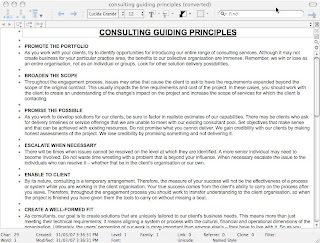
to this:
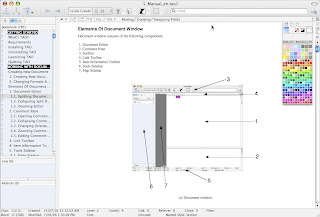
and more. TAO has a lot of features, including the ability handle outlined multi dimensional data, and if I were looking for an outliner, I would give it very serious consideration. If the developer were to turn his hand to the creation of organizer software, I would be most interested to see the results. Alas, the current product does not meet my needs, but it certainly deserves more attention.
Notae version 2.0.3 costs $US29, and it shows promise but lets itself down on the details. The basic interface is fairly plain:
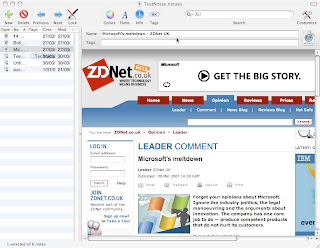
The scrunched up columns on the left are ugly and with the Tag Browser open, it becomes a bit messy.
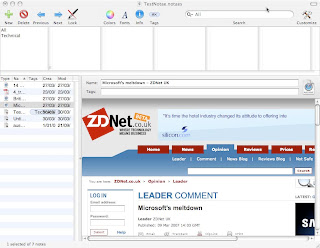
I think applications that implement their Tag Browsers as floating panes or pop out trays achieve a more appealing look.
Notae can import PDFs, Word documents, web archives, weblocs and various graphics. Excel, Open Office and other "foreign" file formats it doesn't handles usefully: you see a file icon, but you can't launch the application to open the file from inside Notae. Notae stores its content in an SQL database, and I'm assuming that it copies the foreign files into that database. However, you can't get them back out again. The preview of files is rather slow.
Sorry, this is not going to work for me.
Sidenote 1.7.2 is donationware. It's a nice little app, and while it only handles text, graphics and PDFs, for some people that will be enough. Sidenote lurks at the side of the screen, and pops out when you move the mouse near it. It doesn't resize big graphics, which is a nuisance, but the interface is clean and simple:
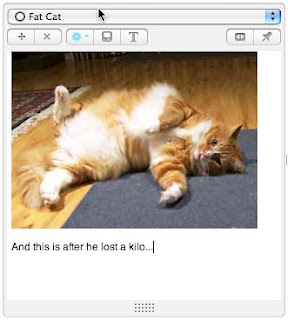
and here's a text note:
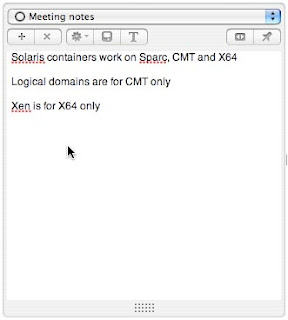
I would consider this more as a parking lot for stuff that you need to capture quickly and sort later. Not what I'm looking for, but Sidenote may suit you.
Scrivener version 1.02 costs $US34.99, and bills itself as a project management tool for writers. It imports images, Quicktime files, PDF, web archives, Word documents and text files. Unfortunately it converts Word documents to RTFD, so formatting may be lost. However, the HTML rendering on web archives is good. It isn't the application that I am looking for, but it does have some nice features. The interface is innovative (I mean that word in a positive sense, not in the silly way used by IT marketing people). There are several views. The corkboard view shows you a synopsis of each item, apparently pinned to a corkboard:
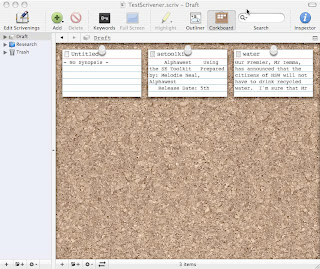
The outliner view looks like this:
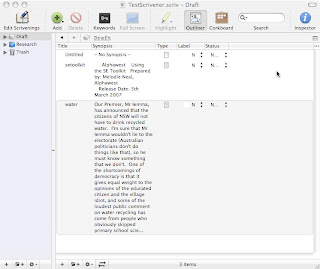
and in either view you can right click on an item and select "Reveal in Binder", which will show you where the item is in the panel on the left. A full screen view looks like this:
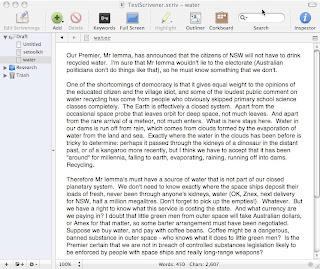
Scrivener also has a floating scratch pad:
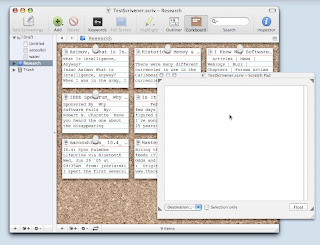
There a a lot of other handy features, such as the ability to take a "snap shot" of a Scrivener project before you make changes, and to roll back to that snap shot if your changes don't work out. Scrivener is designed to let you sort and reshuffle a large number of small pieces of information, and to collate them into larger documents. Scrivener isn't for me, but if you are a writer it may be for you.
JournalX version 2.2.9 costs 23€ (23 Euros, about $US30 according to Xe.com). It supports many file formats, including: QuickTime movie QuickTime audio support, most Text formats (pdf, txt, rtf, rtfd, doc, html graphics (jpg, pict, bmp, gif), PostScript (eps, ps), web archives and weblocs. All this and still no support for Pages or Open Office. I shall rant separately upon the subject of file format support.
The interface is simple, and not very flexible:
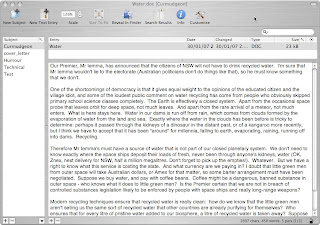
The pane at the left is the "Subject" area, and you import documents into Subjects. Unfortunately, attempting to import a Pages document called cover_letter resulted in a Subject called cover_letter, containing documents called Contents, index.xml and thumbs. There is no tagging, and no subfolders, though you can encrypt a database (but no record level encryption).
JournalX also has a floating "Subject Panel":

drag a file onto it, and it opens to reveal the current list if subjects. Drop your file on the subject of your choice:
The wide range of input formats is good, and because JournalX stores its contents in a flat file structure, you can get things back out in the same format that they went in (except that Pages document, which has been converted to something unusable!) but JournalX doesn't provide several features that I cannot do without, particularly tagging and subfolders, and there is no encryption support.
Dossier version 2.3.1 costs $US25. Having tinkered with Dossier for about 20 minutes, I have to say that the developers need to spend some quality time with average Mac users, and find out how people expect software to behave. The Dossier folk appear not to have heard of (or perhaps have not understood) the Principle of Least Surprise, which I seem to think was expounded in E.S. Raymond's 'Art of Unix Programming'. This is a general principle, which can be applied almost any sort of design, and the bottom line is: "do the thing that will surprise the user least". So if I am working in a Dossier database called TestDossier2, and I select File->Import, when I select files to import, I expect them to be imported into the active database. I absolutely do not expect to be prompted for a new database name, which is what happens. Dossier then proceeds to import the files into the new database. This not helpful. Furthermore, if I import a file through the File->Import workflow or by dragging a file into the document pane, I expect the results to look the same. They do not. Here is the File->Import version of a document:
and here is the dragged version of the same document:
The documentation is sparce, there is no support for tagging or sub folders, and the whole application is just too basic and unfinished for serious consideration.
Process 2 version 2.0.2 costs $US39 and the developers describe it as "Your sublime outlining application". Their web site seems to have been afflicted with a marketing graduate, but if we ignore the "inner child" and "imaginative play" falderal, the product itself is quite interesting. It's somewhere between an outliner, a project management tool and a collaboration system. Multiple users on the same network can work on the same project (using Bonjour). The documentation is not long, but it's adequate because things work the way you expect them to work (see previous comment on Principle of Least Surprise). The interface is straightforward:
seen here with the Information panel popped out on the right. I have added a fairly complex Word document as a "Process Source", and the field codes have not been handled gracefully, but the content is readable. Adding a "foreign" document as a Source is handled sensibly:
and Process knows which external application to launch to open a file for editing. Unfortunately, Process links to files in their original locations, and its ability to handle multiple file formats is a bit limited. Process can import OPML, OmniOutliner and Process 1 Data files. Process is able to export to OPML, HTML, OmniOutliner, RTF and TXT. It can link to other file formats, and it can preview some, such as Word and Photoshop. There is no support for tagging or encryption, and the screen refresh can be a little sluggish. Process doesn't meet my needs, but it has a lot to offer, particularly if you need a collaborative environment.
And that, I believe, is that: end of the list of applications. My Powerbook's hard disk is littered with discarded software and test documents and databases. I'm going to have a quick Google about, to see if I have missed any significant contender, and then I am going to make my final decision.
Forth coming posts will include:
Part 5
OK folks, here we go with part five, and I have to bring this to a conclusion soon: I urgently need to make a final selection so that I can get some work done. My currently preferred app has expired its demo period, and I am having to use a less satisfactory product until I get to the end of my reviews. No candidate application has so far met all my requirements (see Part 1), but there are still a few applications to consider. On the list we now have:
TAO
Notae
Sidenote
Scrivener
JournalX
Dossier
Process 2
TAO version 1.8 costs $US30, and describes itself as an outliner rather than a document management system. Specifically, it calls itself "T Advanced Outliner", and I have to say that this bold claim is well supported by the product quality. TAO comes with a little learning curve, but with good documentation, which is supplied as a TAO document. The interface is spartan in its simplicity, but yet all the features you might want are just waiting to be enabled. So you can go from this:

to this:

and more. TAO has a lot of features, including the ability handle outlined multi dimensional data, and if I were looking for an outliner, I would give it very serious consideration. If the developer were to turn his hand to the creation of organizer software, I would be most interested to see the results. Alas, the current product does not meet my needs, but it certainly deserves more attention.
Notae version 2.0.3 costs $US29, and it shows promise but lets itself down on the details. The basic interface is fairly plain:

The scrunched up columns on the left are ugly and with the Tag Browser open, it becomes a bit messy.

I think applications that implement their Tag Browsers as floating panes or pop out trays achieve a more appealing look.
Notae can import PDFs, Word documents, web archives, weblocs and various graphics. Excel, Open Office and other "foreign" file formats it doesn't handles usefully: you see a file icon, but you can't launch the application to open the file from inside Notae. Notae stores its content in an SQL database, and I'm assuming that it copies the foreign files into that database. However, you can't get them back out again. The preview of files is rather slow.
Sorry, this is not going to work for me.
Sidenote 1.7.2 is donationware. It's a nice little app, and while it only handles text, graphics and PDFs, for some people that will be enough. Sidenote lurks at the side of the screen, and pops out when you move the mouse near it. It doesn't resize big graphics, which is a nuisance, but the interface is clean and simple:

and here's a text note:

I would consider this more as a parking lot for stuff that you need to capture quickly and sort later. Not what I'm looking for, but Sidenote may suit you.
Scrivener version 1.02 costs $US34.99, and bills itself as a project management tool for writers. It imports images, Quicktime files, PDF, web archives, Word documents and text files. Unfortunately it converts Word documents to RTFD, so formatting may be lost. However, the HTML rendering on web archives is good. It isn't the application that I am looking for, but it does have some nice features. The interface is innovative (I mean that word in a positive sense, not in the silly way used by IT marketing people). There are several views. The corkboard view shows you a synopsis of each item, apparently pinned to a corkboard:

The outliner view looks like this:

and in either view you can right click on an item and select "Reveal in Binder", which will show you where the item is in the panel on the left. A full screen view looks like this:

Scrivener also has a floating scratch pad:

There a a lot of other handy features, such as the ability to take a "snap shot" of a Scrivener project before you make changes, and to roll back to that snap shot if your changes don't work out. Scrivener is designed to let you sort and reshuffle a large number of small pieces of information, and to collate them into larger documents. Scrivener isn't for me, but if you are a writer it may be for you.
JournalX version 2.2.9 costs 23€ (23 Euros, about $US30 according to Xe.com). It supports many file formats, including: QuickTime movie QuickTime audio support, most Text formats (pdf, txt, rtf, rtfd, doc, html graphics (jpg, pict, bmp, gif), PostScript (eps, ps), web archives and weblocs. All this and still no support for Pages or Open Office. I shall rant separately upon the subject of file format support.
The interface is simple, and not very flexible:

The pane at the left is the "Subject" area, and you import documents into Subjects. Unfortunately, attempting to import a Pages document called cover_letter resulted in a Subject called cover_letter, containing documents called Contents, index.xml and thumbs. There is no tagging, and no subfolders, though you can encrypt a database (but no record level encryption).
JournalX also has a floating "Subject Panel":

drag a file onto it, and it opens to reveal the current list if subjects. Drop your file on the subject of your choice:

The wide range of input formats is good, and because JournalX stores its contents in a flat file structure, you can get things back out in the same format that they went in (except that Pages document, which has been converted to something unusable!) but JournalX doesn't provide several features that I cannot do without, particularly tagging and subfolders, and there is no encryption support.
Dossier version 2.3.1 costs $US25. Having tinkered with Dossier for about 20 minutes, I have to say that the developers need to spend some quality time with average Mac users, and find out how people expect software to behave. The Dossier folk appear not to have heard of (or perhaps have not understood) the Principle of Least Surprise, which I seem to think was expounded in E.S. Raymond's 'Art of Unix Programming'. This is a general principle, which can be applied almost any sort of design, and the bottom line is: "do the thing that will surprise the user least". So if I am working in a Dossier database called TestDossier2, and I select File->Import, when I select files to import, I expect them to be imported into the active database. I absolutely do not expect to be prompted for a new database name, which is what happens. Dossier then proceeds to import the files into the new database. This not helpful. Furthermore, if I import a file through the File->Import workflow or by dragging a file into the document pane, I expect the results to look the same. They do not. Here is the File->Import version of a document:

and here is the dragged version of the same document:

The documentation is sparce, there is no support for tagging or sub folders, and the whole application is just too basic and unfinished for serious consideration.
Process 2 version 2.0.2 costs $US39 and the developers describe it as "Your sublime outlining application". Their web site seems to have been afflicted with a marketing graduate, but if we ignore the "inner child" and "imaginative play" falderal, the product itself is quite interesting. It's somewhere between an outliner, a project management tool and a collaboration system. Multiple users on the same network can work on the same project (using Bonjour). The documentation is not long, but it's adequate because things work the way you expect them to work (see previous comment on Principle of Least Surprise). The interface is straightforward:

seen here with the Information panel popped out on the right. I have added a fairly complex Word document as a "Process Source", and the field codes have not been handled gracefully, but the content is readable. Adding a "foreign" document as a Source is handled sensibly:

and Process knows which external application to launch to open a file for editing. Unfortunately, Process links to files in their original locations, and its ability to handle multiple file formats is a bit limited. Process can import OPML, OmniOutliner and Process 1 Data files. Process is able to export to OPML, HTML, OmniOutliner, RTF and TXT. It can link to other file formats, and it can preview some, such as Word and Photoshop. There is no support for tagging or encryption, and the screen refresh can be a little sluggish. Process doesn't meet my needs, but it has a lot to offer, particularly if you need a collaborative environment.
And that, I believe, is that: end of the list of applications. My Powerbook's hard disk is littered with discarded software and test documents and databases. I'm going to have a quick Google about, to see if I have missed any significant contender, and then I am going to make my final decision.
Forth coming posts will include:
- My choice of litter organizer: what and why.
- A rant on file format support in Mac applications (I can feel it building up).
- A general chat on other useful software and web sites that I have found as I have trawled the Internet looking for organizer software.
Subscribe to:
Posts (Atom)
Addthis


