Darkness Falls
So I arrived at the office on a Tuesday morning, put my Mac Book Pro on my desk, opened the lid and hit the space bar and nothing happened. It took a few seconds for me to register the nothing, because it was so totally unexpected; I felt the first twinge of alarm as I forced the machine to reboot, and still got a blank, black screen. A few minutes of emergency troubleshooting procedures, including removing and replacing the battery, and I knew I was in trouble. I was pretty sure that the machine was powering up, but the screen was dead. Plugging in my external monitor didn't help: the external monitor announced that it was not getting a signal, and went back to sleep.
And of course it was a busy morning, I was due in meetings, and I really didn't have time for a technology meltdown. Fortunately I had cleared all email requiring an urgent response earlier that morning, while I having my first cup of coffee. I could access email from my iPhone, but many of the documents that I needed were stuck in the corporate document management system, which is built on Interwoven, and can only be accessed via Outlook or Internet Explorer. So I logged a call with our Internal Support people. and got on with the meetings.
A meeting or so later, Internal Support handed me a loan laptop, a revolting piece of junk (I won't name the brand) running Windows XP at the speed of an arthritic snail. I struggled through a few more hours, my stress levels rising every time some absurd piece of Microsoft nonsense got between me and getting things done. Finally I got a break, and called the Apple support line. A pleasant young woman walked me through the inevitable diagnostic procedures, and confirmed what I already suspected: the dreaded nVidia 8600 bug had finally struck down my machine. I had known it was possible, but the reports were so long ago that I hoped I had been spared.
I wrote down my case number, and walked down to the Apple Store. I had already checked, and the Genius Bar was booked out until Friday, but I was due to go to Melbourne for a few days break on Saturday, I had no intention of going without a Mac. The Genius Bar people wait listed me, and happily I ran into an old friend, so I had someone to chat to while I waited. The wait was only about 20 minutes, and the resident genius confirmed the diagnosis: dead nVidia processor. At least 5 days wait for a repair. Arrrggghhh!!
So I did what any DINK with an Amex card does: I left the Genius Bar, went down the retail level, and bought a new 15.4" Mac Book Pro. Fortunately my friend was there to provide input, since I was a bit stressed, and would have overlooked the Mini DP to VGA adapter that I needed.
I then went back to the office, wrapped up the working day, and headed home to start reconstructing my electronic life. I had been planning to buy a new Mac Book, but I had really hoped to wait until Oracle finalises the purchase of Sun, and pays out my shares. I had intended to take the money (whatever there is of it) and put it towards new Mac, which would have given me a nice sense of closure. What I hadn't planned was having to conduct an emergency rebuild. Fortunately I had done a Time Machine backup on the preceding Sunday night, but I didn't just want to restore from that. I really wanted a clean install of Snow Leopard. So I started by booting of the Snow Leopard DVD, and getting the install running while I did some planning.
The first thing I load, always, is Synium's Cleanapp. Then Camino, EagleFiler, 1Password, Vmware Fusion, Curio, Evernote. I recovered bookmarks, restored my essential data from Time Machine, and by the next day I could work. I still have a fair bit of clean up to do, and I need to take a cold, hard look at some of my old data and convince myself that it really needs to be on my laptop, rather than archived on an external disk where I can get it if I really need it. But that can happen over the next few days, while I am on leave, because I getting renovations done and need to be at home. But apart from the unexpected expense, to really wasn't that bad.
Showing posts with label mac. Show all posts
Showing posts with label mac. Show all posts
Saturday, October 03, 2009

Tuesday, October 30, 2007
Happy Leoparday
I got my copy of Leopard on Friday, and spent much of the weekend upgrading and testing my old 15" Powerbook and my new 15" MacBook Pro. I started on the Powerbook, because I wanted some confidence that my critical apps would work, and retain their data, before I hosed my MacBook: that's my "production" machine, and if it doesn't work, neither do I.
And I wanted to do a clean install, rather than an upgrade, because I was pretty sure that I had some old and ugly kernel level stuff (from some work I did last year) that had migrated from the Powerbook to the MacBook when I transitioned a few months back. I had some problems with drivers for my Huawei wireless modem, and there were some apps installed via Fink, and a shattered copy of Nmap that never compiled cleanly, and caused the Mac to lock solid. I wanted a fresh start, so I started by doing a full backup of the MacBook to an external drive, and while that was running, I sat down with the Powerbook and made sure that there was nothing on it that I didn't have backed up somewhere. I made notes of some config settings (not enough, as it turned out). Then I put the disk in the drive, and did a fresh install.
Leopard installed without problems. I logged in, resisted the urge to play with it (well, mostly), and started installing test apps. The Powerbook spends most of its life in a drawer - it had zero battery charge when I got it out - and I would only use it now if the MacBook died (perish the thought!) or I had to test something requiring two Macs; I'm afraid I don't even keep the machines in sync. The things I cared most about were DevonThink and EagleFiler: as long as I could install them, and restore their data, I knew I could proceed safely. Neither app had a problem, I restored their data from backups, and everything worked.
I moved on to installing a few other things, Firefox, Thunderbird and so on. Then I loaded iWork'08 and iLife'08 (family pack licenses, I'm legal). Everything worked, except iMovie, which said the Powerbook's processor was too slow, and refused to install.
Once the MacBook had finished backing up, I installed Leopard on it, and started doing a proper restore of everything I use every day, starting with CleanApp: I wanted a good understanding of where every package had put every file on the disk. I loaded DevonThink and EagleFiler, and restored their data. I loaded Microsoft Office, iWork and iLife, and OpenOffice. I loaded Firefox and Thunderbird and Curio. I loaded VMware fusion, and restored my virtual machines (they work fine). I imported my iPhoto library, and a whole bunch of other photos that were lying about the place. I spent a long time waiting for iTunes to grind through all my music. In fact I spent a lot of the weekend waiting for data to move from one disk to another, to import or reindex or whatever. I got quite a bit of house cleaning done while I was waiting.
Things that didn't work: iMovie flatly refused to launch on the MacBook, and I was just sitting there thinking "well that seems a bit sad" when Software Update woke up and offered me a bunch of patches: I loaded them, and they sorted iMovie out. Launch2Net, which is what I use to manage the Huawei modem is not quite ready for Leopard, but the nice people at Nova Media have a beta of their next version available, and it seems pretty stable. This is where I found out that I had forgotten to note down how I had got the modem going in the first place. For reasons that elude me, Optus ship this wireless modem to customers and they only support it under Windows. Vodaphone ship the same unit with Mac support. I work for a subsidiary of Optus (and we use these modems for remote access).It's taken me a while to get it going under Mac OS X, and the final answer was to install it on a Windows machine, look at the configuration it used there, get the name of the Optus APN, and then put that into the Launch2Net config on the Mac. Tiresome, but it works.
It looks like I may have problems with the drivers for my CanoScan 9900F. Canon's Mac support is pathetic. I haven't attempted to install the software, I'm going to wait a few days, and see if anyone else has anything to report. The VueScan folks don't seem to be quite ready, either, but I shall compose myself in patience for now. This scanner, its software and I have never entirely got along, so its days may be numbered.
Adobe have not covered themselves in glory, either. I have a copy of Acrobat 6.0 Standard, which includes both the Mac and Windows versions. Acrobat 8 standard is Windows only, so if I want to upgrade, I have to go to Acrobat 8 Professional. Not happy, and haven't decided what to do yet. Adobe reckons that Photoshop Elements 3.0 isn't supported on Leopard, but it seems to work for me - I only need basic functions most of the time.
I haven't had time to test everything, or even try somethings, yet. However, the machine seems faster, I love the new Spaces feature, Spotlight is much better - boolean searching! - and Cover Flow is great. Time Machine is absolutely awesome. Many people have complained about the new transparent dock. I'm reserving judgement for now. I'm not keen on the transparent menu bar and I absolutely hate, loathe and abominate the semi transparency of right click pop up menus. The person who thought this up should be forced to do Windows installs for a few months, and who ever approved the idea and let it into the final product should be compelled to do level 1 Windows technical support for a couple of years. Semi transparent menus are beyond stupid, they are twee: cute for the sake of cuteness, while meaningfully degrading the user experience. If I open a menu, it's because I want to see what is on it, which I cannot do if the text is tangled up with the image behind it. Wrong, bad, inexcusably stupid: how did this feature survive beta testing? Did you do user acceptance testing, and if so, who wrote the test plan? Were they sober when they did it? If there is a way to disable this ridiculously pretentious bit of business, please tell me. My eyeballs are approaching their half century, and I need nice clear type (and new glasses).
But over all, fantastic. There are so many new things to look at that I hardly know where to start. When I've had a chance to try things out (and I'm on a training course for the next two days), I will try to report in more detail.
Thursday, October 18, 2007
More feedback
A couple more questions have come in. Nick says "I'm curious to know why don't you use Curio for filing as well. It seems to me that it can keep track of files and docs as well or better than Eagle Filer (which I have tried at least four times in the past 6 months and found to be too buggy)."
First of all, Nick, what bugs are you seeing? I run EagleFiler constantly, and I haven't had a single problem - is there some subtle thing that I am missing? Now, to answer your question: Curio is not designed as a "filing" application, but as a visual thinking environment. Certainly you could use it to organize files, but in my mind the Curio metaphor is a bit like pinning documents to a cork board, rather than placing them in a filing cabinet, which is the way I think of Eaglefiler. Further more, Curio does not lend itself to creating simple text documents on the fly - it needs to create a whole idea space every time. I use Curio to capture bulk information (I'm in a training course now, and Curio has my morning's notes in it), but if I just need to scribble down a URL or a password, it goes to EagleFiler. I think what I am trying to say is that EagleFiler suits the way my brain works when it comes to litter sorting. Your mileage may vary.
TheWolf asks "What I'm wondering is why you gave up using DevonThink Pro, because all the other software you reviewed was discussed more, but because Devon was your older software, it didn't seem to be mentioned much. What makes EagleFiler so much better than DevonThink? I'm trying to decide if I should try DevonThink or not. It seems to have a learning curve."
In answer: I haven't stopped using DevonThink Pro, but I use it in slightly different ways. I think I am using DT less, now that I have EagleFiler, but DevonThink still provides me great functionality for specific purposes. I find DT slower to start up than EagleFiler, but that is probably because I use DT to store and manage really big documents, mostly technical manuals in PDF format. The problem I had with DevonThink (apart from its learning curve, which is steeper than EagleFiler's) is that it doesn't always let you get a document back out in quite the same format that it went in. I just retested this, by importing and then exporting a fairly simple Word document. DevonThink preserved the text pretty well, but ate the footers. This was a show stopper for me. I've also had a couple of incidents where the database corrupted, and I had to restore from backups.
I'm happy to expand on this if anyone needs more detail. If you want to chat offline, look me up on LinkedIn, and you should be able to work out my email address.
A couple more questions have come in. Nick says "I'm curious to know why don't you use Curio for filing as well. It seems to me that it can keep track of files and docs as well or better than Eagle Filer (which I have tried at least four times in the past 6 months and found to be too buggy)."
First of all, Nick, what bugs are you seeing? I run EagleFiler constantly, and I haven't had a single problem - is there some subtle thing that I am missing? Now, to answer your question: Curio is not designed as a "filing" application, but as a visual thinking environment. Certainly you could use it to organize files, but in my mind the Curio metaphor is a bit like pinning documents to a cork board, rather than placing them in a filing cabinet, which is the way I think of Eaglefiler. Further more, Curio does not lend itself to creating simple text documents on the fly - it needs to create a whole idea space every time. I use Curio to capture bulk information (I'm in a training course now, and Curio has my morning's notes in it), but if I just need to scribble down a URL or a password, it goes to EagleFiler. I think what I am trying to say is that EagleFiler suits the way my brain works when it comes to litter sorting. Your mileage may vary.
TheWolf asks "What I'm wondering is why you gave up using DevonThink Pro, because all the other software you reviewed was discussed more, but because Devon was your older software, it didn't seem to be mentioned much. What makes EagleFiler so much better than DevonThink? I'm trying to decide if I should try DevonThink or not. It seems to have a learning curve."
In answer: I haven't stopped using DevonThink Pro, but I use it in slightly different ways. I think I am using DT less, now that I have EagleFiler, but DevonThink still provides me great functionality for specific purposes. I find DT slower to start up than EagleFiler, but that is probably because I use DT to store and manage really big documents, mostly technical manuals in PDF format. The problem I had with DevonThink (apart from its learning curve, which is steeper than EagleFiler's) is that it doesn't always let you get a document back out in quite the same format that it went in. I just retested this, by importing and then exporting a fairly simple Word document. DevonThink preserved the text pretty well, but ate the footers. This was a show stopper for me. I've also had a couple of incidents where the database corrupted, and I had to restore from backups.
I'm happy to expand on this if anyone needs more detail. If you want to chat offline, look me up on LinkedIn, and you should be able to work out my email address.
Monday, October 01, 2007
EagleFiler and Curio: 6 month update
And it's the Labour Day long weekend here in Sydney, so I have time to catch up a bit on this blog. Outside in the garden, Spring is springing: everything seems to be flowering or putting out new shoots. The macadamia tree at the front of the house has flowered profusely, bringing bees from far and wide. The flowers are now fading (and dropping all over my Prius), and soon the nuts will begin to set. From where I sit, I can see the big magenta and orange flower that one of my bromeliads has produced this week, and beyond that, Percy's pink and white ears sticking up from the long grass under the lilli pilli tree. Now Mungo has turned up to give Percy a wash: shortly there will be inter-cat biffage.
It's now been 6 months since I started using EagleFiler and Curio regularly, and I seem to recall at least one person requesting an update on how I found the products as I became more familiar with them. I have to say that I am still delighted with both. I do have to have a regular filing session for EagleFiler, where I sit down and categorize and tag all the things that have been tossed in randomly, and this is an ideal background task for conference calls and unproductive meetings. But even if documents are still sitting in the Unfiled bucket, they are still locatable. EagleFiler has proved stable: several updates have been released (now on 1.2.5), though I haven't noticed any bugs myself. Verdict: no regrets, I'd buy it again.
Curio has probably made more of an impact on my life. EagleFiler has helped me enforce order, but Curio has actually changed the way I work. I use it constantly, more every day as I find new ways to harness its power. I have stopped taking a notebook to meetings - now I take my Mac with Curio open. It is fantastic for taking notes, because you can draw little diagrams as you go, without needing to open a separate app. A few days back, I was sitting in a training session at HDS. The purpose of the session was for a senior HDS storage engineer to brief a group of us, all consutants working for distributors, on the features and application of a new piece of hardware. I took my notes direct into Curio, copying the diagrams off the white board using Curio's drawing tools. The engineer on my right, using a Windows machine, had to stop and get Visio started to copy the diagrams.
And Curio diagrams look nice: I was at a meeting on Friday, with several senior people from my company, and I was using a Curio diagram to explain the data flows for a particular solutions. They all asked for a copy of the diagram before the end of the meeting. Last week I spent three days in a training course for the ArcSight Enterprise Security Management product (this is of no interest to anyone except the people who have to take care of security in big network - it costs a great deal of money to implement - so I will not be blogging about it). Again, I took my notes straight into Curio, illustrated with screen shots. Being able to "draw" on the screen shots with the pen tool is really helpful for explaining how something on a complex interface is supposed to work.
I have one simple Curio tip to offer: set the idea space to show pages breaks (View -> Show Page Breaks) if you want to be able to print things easily, other wise you may have to move things around to get them within page boundaries.
Verdict: I love it, and I would buy it again.
And it's the Labour Day long weekend here in Sydney, so I have time to catch up a bit on this blog. Outside in the garden, Spring is springing: everything seems to be flowering or putting out new shoots. The macadamia tree at the front of the house has flowered profusely, bringing bees from far and wide. The flowers are now fading (and dropping all over my Prius), and soon the nuts will begin to set. From where I sit, I can see the big magenta and orange flower that one of my bromeliads has produced this week, and beyond that, Percy's pink and white ears sticking up from the long grass under the lilli pilli tree. Now Mungo has turned up to give Percy a wash: shortly there will be inter-cat biffage.
It's now been 6 months since I started using EagleFiler and Curio regularly, and I seem to recall at least one person requesting an update on how I found the products as I became more familiar with them. I have to say that I am still delighted with both. I do have to have a regular filing session for EagleFiler, where I sit down and categorize and tag all the things that have been tossed in randomly, and this is an ideal background task for conference calls and unproductive meetings. But even if documents are still sitting in the Unfiled bucket, they are still locatable. EagleFiler has proved stable: several updates have been released (now on 1.2.5), though I haven't noticed any bugs myself. Verdict: no regrets, I'd buy it again.
Curio has probably made more of an impact on my life. EagleFiler has helped me enforce order, but Curio has actually changed the way I work. I use it constantly, more every day as I find new ways to harness its power. I have stopped taking a notebook to meetings - now I take my Mac with Curio open. It is fantastic for taking notes, because you can draw little diagrams as you go, without needing to open a separate app. A few days back, I was sitting in a training session at HDS. The purpose of the session was for a senior HDS storage engineer to brief a group of us, all consutants working for distributors, on the features and application of a new piece of hardware. I took my notes direct into Curio, copying the diagrams off the white board using Curio's drawing tools. The engineer on my right, using a Windows machine, had to stop and get Visio started to copy the diagrams.
And Curio diagrams look nice: I was at a meeting on Friday, with several senior people from my company, and I was using a Curio diagram to explain the data flows for a particular solutions. They all asked for a copy of the diagram before the end of the meeting. Last week I spent three days in a training course for the ArcSight Enterprise Security Management product (this is of no interest to anyone except the people who have to take care of security in big network - it costs a great deal of money to implement - so I will not be blogging about it). Again, I took my notes straight into Curio, illustrated with screen shots. Being able to "draw" on the screen shots with the pen tool is really helpful for explaining how something on a complex interface is supposed to work.
I have one simple Curio tip to offer: set the idea space to show pages breaks (View -> Show Page Breaks) if you want to be able to print things easily, other wise you may have to move things around to get them within page boundaries.
Verdict: I love it, and I would buy it again.
Wednesday, September 19, 2007
Personal Brain
First, my thanks to Stan Hoffman for bringing this most interesting piece of software to my attention. Personal Brain is produced by The Brain , and is their personal/home office offering. It runs on both Mac OS X and Windows, and combines mind mapping with document organization. The basic version, which does mind mapping but does not allow you to store attachments, is free. This is amazingly generous, because it is a beautiful and extremely useful piece of software. The Core version, which allows you to attach files and folders to your "thoughts", and has a host of other features is $US149.95. The Pro version, with yet more features and the right to run the software on 2 machines, is $US249.95. See the FAQ for the full description. There is a 30 day demo version, and I am currently running it on my Mac Book Pro and on my office Windows XP laptop.
When I first loaded this software, I was pretty sure that I would buy it before the end of the trial, but after a month I'm afraid it has not managed to win me over. I don't think that that reflects any problems with the software - it's a great product - but says more about the way I work. I've used mind mapping techniques for years, having learned them from Tony Buzan's books. If you haven't seen these, look for either "How to Mind Map" or "The Mind Map Book" as a starting point; or for instant gratification, go to James Cook University's JCU Study Skills Online. I believe I've said this before: if you don't "get" mind mapping on paper, I don't think you will like it in software. Try a low tech, paper and pencil, approach before investing in software. I find mind maps useful for some things, such as helping me memorize large chunks of theory for exams, or for organizing disparate bits of information if I'm writing something complicated, like an operations manual. But I don't find the technique useful for day-to-day life.
Furthermore, when I draw a mind map it always has little pictures and symbols, not just boxes. Buzan recommends the use of colour and pictures, and I'm used to working that way, so I find Personal Brain a bit limiting: you can't draw in it in the way you can in Curio.
Other problems: Personal Brain can only index the contents of documents if it imports them, and on import it moves the document into a subdirectory in its own directory. It doesn't change the name or format of the document, but it does relocate it, which means that the only simple way to access the document henceforth is through Personal Brain. Personal Brain's directory structure is part of its internal organization, and not intended to be accessed by humans:

Which is going to annoy me, it's another layer of abstraction I can do without. EagleFiler works for me because, while the contents are held in a dedicated directory structure, the structure uses my folder names as directory names, so I can browse it raw on the disk if I need to; this also means that I can easily access the files for use in Curio (of which more, later). Personal Brain can't index Open Office documents - it's a PC application that has been ported to Mac, and while the port is good (it seems faster on the Mac than on a Windows machine), the heritage shows a bit.
And worst of all: no workflow. No way to save documents from the web directly to the Brain, everything has to be saved to disk and imported or linked to the Brain. Personal Brain is not meant to be a litter sorter, so the developers have not included any workflow for litter "collection".
I like Personal Brain. But I can't find a place for it in my working life. Your mileage may vary: I can commend the product for stability on both platforms, and it's certainly worth a look.
First, my thanks to Stan Hoffman for bringing this most interesting piece of software to my attention. Personal Brain is produced by The Brain , and is their personal/home office offering. It runs on both Mac OS X and Windows, and combines mind mapping with document organization. The basic version, which does mind mapping but does not allow you to store attachments, is free. This is amazingly generous, because it is a beautiful and extremely useful piece of software. The Core version, which allows you to attach files and folders to your "thoughts", and has a host of other features is $US149.95. The Pro version, with yet more features and the right to run the software on 2 machines, is $US249.95. See the FAQ for the full description. There is a 30 day demo version, and I am currently running it on my Mac Book Pro and on my office Windows XP laptop.
When I first loaded this software, I was pretty sure that I would buy it before the end of the trial, but after a month I'm afraid it has not managed to win me over. I don't think that that reflects any problems with the software - it's a great product - but says more about the way I work. I've used mind mapping techniques for years, having learned them from Tony Buzan's books. If you haven't seen these, look for either "How to Mind Map" or "The Mind Map Book" as a starting point; or for instant gratification, go to James Cook University's JCU Study Skills Online. I believe I've said this before: if you don't "get" mind mapping on paper, I don't think you will like it in software. Try a low tech, paper and pencil, approach before investing in software. I find mind maps useful for some things, such as helping me memorize large chunks of theory for exams, or for organizing disparate bits of information if I'm writing something complicated, like an operations manual. But I don't find the technique useful for day-to-day life.
Furthermore, when I draw a mind map it always has little pictures and symbols, not just boxes. Buzan recommends the use of colour and pictures, and I'm used to working that way, so I find Personal Brain a bit limiting: you can't draw in it in the way you can in Curio.
Other problems: Personal Brain can only index the contents of documents if it imports them, and on import it moves the document into a subdirectory in its own directory. It doesn't change the name or format of the document, but it does relocate it, which means that the only simple way to access the document henceforth is through Personal Brain. Personal Brain's directory structure is part of its internal organization, and not intended to be accessed by humans:

Which is going to annoy me, it's another layer of abstraction I can do without. EagleFiler works for me because, while the contents are held in a dedicated directory structure, the structure uses my folder names as directory names, so I can browse it raw on the disk if I need to; this also means that I can easily access the files for use in Curio (of which more, later). Personal Brain can't index Open Office documents - it's a PC application that has been ported to Mac, and while the port is good (it seems faster on the Mac than on a Windows machine), the heritage shows a bit.
And worst of all: no workflow. No way to save documents from the web directly to the Brain, everything has to be saved to disk and imported or linked to the Brain. Personal Brain is not meant to be a litter sorter, so the developers have not included any workflow for litter "collection".
I like Personal Brain. But I can't find a place for it in my working life. Your mileage may vary: I can commend the product for stability on both platforms, and it's certainly worth a look.
Tuesday, August 07, 2007
Joy of New MacBook Pro
Well my new MacBook finally arrived last week (delays caused by "constrained supply", which I interpret as "we can't build 'em fast enough"), and I moved my working environment from my trusty Powerbook to the new machine over the weekend. Yesterday (Monday) was the new machine's first day of work, and it worked like a dream. So I'd like to say a few words of thanks to the people whose software helped me clean up the mess on the old system, and achieve a quick and orderly transition.
CleanApp
Cleanup ($US10) comes from the lovely people at Synium Software . You install it, enable its logging mode, and it watches everything you install, and tracks the files that get touched. When you want to uninstall something, you drag it to the CleanApp windows, and it gives you a list of all the files involved with that package (including files that you would never have located without CleanApp, because they have no obvious connection with the application you are trying to delete). CleanApp gives you option to delete the files, move them to the trash or create an archive. Obviously you need to be careful - don't just delete files that you don't understand. But used carefully, CleanApp can help you recover a lot of disk space. If you didn't have CleanApp installed when you first installed something that you now want to get rid of, just reinstall the offending app, so that CleanApp can get a look at it, and then use CleanApp to wipe the files off your disk.
Spring Cleaning
Spring Cleaning comes from SmithMicro Software . I haven't tried all of it many features, but the two utilities that I have used worked well, and helped me clean up a mess caused by years of lackadaisical file management on my part. In the past, new laptops have generally been handed to me by someone from internal IT, and I've usually had to move my environment in haste, because I've been in the middle of some big infrastructure deployment project, with very little spare time, and the IT person has had an urgent need to reclaim my old laptop, to be reloaded and given to someone else. [There is a sort of hierarchy of laptop allocation in a lot of places: the engineers and the project managers tend to get the newest and best machines, and admin staff get cast offs]. So every time I've created a directory on the new machine, called something like "Old Laptop", and copied the files I needed to keep from the old machine to the new machine, each time promising myself that I would clean up as soon as my current project finishes.
Cleanups never happened, and after a few generations of laptops, going from Windows to Linux to Windows to Mac (depending on my employer and the capabilities of the hardware), the nested directories had got quite deep, and the number of duplicated files was very large.
Spring Cleaning's Duplicate Finder helped me get rid of a lot of unneeded files, and the Quick Compare utility allowed me to identify the differences between directories full of files, and synchronize them easily. I would strongly recommend making a backup copy of your data before you start using Spring Cleaning - the application can't protect you from synchronizing old over new files, if you make a mistake, but used thoughtfully and with care, this is a great set of software.
So, having recovered gigabytes of space, and achieved a level of order that I had never thought to achieve, I moved everything to the new machine in an afternoon. Nothing needed reinstalling, and only a couple of things needed their license strings reloaded.
Well my new MacBook finally arrived last week (delays caused by "constrained supply", which I interpret as "we can't build 'em fast enough"), and I moved my working environment from my trusty Powerbook to the new machine over the weekend. Yesterday (Monday) was the new machine's first day of work, and it worked like a dream. So I'd like to say a few words of thanks to the people whose software helped me clean up the mess on the old system, and achieve a quick and orderly transition.
CleanApp
Cleanup ($US10) comes from the lovely people at Synium Software . You install it, enable its logging mode, and it watches everything you install, and tracks the files that get touched. When you want to uninstall something, you drag it to the CleanApp windows, and it gives you a list of all the files involved with that package (including files that you would never have located without CleanApp, because they have no obvious connection with the application you are trying to delete). CleanApp gives you option to delete the files, move them to the trash or create an archive. Obviously you need to be careful - don't just delete files that you don't understand. But used carefully, CleanApp can help you recover a lot of disk space. If you didn't have CleanApp installed when you first installed something that you now want to get rid of, just reinstall the offending app, so that CleanApp can get a look at it, and then use CleanApp to wipe the files off your disk.
Spring Cleaning
Spring Cleaning comes from SmithMicro Software . I haven't tried all of it many features, but the two utilities that I have used worked well, and helped me clean up a mess caused by years of lackadaisical file management on my part. In the past, new laptops have generally been handed to me by someone from internal IT, and I've usually had to move my environment in haste, because I've been in the middle of some big infrastructure deployment project, with very little spare time, and the IT person has had an urgent need to reclaim my old laptop, to be reloaded and given to someone else. [There is a sort of hierarchy of laptop allocation in a lot of places: the engineers and the project managers tend to get the newest and best machines, and admin staff get cast offs]. So every time I've created a directory on the new machine, called something like "Old Laptop", and copied the files I needed to keep from the old machine to the new machine, each time promising myself that I would clean up as soon as my current project finishes.
Cleanups never happened, and after a few generations of laptops, going from Windows to Linux to Windows to Mac (depending on my employer and the capabilities of the hardware), the nested directories had got quite deep, and the number of duplicated files was very large.
Spring Cleaning's Duplicate Finder helped me get rid of a lot of unneeded files, and the Quick Compare utility allowed me to identify the differences between directories full of files, and synchronize them easily. I would strongly recommend making a backup copy of your data before you start using Spring Cleaning - the application can't protect you from synchronizing old over new files, if you make a mistake, but used thoughtfully and with care, this is a great set of software.
So, having recovered gigabytes of space, and achieved a level of order that I had never thought to achieve, I moved everything to the new machine in an afternoon. Nothing needed reinstalling, and only a couple of things needed their license strings reloaded.
Sunday, June 10, 2007
Mac Paraphernalia
I note that the new 15" MacBook Pro has been released, the one with the LED screen. I've been hanging out for this, because I badly need a new machine, so I was reviewing mentally what accessories might need updating. I've nittered on about software quite a bit, so I thought that in this post, for a change, I'd list some of the gadgets and add ons that I use with my Mac. If you've found something that you think is better, let me know. I want light, functional, robust products (and I love gadgets).
I have an iLap stand, which I find very useful (using it now).
Cool feet. I got a set of these a few weeks ago, and they are fantastic. Love 'em. The improved angle of the laptop keyboard is worth the price, and better temperature control is a nice bonus.
ScreenSavrz - I've used these for years, and they certainly keep the screens of my machines in better condition. I use a lot of hand cream, which is good for hands, not so good for screens. ScreensSavrz protect the screen from oil (and hand cream) getting transferred from the keyboard when the machine is closed.
Wildeepz display cushions. I have a set for each laptop, and I'm going to need another soon for the new machine. My laptops have to move around a lot, and I don't want the display unlatching while the machine is in my briefcase (or worse yet, in the over head locker on some plane!).
Dimp Gel single pads. These are little round wrist rests - I have one on either side of the track pad on my lap top (which caused one of my more humorous managers to inquire "why does that laptop have nipples?"). Seriously, I've used these for years and I would not be without them.
Koss SparkPlug Earbuds. I use these in the office: they are light, block enough noise to be useful without making me oblivious to my co-workers, and the sound quality is good enough for me. And they're cheap.
To keep the SparkPlug's cable tidy, I use a Sumajin SmartWrap. I've tried various cable managers, and this one suits me best.
On planes, I like the Sennheiser noise canceling headphones - I have the PCX250. These have done a lot of traveling with me, and they are wonderful. They seriously improve the quality of the music on my iPod - I can hear things with these headphones that are lost with lesser headsets. If you fly a lot, I can't recommend noise canceling headphones too highly, and as a back up go to the chemist (pharmacist is you're in the US), and look for noise reduction earplugs. They are usually made of either dense foam, or a sort of malleable waxy material: seek those with the highest decibel rating. They block out the background noise of a plane - a good set will take the edge off the racket of squabbling children and give you a chance of sleeping. If you work in data centres, use earplugs there as well, and preserve your hearing (if you have never been in a data centre, take my word it: they are not quiet places).
I use a MacAlly Optigo mini retractable optical USB mouse, which I think may be discontinued. I've tried using Bluetooth mice with rechargeable batteries, and they are a pain when you are traveling. The weight of spare batteries, the charger, no, just no.
To keep the bits and pieces together, I use an Eagle Creek Quarter Cube, and the whole lot gets moved around in a Victorinox wheeled case.
I note that the new 15" MacBook Pro has been released, the one with the LED screen. I've been hanging out for this, because I badly need a new machine, so I was reviewing mentally what accessories might need updating. I've nittered on about software quite a bit, so I thought that in this post, for a change, I'd list some of the gadgets and add ons that I use with my Mac. If you've found something that you think is better, let me know. I want light, functional, robust products (and I love gadgets).
I have an iLap stand, which I find very useful (using it now).
Cool feet. I got a set of these a few weeks ago, and they are fantastic. Love 'em. The improved angle of the laptop keyboard is worth the price, and better temperature control is a nice bonus.
ScreenSavrz - I've used these for years, and they certainly keep the screens of my machines in better condition. I use a lot of hand cream, which is good for hands, not so good for screens. ScreensSavrz protect the screen from oil (and hand cream) getting transferred from the keyboard when the machine is closed.
Wildeepz display cushions. I have a set for each laptop, and I'm going to need another soon for the new machine. My laptops have to move around a lot, and I don't want the display unlatching while the machine is in my briefcase (or worse yet, in the over head locker on some plane!).
Dimp Gel single pads. These are little round wrist rests - I have one on either side of the track pad on my lap top (which caused one of my more humorous managers to inquire "why does that laptop have nipples?"). Seriously, I've used these for years and I would not be without them.
Koss SparkPlug Earbuds. I use these in the office: they are light, block enough noise to be useful without making me oblivious to my co-workers, and the sound quality is good enough for me. And they're cheap.
To keep the SparkPlug's cable tidy, I use a Sumajin SmartWrap. I've tried various cable managers, and this one suits me best.
On planes, I like the Sennheiser noise canceling headphones - I have the PCX250. These have done a lot of traveling with me, and they are wonderful. They seriously improve the quality of the music on my iPod - I can hear things with these headphones that are lost with lesser headsets. If you fly a lot, I can't recommend noise canceling headphones too highly, and as a back up go to the chemist (pharmacist is you're in the US), and look for noise reduction earplugs. They are usually made of either dense foam, or a sort of malleable waxy material: seek those with the highest decibel rating. They block out the background noise of a plane - a good set will take the edge off the racket of squabbling children and give you a chance of sleeping. If you work in data centres, use earplugs there as well, and preserve your hearing (if you have never been in a data centre, take my word it: they are not quiet places).
I use a MacAlly Optigo mini retractable optical USB mouse, which I think may be discontinued. I've tried using Bluetooth mice with rechargeable batteries, and they are a pain when you are traveling. The weight of spare batteries, the charger, no, just no.
To keep the bits and pieces together, I use an Eagle Creek Quarter Cube, and the whole lot gets moved around in a Victorinox wheeled case.
Sunday, April 01, 2007
Litter Sorters: A Personal Evaluation of Mac Organizer Software
Part 6: decision
Finally, after many weeks and much research, I have made a decision on which application to purchase. As I expected, my choice is based on a compromise: none of the applications that I have tested have completely satisfied all my requirements (as stated in the first part of this series). For those of you who just want to see the final result, it is:

Part 6: decision
Finally, after many weeks and much research, I have made a decision on which application to purchase. As I expected, my choice is based on a compromise: none of the applications that I have tested have completely satisfied all my requirements (as stated in the first part of this series). For those of you who just want to see the final result, it is:
EagleFiler
I must admit that when I started this exercise, I thought that my final choice would be Yojimbo, and I still think that Yojimbo is a fine product. But EagleFiler has some major advantages for me, personally. Your experience may vary, and I do urge you to examine both products carefully before making your own final decision. However, the critical factors for me were:
The EagleFiler Drop Pad is better behaved than the Yojimbo Drop Dock. The Drop Dock tends to "jam" when the laptop sleeps, the Drop Pad seems to remain responsive regardless of the laptop sleeping and waking.
EagleFiler supports sub folders. I cannot possibly over emphasize how important this is: I cannot live with everything dumped into large, coarsely sorted, buckets. For example, I require a folder called "Craft", and that folder must subdivide into crochet, beading and knitting. Tagging is needed to relate information from different folders, but I must have adequate folder granularity in the first place. If I have time next week I'll do a post on classification theory, to try and make this clearer.
While EagleFiler does not now support encryption, it is under consideration for an upcoming release. Further, on attempting to move my passwords into a laptop based application, I found that I still needed access in other situations: I don't always have my laptop with me. I shall have to continue to store password data on my Palm Pilot, or consider moving it to my Blackberry. I would still like encryption in my litter sorter app, but the requirement is less urgent than I had first thought.
And finally, the most important factor: EagleFiler uses a flat file storage structure, where Yojimbo uses an SQL database. I was always a little uneasy about having to run an additional database engine, with all the possibilities of corruption and loss. The flat file structure is easy to backup, to replicate, to reuse. And that last bit is important. Because my requirements changed.
I thought that I had my requirements pretty well worked out when I started this, but that was before I discovered Curio. I think that Curio will change the way I work, because it opens a range of possible ways of arranging data. "What does this have to do with EagleFiler?" I hear you ask. Simple: because EagleFiler is flat file, I can drag an item from the Eaglefiler "Records List" window straight into the Curio "Idea Space", and because Curio uses links to files in the underlying file system (unless you specifically tell it to import its own copy of a file), Curio references the same physical instance of the item as EagleFiler. This gives me EagleFiler as the "filing cabinet full of folders of stuff", and Curio as the work space for aggregating bits and pieces into a greater whole. It also gives me simple data exchange between the two applications, without keeping duplicate copies of documents, and wasting disk space.
For example, I can use Curio's Presentation Mode to do full screen presentations of material stored in EagleFiler, nicely laid out and with hand drawn annotations if I want (I got a Wacom Graphire4 tablet earlier in the week). And I can use Curio's Dossier function to track the what and why of a project. A Curio Dossier is a form you fill in to define a project's scope and goals. Curio has templates for various purposes, or you can create your own. Here's an example:

I shall probably have another rave about Curio at a later date. But for now, all that remains is to clean up my hard disk, purging all the applications that didn't make the cut (I think the next review will probably be about Mac uninstaller software), load all the subdirectories of "litter" into their new home, and get used to my new work flow. Oh, and license EagleFiler and Curio.
Until next time....
Saturday, March 31, 2007
Litter Sorters: A Personal Evaluation of Mac Organizer Software
Part 5
OK folks, here we go with part five, and I have to bring this to a conclusion soon: I urgently need to make a final selection so that I can get some work done. My currently preferred app has expired its demo period, and I am having to use a less satisfactory product until I get to the end of my reviews. No candidate application has so far met all my requirements (see Part 1), but there are still a few applications to consider. On the list we now have:
TAO
Notae
Sidenote
Scrivener
JournalX
Dossier
Process 2
TAO version 1.8 costs $US30, and describes itself as an outliner rather than a document management system. Specifically, it calls itself "T Advanced Outliner", and I have to say that this bold claim is well supported by the product quality. TAO comes with a little learning curve, but with good documentation, which is supplied as a TAO document. The interface is spartan in its simplicity, but yet all the features you might want are just waiting to be enabled. So you can go from this:
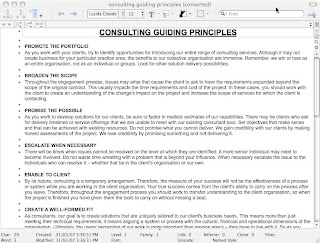
to this:
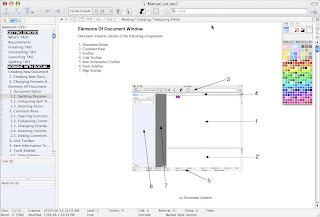
and more. TAO has a lot of features, including the ability handle outlined multi dimensional data, and if I were looking for an outliner, I would give it very serious consideration. If the developer were to turn his hand to the creation of organizer software, I would be most interested to see the results. Alas, the current product does not meet my needs, but it certainly deserves more attention.
Notae version 2.0.3 costs $US29, and it shows promise but lets itself down on the details. The basic interface is fairly plain:
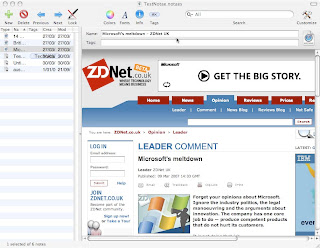
The scrunched up columns on the left are ugly and with the Tag Browser open, it becomes a bit messy.
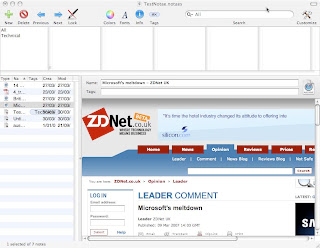
I think applications that implement their Tag Browsers as floating panes or pop out trays achieve a more appealing look.
Notae can import PDFs, Word documents, web archives, weblocs and various graphics. Excel, Open Office and other "foreign" file formats it doesn't handles usefully: you see a file icon, but you can't launch the application to open the file from inside Notae. Notae stores its content in an SQL database, and I'm assuming that it copies the foreign files into that database. However, you can't get them back out again. The preview of files is rather slow.
Sorry, this is not going to work for me.
Sidenote 1.7.2 is donationware. It's a nice little app, and while it only handles text, graphics and PDFs, for some people that will be enough. Sidenote lurks at the side of the screen, and pops out when you move the mouse near it. It doesn't resize big graphics, which is a nuisance, but the interface is clean and simple:
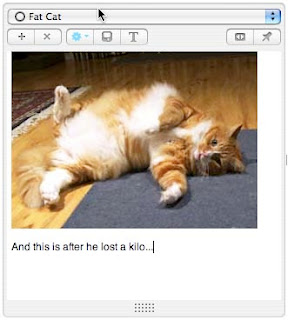
and here's a text note:
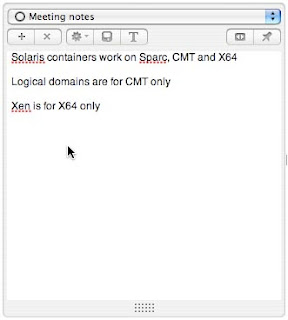
I would consider this more as a parking lot for stuff that you need to capture quickly and sort later. Not what I'm looking for, but Sidenote may suit you.
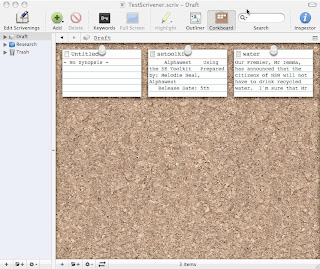
Scrivener version 1.02 costs $US34.99, and bills itself as a project management tool for writers. It imports images, Quicktime files, PDF, web archives, Word documents and text files. Unfortunately it converts Word documents to RTFD, so formatting may be lost. However, the HTML rendering on web archives is good. It isn't the application that I am looking for, but it does have some nice features. The interface is innovative (I mean that word in a positive sense, not in the silly way used by IT marketing people). There are several views. The corkboard view shows you a synopsis of each item, apparently pinned to a corkboard:
The outliner view looks like this:
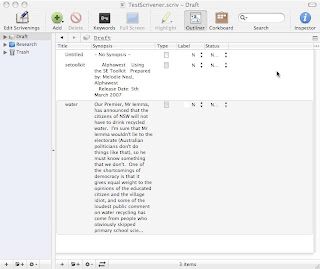
and in either view you can right click on an item and select "Reveal in Binder", which will show you where the item is in the panel on the left. A full screen view looks like this:
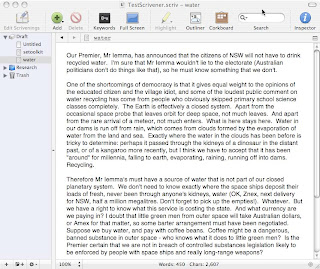
Scrivener also has a floating scratch pad:
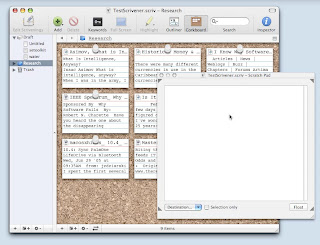
There a a lot of other handy features, such as the ability to take a "snap shot" of a Scrivener project before you make changes, and to roll back to that snap shot if your changes don't work out. Scrivener is designed to let you sort and reshuffle a large number of small pieces of information, and to collate them into larger documents. Scrivener isn't for me, but if you are a writer it may be for you.
JournalX version 2.2.9 costs 23€ (23 Euros, about $US30 according to Xe.com). It supports many file formats, including: QuickTime movie QuickTime audio support, most Text formats (pdf, txt, rtf, rtfd, doc, html graphics (jpg, pict, bmp, gif), PostScript (eps, ps), web archives and weblocs. All this and still no support for Pages or Open Office. I shall rant separately upon the subject of file format support.
The interface is simple, and not very flexible:
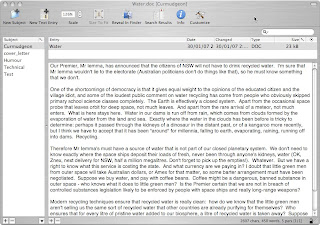
The pane at the left is the "Subject" area, and you import documents into Subjects. Unfortunately, attempting to import a Pages document called cover_letter resulted in a Subject called cover_letter, containing documents called Contents, index.xml and thumbs. There is no tagging, and no subfolders, though you can encrypt a database (but no record level encryption).
JournalX also has a floating "Subject Panel":

drag a file onto it, and it opens to reveal the current list if subjects. Drop your file on the subject of your choice:
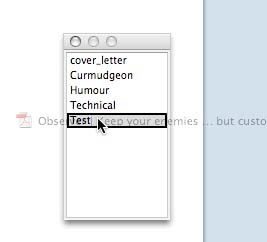
The wide range of input formats is good, and because JournalX stores its contents in a flat file structure, you can get things back out in the same format that they went in (except that Pages document, which has been converted to something unusable!) but JournalX doesn't provide several features that I cannot do without, particularly tagging and subfolders, and there is no encryption support.
Dossier version 2.3.1 costs $US25. Having tinkered with Dossier for about 20 minutes, I have to say that the developers need to spend some quality time with average Mac users, and find out how people expect software to behave. The Dossier folk appear not to have heard of (or perhaps have not understood) the Principle of Least Surprise, which I seem to think was expounded in E.S. Raymond's 'Art of Unix Programming'. This is a general principle, which can be applied almost any sort of design, and the bottom line is: "do the thing that will surprise the user least". So if I am working in a Dossier database called TestDossier2, and I select File->Import, when I select files to import, I expect them to be imported into the active database. I absolutely do not expect to be prompted for a new database name, which is what happens. Dossier then proceeds to import the files into the new database. This not helpful. Furthermore, if I import a file through the File->Import workflow or by dragging a file into the document pane, I expect the results to look the same. They do not. Here is the File->Import version of a document:
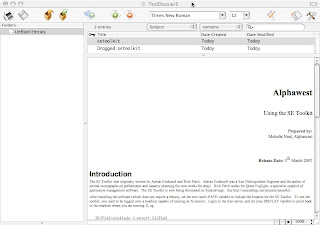
and here is the dragged version of the same document:
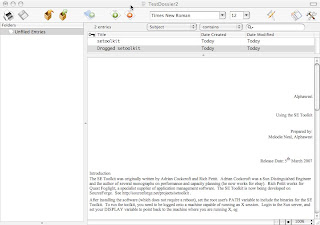
The documentation is sparce, there is no support for tagging or sub folders, and the whole application is just too basic and unfinished for serious consideration.
Process 2 version 2.0.2 costs $US39 and the developers describe it as "Your sublime outlining application". Their web site seems to have been afflicted with a marketing graduate, but if we ignore the "inner child" and "imaginative play" falderal, the product itself is quite interesting. It's somewhere between an outliner, a project management tool and a collaboration system. Multiple users on the same network can work on the same project (using Bonjour). The documentation is not long, but it's adequate because things work the way you expect them to work (see previous comment on Principle of Least Surprise). The interface is straightforward:
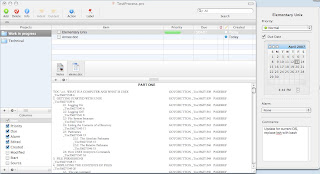
seen here with the Information panel popped out on the right. I have added a fairly complex Word document as a "Process Source", and the field codes have not been handled gracefully, but the content is readable. Adding a "foreign" document as a Source is handled sensibly:
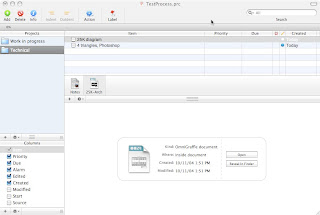
and Process knows which external application to launch to open a file for editing. Unfortunately, Process links to files in their original locations, and its ability to handle multiple file formats is a bit limited. Process can import OPML, OmniOutliner and Process 1 Data files. Process is able to export to OPML, HTML, OmniOutliner, RTF and TXT. It can link to other file formats, and it can preview some, such as Word and Photoshop. There is no support for tagging or encryption, and the screen refresh can be a little sluggish. Process doesn't meet my needs, but it has a lot to offer, particularly if you need a collaborative environment.
And that, I believe, is that: end of the list of applications. My Powerbook's hard disk is littered with discarded software and test documents and databases. I'm going to have a quick Google about, to see if I have missed any significant contender, and then I am going to make my final decision.
Forth coming posts will include:
Part 5
OK folks, here we go with part five, and I have to bring this to a conclusion soon: I urgently need to make a final selection so that I can get some work done. My currently preferred app has expired its demo period, and I am having to use a less satisfactory product until I get to the end of my reviews. No candidate application has so far met all my requirements (see Part 1), but there are still a few applications to consider. On the list we now have:
TAO
Notae
Sidenote
Scrivener
JournalX
Dossier
Process 2
TAO version 1.8 costs $US30, and describes itself as an outliner rather than a document management system. Specifically, it calls itself "T Advanced Outliner", and I have to say that this bold claim is well supported by the product quality. TAO comes with a little learning curve, but with good documentation, which is supplied as a TAO document. The interface is spartan in its simplicity, but yet all the features you might want are just waiting to be enabled. So you can go from this:

to this:

and more. TAO has a lot of features, including the ability handle outlined multi dimensional data, and if I were looking for an outliner, I would give it very serious consideration. If the developer were to turn his hand to the creation of organizer software, I would be most interested to see the results. Alas, the current product does not meet my needs, but it certainly deserves more attention.
Notae version 2.0.3 costs $US29, and it shows promise but lets itself down on the details. The basic interface is fairly plain:

The scrunched up columns on the left are ugly and with the Tag Browser open, it becomes a bit messy.

I think applications that implement their Tag Browsers as floating panes or pop out trays achieve a more appealing look.
Notae can import PDFs, Word documents, web archives, weblocs and various graphics. Excel, Open Office and other "foreign" file formats it doesn't handles usefully: you see a file icon, but you can't launch the application to open the file from inside Notae. Notae stores its content in an SQL database, and I'm assuming that it copies the foreign files into that database. However, you can't get them back out again. The preview of files is rather slow.
Sorry, this is not going to work for me.
Sidenote 1.7.2 is donationware. It's a nice little app, and while it only handles text, graphics and PDFs, for some people that will be enough. Sidenote lurks at the side of the screen, and pops out when you move the mouse near it. It doesn't resize big graphics, which is a nuisance, but the interface is clean and simple:

and here's a text note:

I would consider this more as a parking lot for stuff that you need to capture quickly and sort later. Not what I'm looking for, but Sidenote may suit you.
Scrivener version 1.02 costs $US34.99, and bills itself as a project management tool for writers. It imports images, Quicktime files, PDF, web archives, Word documents and text files. Unfortunately it converts Word documents to RTFD, so formatting may be lost. However, the HTML rendering on web archives is good. It isn't the application that I am looking for, but it does have some nice features. The interface is innovative (I mean that word in a positive sense, not in the silly way used by IT marketing people). There are several views. The corkboard view shows you a synopsis of each item, apparently pinned to a corkboard:

The outliner view looks like this:

and in either view you can right click on an item and select "Reveal in Binder", which will show you where the item is in the panel on the left. A full screen view looks like this:

Scrivener also has a floating scratch pad:

There a a lot of other handy features, such as the ability to take a "snap shot" of a Scrivener project before you make changes, and to roll back to that snap shot if your changes don't work out. Scrivener is designed to let you sort and reshuffle a large number of small pieces of information, and to collate them into larger documents. Scrivener isn't for me, but if you are a writer it may be for you.
JournalX version 2.2.9 costs 23€ (23 Euros, about $US30 according to Xe.com). It supports many file formats, including: QuickTime movie QuickTime audio support, most Text formats (pdf, txt, rtf, rtfd, doc, html graphics (jpg, pict, bmp, gif), PostScript (eps, ps), web archives and weblocs. All this and still no support for Pages or Open Office. I shall rant separately upon the subject of file format support.
The interface is simple, and not very flexible:

The pane at the left is the "Subject" area, and you import documents into Subjects. Unfortunately, attempting to import a Pages document called cover_letter resulted in a Subject called cover_letter, containing documents called Contents, index.xml and thumbs. There is no tagging, and no subfolders, though you can encrypt a database (but no record level encryption).
JournalX also has a floating "Subject Panel":

drag a file onto it, and it opens to reveal the current list if subjects. Drop your file on the subject of your choice:

The wide range of input formats is good, and because JournalX stores its contents in a flat file structure, you can get things back out in the same format that they went in (except that Pages document, which has been converted to something unusable!) but JournalX doesn't provide several features that I cannot do without, particularly tagging and subfolders, and there is no encryption support.
Dossier version 2.3.1 costs $US25. Having tinkered with Dossier for about 20 minutes, I have to say that the developers need to spend some quality time with average Mac users, and find out how people expect software to behave. The Dossier folk appear not to have heard of (or perhaps have not understood) the Principle of Least Surprise, which I seem to think was expounded in E.S. Raymond's 'Art of Unix Programming'. This is a general principle, which can be applied almost any sort of design, and the bottom line is: "do the thing that will surprise the user least". So if I am working in a Dossier database called TestDossier2, and I select File->Import, when I select files to import, I expect them to be imported into the active database. I absolutely do not expect to be prompted for a new database name, which is what happens. Dossier then proceeds to import the files into the new database. This not helpful. Furthermore, if I import a file through the File->Import workflow or by dragging a file into the document pane, I expect the results to look the same. They do not. Here is the File->Import version of a document:

and here is the dragged version of the same document:

The documentation is sparce, there is no support for tagging or sub folders, and the whole application is just too basic and unfinished for serious consideration.
Process 2 version 2.0.2 costs $US39 and the developers describe it as "Your sublime outlining application". Their web site seems to have been afflicted with a marketing graduate, but if we ignore the "inner child" and "imaginative play" falderal, the product itself is quite interesting. It's somewhere between an outliner, a project management tool and a collaboration system. Multiple users on the same network can work on the same project (using Bonjour). The documentation is not long, but it's adequate because things work the way you expect them to work (see previous comment on Principle of Least Surprise). The interface is straightforward:

seen here with the Information panel popped out on the right. I have added a fairly complex Word document as a "Process Source", and the field codes have not been handled gracefully, but the content is readable. Adding a "foreign" document as a Source is handled sensibly:

and Process knows which external application to launch to open a file for editing. Unfortunately, Process links to files in their original locations, and its ability to handle multiple file formats is a bit limited. Process can import OPML, OmniOutliner and Process 1 Data files. Process is able to export to OPML, HTML, OmniOutliner, RTF and TXT. It can link to other file formats, and it can preview some, such as Word and Photoshop. There is no support for tagging or encryption, and the screen refresh can be a little sluggish. Process doesn't meet my needs, but it has a lot to offer, particularly if you need a collaborative environment.
And that, I believe, is that: end of the list of applications. My Powerbook's hard disk is littered with discarded software and test documents and databases. I'm going to have a quick Google about, to see if I have missed any significant contender, and then I am going to make my final decision.
Forth coming posts will include:
- My choice of litter organizer: what and why.
- A rant on file format support in Mac applications (I can feel it building up).
- A general chat on other useful software and web sites that I have found as I have trawled the Internet looking for organizer software.
Thursday, March 22, 2007
Litter Sorters: A Personal Evaluation of Mac Organizer Software
Part 4
Welcome to part four of my reviews of Mac Litter Sorters. If you've only just started reading, please read part one, so that you are familiar with the opening statement of requirements. Having re-read this post, prior to hitting the "Publish" button, I notice a few rather partisan remarks. I should probably make a clear declaration that I am not now, nor I have I ever been, in any way, shape or form affiliated with any of the authors of the software that I am reviewing. Nor am I associated with their employers or other commercial connections. These are my personal opinions, and mine alone (my employer isn't involved, either).
I seem to be getting nearer the bottom of my original list of candidate applications. However, I'm going to add a few more:
Boswell
Caboodle
iOrganize
Curio
Going on with the original list we reach SOHO Notes from Chronos, which is the successor to the Sticky Brain application. A license costs $US39.99, and to be blunt, the application is not that impressive. The interface is unremarkable:
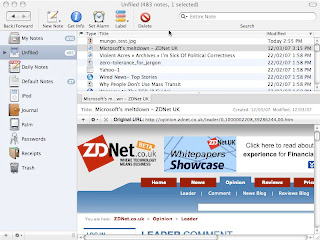
but I could have done without the clutter of preconfigured icons down the left (you can delete most of them). SOHO Notes can import folders of documents, though it can't detect duplicate documents. There is support for subfolders, and folders can be renamed. SOHO Notes can preview PDFs and Word documents, but not Excel spreadsheets, OmniGraffle diagrams of Open Office files. Previews of large graphics don't work well: you see the top left hand corner of the picture, though there are both horizontal and vertical scroll bars. HTML rendering is good.
But there is no tagging! Also, no encryption or AppleScript automation. And the application is slow, much slower than Yojimbo or EagleFiler with the same content. Sorry, too many missing features, on to the next application.
Boswell version 4.0.1 has the unmistakable look of an application ported from Mac OS 9 by someone who is not much interested in interface design:
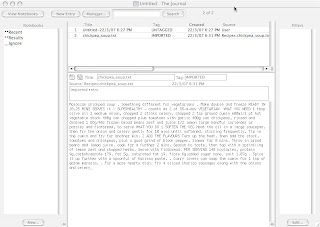
The price is $US99.95 per license, which for the feature set offered is ambitious to the point of delusion. Boswell manages text, but the vast majority of the information I have to deal with is not in text format, and I very much doubt that anyone else lives in an all-text world. Boswell cannot store anything but text, and it doesn't even handle the formatting of that particularly well. Not even close to the requirements. Next.
Tinderbox version 3.6.2 costs $US198. Yes, you read that correctly, $198. However, this is an application not quite like any other I've so far reviewed. Tinderbox is more like a cross between an outliner and a mind mapping application, rather than a litter sorter. It comes with a 238 page user manual and a steep learning curve. Here is one view of the Tinderbox interface (many others are available):
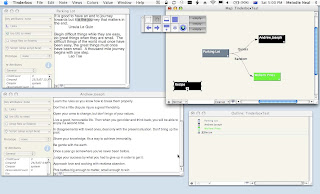
If you are not familiar with mind mapping, may I make a couple of suggestions? First, do a little research on the concept of mind mapping. The nice people at James Cook University have thoughtfully made some online study resources available here. Next, get hold of a copy of one of Tony Buzan's books, either "How to Mind Map" or "The Mind Map Book" (he's written others, but I'd start with those two), which should be available in almost any good bookshop. Get a few large sheets of paper, and a selection of coloured pencils or pens, and try a few manual mind maps. If mind mapping doesn't work for you on paper, I don't think it will work for you in software.
If I were going to write a book, I would probably be glad of something like Tinderbox to help me organize my content. Tinderbox is designed to organize notes, and make links from notes to other objects (document, URLs, other notes). It supports AppleScript, and I doubt that anyone could get full value out of it without knowing AppleScript reasonably well. But is not suitable to manage the ephemera of the life electronic. It makes links to files, rather than storing its own copies, and it can't import most formats directly. What it does is very clever, and if I had a week to learn to use it, I think I would find it useful, but not for the task at hand.
Caboodle version 1.1 costs $US14.95 for an individual license, which is certainly at the reasonable end of the price scale. It is a little too limited for my purposes, which is a pity because it has some nice features. The interface is straightforward:
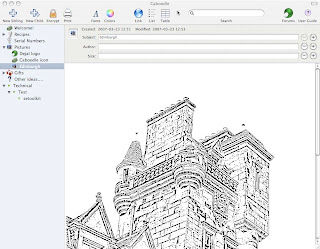
and it supports nested objects - Caboodle doesn't do folders as such, but the nested objects certainly behave like sub folders. It also has the nifty feature of allowing you to add extra fields to its default objects. If you look at the graphic above, you can see buttons to the right of the fields at the top of the form. Click on a plus button, and you get an extra field:
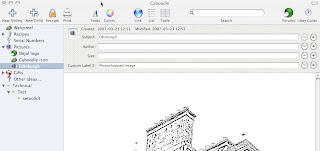
you can change the default field label. Caboodle doesn't support tagging, but you could use the customizable fields to achieve a similar effect. Unfortunately, Caboodle doesn't resize large images on preview, and there is no horizontal scroll bar. It can import HTML, plain text, rich text (RTF), and Word documents, and it can preview those formats, but it can't preview a Web Archive, though it will store a copy. The same goes for Open Office documents, OmniGraffle diagrams and Excel spreadsheets: they can be stored, but not previewed. Caboodle supports record level encryption (and if they can do it in a $15 product, some of you guys in the $40 range could lift your game on this one). There doesn't appear to be any automation support, and the workflow is primitive (not even a print to PDF input). Still, for a budget product it's pretty good.
iOrganize 6.2.1 costs $US19.95. According to the testimonials on the developer's web site, this is the best note organizer on the market. I cannot begin to imagine what the author of that comment was thinking when they wrote it; possibly they were comparing iOrganize to some piece of Microsoft software. iOrganize is rather basic, poorly documented, slow and flaky. Caboodle is better, and costs less.
The iOrganize interface is the predictable three pane layout:
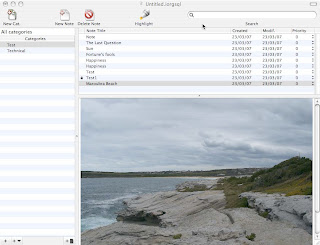
To add a PDF, you need to create a new Note, and then drag the PDF to the Note content pane. OK, that makes sense. What doesn't make sense is that if you change the Note title, and then drag the PDF, the PDF does not get saved. You have to create the new Note, drag the PDF, and then adjust the title. This is not documented, you have to work it out for yourself.
Importing a Web Archive is slow (I thought the app had crashed, it took so long), and the HTML rendering is poor:
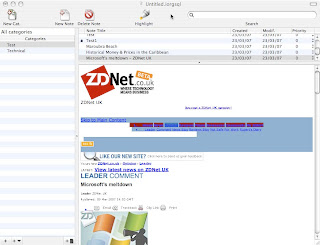
compare that with the Yojimbo version of the same page:
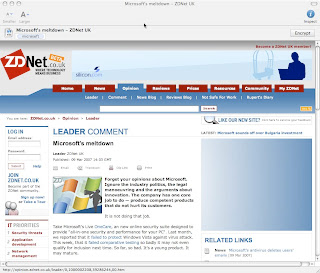
No tagging, can't import folders of documents, non-existent workflow, no automation. I wouldn't pay for this.
Curio version 3.2.2 is such an amazing piece of software that I am probably going to buy a copy, even though it is not what I started out looking for in the first place. Curio is one of those wonderful applications that you didn't know you needed until you found it. It has all the promise of Tinderbox, without the learning curve, and it's prettier. It is also more flexible in several ways. It's even cheaper (a bit), with licenses ranging from $US39 - $US129 depending on the feature set. I'm testing Curio Professional, the top of the line, $129 version.
The interface is sensible, and adjustable: here's a basic view:
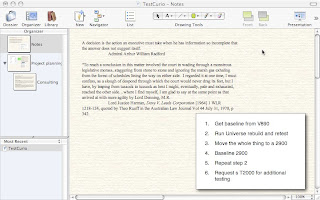
showing the Organizer pane on the left and the "Ideas" space on the right. There is also a Library pane, which appears at the bottom, and a floating Inspector panel. Here is a view with everything open:
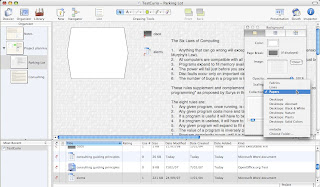
The red arrows to the left of the items in the Library pane mean that Curio has links to those items, but they are still in their original location in the file system. You can also embed an item into a Curio project, in which case it is copied into the project file, and the original link is severed. Once an item has become a Curio "Asset", it can be referenced by as many Ideas spaces or project as you like. Curio can preview a PDF, JPEG (and other graphics), or a Photoshop .psd. It can preview part of a Web Archive, but if you want to see the whole thing, it will open in Safari. Curio can't preview a Word document, or Open Office, Excel or OmniGraffle files. It can link to those formats, but Curio isn't designed to store files, it's designed to support visual thinking. Consider this screen shot:
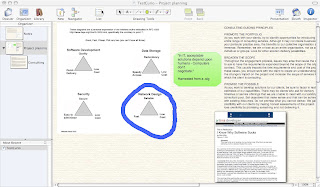
The graphic on the left (the one with the triangles) is a Photoshop .psd, dragged into the the Ideas pane. The green octagon next to it is a shape drawn in Curio itself, with text cut from Circus Ponies Notebook and pasted into the shape. The text to the right of that is a cut and paste from a Word document (note: I could not cut and paste from an Open Office document), and the image below that block of text is a Web Archive, also dragged into the pane. The thick blue line around the bottom right hand triangle was drawn using the Curio paint brush tool. You can drag objects around in the pane, and resize them on the fly:
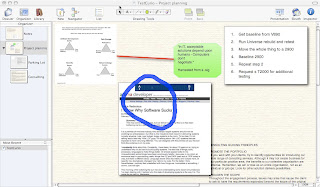
Note that the blue line stayed put when I resized the Photoshop graphic. You can use Curio to scribble on documents, without actually touching the document. The list to the right of the graphic was created with Curio's list tool. There is a tool in Curio to draw almost anything you want (and it supports graphics tablets: I don't own one, but I feel the need coming on), and to reformat anything from fonts to Ideas space backgrounds. You can also create new documents from within Curio, and it will call the appropriate application for you - Word, Pages, Excel, OmniGraffle, etc. Curio supports tagging, includes a search mechanism and has so many other features that I can't begin to cover them all (and I suspect I may be starting to rave a bit here). Curio does not meet the requirements listed in the first part of this series of posts, and I wish it had better integration with Firefox, but I am still deeply impressed with this piece of software. Curio has a 15 day demo, and I shall be giving it a work out for the next two weeks. I will post a separate assessment of Curio later, but this is feeling very much like love at first sight.
It is Sunday night here in Sydney, and I shall be on a training course (Sun Virtualization Technologies) for the next two days, and then working on a proof of concept on Wednesday. It may be next weekend before I can continue this series of reviews, and I still have a few applications to test. I'd like to wrap this up soon, so if anyone has any more applications to suggest, tell me ASAP. Next on the list: TAO....
Part 4
Welcome to part four of my reviews of Mac Litter Sorters. If you've only just started reading, please read part one, so that you are familiar with the opening statement of requirements. Having re-read this post, prior to hitting the "Publish" button, I notice a few rather partisan remarks. I should probably make a clear declaration that I am not now, nor I have I ever been, in any way, shape or form affiliated with any of the authors of the software that I am reviewing. Nor am I associated with their employers or other commercial connections. These are my personal opinions, and mine alone (my employer isn't involved, either).
I seem to be getting nearer the bottom of my original list of candidate applications. However, I'm going to add a few more:
Boswell
Caboodle
iOrganize
Curio
Going on with the original list we reach SOHO Notes from Chronos, which is the successor to the Sticky Brain application. A license costs $US39.99, and to be blunt, the application is not that impressive. The interface is unremarkable:

but I could have done without the clutter of preconfigured icons down the left (you can delete most of them). SOHO Notes can import folders of documents, though it can't detect duplicate documents. There is support for subfolders, and folders can be renamed. SOHO Notes can preview PDFs and Word documents, but not Excel spreadsheets, OmniGraffle diagrams of Open Office files. Previews of large graphics don't work well: you see the top left hand corner of the picture, though there are both horizontal and vertical scroll bars. HTML rendering is good.
But there is no tagging! Also, no encryption or AppleScript automation. And the application is slow, much slower than Yojimbo or EagleFiler with the same content. Sorry, too many missing features, on to the next application.
Boswell version 4.0.1 has the unmistakable look of an application ported from Mac OS 9 by someone who is not much interested in interface design:

The price is $US99.95 per license, which for the feature set offered is ambitious to the point of delusion. Boswell manages text, but the vast majority of the information I have to deal with is not in text format, and I very much doubt that anyone else lives in an all-text world. Boswell cannot store anything but text, and it doesn't even handle the formatting of that particularly well. Not even close to the requirements. Next.
Tinderbox version 3.6.2 costs $US198. Yes, you read that correctly, $198. However, this is an application not quite like any other I've so far reviewed. Tinderbox is more like a cross between an outliner and a mind mapping application, rather than a litter sorter. It comes with a 238 page user manual and a steep learning curve. Here is one view of the Tinderbox interface (many others are available):

If you are not familiar with mind mapping, may I make a couple of suggestions? First, do a little research on the concept of mind mapping. The nice people at James Cook University have thoughtfully made some online study resources available here. Next, get hold of a copy of one of Tony Buzan's books, either "How to Mind Map" or "The Mind Map Book" (he's written others, but I'd start with those two), which should be available in almost any good bookshop. Get a few large sheets of paper, and a selection of coloured pencils or pens, and try a few manual mind maps. If mind mapping doesn't work for you on paper, I don't think it will work for you in software.
If I were going to write a book, I would probably be glad of something like Tinderbox to help me organize my content. Tinderbox is designed to organize notes, and make links from notes to other objects (document, URLs, other notes). It supports AppleScript, and I doubt that anyone could get full value out of it without knowing AppleScript reasonably well. But is not suitable to manage the ephemera of the life electronic. It makes links to files, rather than storing its own copies, and it can't import most formats directly. What it does is very clever, and if I had a week to learn to use it, I think I would find it useful, but not for the task at hand.
Caboodle version 1.1 costs $US14.95 for an individual license, which is certainly at the reasonable end of the price scale. It is a little too limited for my purposes, which is a pity because it has some nice features. The interface is straightforward:

and it supports nested objects - Caboodle doesn't do folders as such, but the nested objects certainly behave like sub folders. It also has the nifty feature of allowing you to add extra fields to its default objects. If you look at the graphic above, you can see buttons to the right of the fields at the top of the form. Click on a plus button, and you get an extra field:

you can change the default field label. Caboodle doesn't support tagging, but you could use the customizable fields to achieve a similar effect. Unfortunately, Caboodle doesn't resize large images on preview, and there is no horizontal scroll bar. It can import HTML, plain text, rich text (RTF), and Word documents, and it can preview those formats, but it can't preview a Web Archive, though it will store a copy. The same goes for Open Office documents, OmniGraffle diagrams and Excel spreadsheets: they can be stored, but not previewed. Caboodle supports record level encryption (and if they can do it in a $15 product, some of you guys in the $40 range could lift your game on this one). There doesn't appear to be any automation support, and the workflow is primitive (not even a print to PDF input). Still, for a budget product it's pretty good.
iOrganize 6.2.1 costs $US19.95. According to the testimonials on the developer's web site, this is the best note organizer on the market. I cannot begin to imagine what the author of that comment was thinking when they wrote it; possibly they were comparing iOrganize to some piece of Microsoft software. iOrganize is rather basic, poorly documented, slow and flaky. Caboodle is better, and costs less.
The iOrganize interface is the predictable three pane layout:

To add a PDF, you need to create a new Note, and then drag the PDF to the Note content pane. OK, that makes sense. What doesn't make sense is that if you change the Note title, and then drag the PDF, the PDF does not get saved. You have to create the new Note, drag the PDF, and then adjust the title. This is not documented, you have to work it out for yourself.
Importing a Web Archive is slow (I thought the app had crashed, it took so long), and the HTML rendering is poor:

compare that with the Yojimbo version of the same page:
No tagging, can't import folders of documents, non-existent workflow, no automation. I wouldn't pay for this.
Curio version 3.2.2 is such an amazing piece of software that I am probably going to buy a copy, even though it is not what I started out looking for in the first place. Curio is one of those wonderful applications that you didn't know you needed until you found it. It has all the promise of Tinderbox, without the learning curve, and it's prettier. It is also more flexible in several ways. It's even cheaper (a bit), with licenses ranging from $US39 - $US129 depending on the feature set. I'm testing Curio Professional, the top of the line, $129 version.
The interface is sensible, and adjustable: here's a basic view:

showing the Organizer pane on the left and the "Ideas" space on the right. There is also a Library pane, which appears at the bottom, and a floating Inspector panel. Here is a view with everything open:

The red arrows to the left of the items in the Library pane mean that Curio has links to those items, but they are still in their original location in the file system. You can also embed an item into a Curio project, in which case it is copied into the project file, and the original link is severed. Once an item has become a Curio "Asset", it can be referenced by as many Ideas spaces or project as you like. Curio can preview a PDF, JPEG (and other graphics), or a Photoshop .psd. It can preview part of a Web Archive, but if you want to see the whole thing, it will open in Safari. Curio can't preview a Word document, or Open Office, Excel or OmniGraffle files. It can link to those formats, but Curio isn't designed to store files, it's designed to support visual thinking. Consider this screen shot:

The graphic on the left (the one with the triangles) is a Photoshop .psd, dragged into the the Ideas pane. The green octagon next to it is a shape drawn in Curio itself, with text cut from Circus Ponies Notebook and pasted into the shape. The text to the right of that is a cut and paste from a Word document (note: I could not cut and paste from an Open Office document), and the image below that block of text is a Web Archive, also dragged into the pane. The thick blue line around the bottom right hand triangle was drawn using the Curio paint brush tool. You can drag objects around in the pane, and resize them on the fly:

Note that the blue line stayed put when I resized the Photoshop graphic. You can use Curio to scribble on documents, without actually touching the document. The list to the right of the graphic was created with Curio's list tool. There is a tool in Curio to draw almost anything you want (and it supports graphics tablets: I don't own one, but I feel the need coming on), and to reformat anything from fonts to Ideas space backgrounds. You can also create new documents from within Curio, and it will call the appropriate application for you - Word, Pages, Excel, OmniGraffle, etc. Curio supports tagging, includes a search mechanism and has so many other features that I can't begin to cover them all (and I suspect I may be starting to rave a bit here). Curio does not meet the requirements listed in the first part of this series of posts, and I wish it had better integration with Firefox, but I am still deeply impressed with this piece of software. Curio has a 15 day demo, and I shall be giving it a work out for the next two weeks. I will post a separate assessment of Curio later, but this is feeling very much like love at first sight.
It is Sunday night here in Sydney, and I shall be on a training course (Sun Virtualization Technologies) for the next two days, and then working on a proof of concept on Wednesday. It may be next weekend before I can continue this series of reviews, and I still have a few applications to test. I'd like to wrap this up soon, so if anyone has any more applications to suggest, tell me ASAP. Next on the list: TAO....
Thursday, March 15, 2007
Litter Sorters: A Personal Evaluation of Mac Organizer Software
Part 3
I'm currently sitting in the Sun Microsystems Solution Centre in North Sydney, waiting for a backup to restore. Ah, how much of an IT engineer's life is spent waiting for a computer to do something! However, I can at least improve the shining hour by going on with my survey of information organizers for Mac OS X.
There's nothing like trying to explain something to someone else to make you think about the subject seriously and thoroughly yourself, and I've been thinking a lot about the sort of documents I'm trying to organize. I've come to the conclusion that much I what I want to store in my perfect organizer is what is called "ephemera" in library circles. Ephemera, to a librarian, is the scrap paper of the book world: flimsy pamphlets, flyers, brochures and such. If you work in the archives area of a library, ephemera includes things like ticket stubs and hand written notes. All are small, designed to be transient, and therefore difficult to store long term. For example, theatre programs are often produced on low quality paper, which deteriorates quickly. Preserving such documents for posterity is technically challenging. But these are the very documents that can illuminate the social history of a culture for future generations.
Libraries usually have special arrangements for storing ephemera, which are usually too fragile to stand on a shelf next to hard bound books; these arrangements include things like acid free envelopes, special binders and dedicated shelf space. And the application that I am looking for is to store the ephemeral scraps that I collect, safe from getting lost among the bigger items, but findable when I want them.
The next application on my list is MacJournal . The current version is 4.1, available for download at $US34.95. This product is really aimed at the person who want to keep a diary, and needs blogging and podcasting tools as well. The interface is quite pleasant:
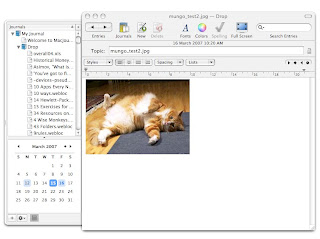
and it certainly has a flexible tool bar:
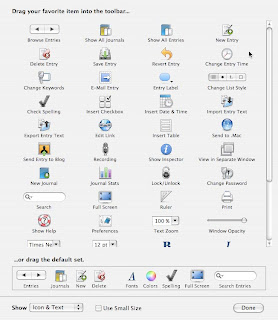
For document management, it's about at the same level as Mori: it doesn't render HTML at all well, and it can't preview spreadsheets or Open Office documents (.xls or .sxw). MacJournal can import and preview Photoshop files (.psd), but I couldn't find a way to resize an image in the window, so for a big picture you only see the top left hand corner. There is a vertical scroll bar, but no horizontal scroll.
MacJournal has some of the nicest documentation I have seen, and the application is stable (no crashes during testing). But it is not the application for which I am looking.
Eaglefiler looks very promising. The tested version is 1.1.6, selling for $US40. The interface is uncluttered:
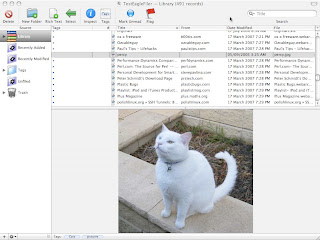
and Eaglefiler has a couple of other windows. One is the Error window, which I like a lot. When I started testing, I loaded a few documents individually as a sanity check. Then I pointed Eaglefiler at a folder of about 450 files, and left it to import. When I came back to check, the error window told me what had failed and why:
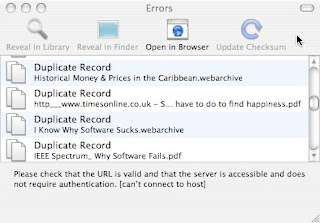
an application with the smarts to avoid loading duplicate files will be very helpful. Eaglefiler also has a "drop pad", to which you can drag and drop files that you want imported to the application. Eaglefiler allows you to have multiple "libraries", and you can choose which library you want to drop a document into:
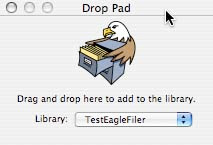
Eaglefiler rendered HTML perfectly on every page I tried. The handling of an Omnigraffle diagram was less perfect: the preview showed me the raw XML, which was not at all what I had expected. A Word document was displayed correctly, but Open Office (.sxw) and Excel (.xls) documents could not be previewed at all (Eaglefiler called the external to open the documents).
Eaglefiler stores files individually, in dedicated folders, and uses an SQL database to manage files and their contents. This meets my criteria for separate storage, and ensures that I can get files out of the application in the same format that they went in, because Eaglefiler does not alter the formats. Eaglefiler also supports AppleScript, sub folders, and tagging. The one thing it lacks is any support for encryption. EagleFiler is very, very close to what I am looking for: can any thing else get closer?
Yojimbo version 1.4.2 costs $US39 for a single user license, which gives one user the right to use the software on multiple machines. The Yojimbo interface is straight forward:
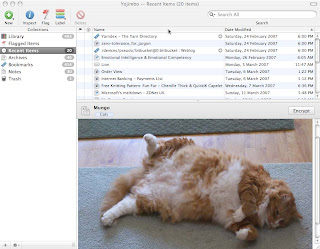
and there are numerous ways of getting information into the app. One is the Drop Dock, which appears as a tab at the side of the screen, and pops out when a file is dragged to it:
The Drop Dock allows you to frop files into the main "Library" or into individual folders, which is handy. However, I've noticed that the Drop Dock has a tendency to get "stuck", so that it no longer pops out when you drg something to it. This seems to happen if the machine has been asleep, which my laptop is at least once every day. The only way to wake the dock up seems to be to restart Yojimbo.
Yojimbo also has a "Quick Input Panel", which can be brought up by pressing F8. So you select a URL, copy it and hit F8, and Yojimbo realises that you are saving a bookmark, and presents you with:
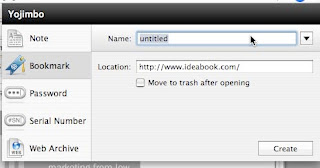
And it can detect if you are copying a chunk of text, in which case it will present you with a note template instead. Yojimbo also comes with two bookmarklets for your browser (Safari, Camino, FireFox or OmniWeb), one to create a bookmark in Yojimbo, and the other to create a web archive. You can drag files into Yojimbo, or import them, and there is also AppleScript support. Getting information into Yojimbo is a breeze, until you try to bring in an image. Images can only be stored if you first create a Note, and then drag the image to the Note. The nice folks at Bare Bones Software tell me that this rather odd oversight will be addressed in a future release.
Yojimbo supports encryption at record level, which is a big plus for me. It supports tagging and folders (called Collections). It can import and preview a wide range of document formats, including Word, PDF, Web Archive, Text, JPEG, and TIFF. The HTML rendering is good. It imported an OmniGraffle diagram, but previewed it as raw XML, and it could not preview either Open Office or an Excel Spreadsheet.
Yojimbo stores its information in an SQL database; documents appear to be exported consistently, but I can foresee problems if the database gets corrupted. However, the application is easy to use, the documentation is good, and I like it a lot, except for a few annoying details....
Yojimbo does not support sub-folders. This seems very strange for an application that is in every other respect so flexible. Nor can it import entire folders of documents, which can make the initial import phase a tad annoying. Yojimbo cannot detect duplicated documents. There is no facility for multiple "Libraries": everything is stored in one database.
Like EagleFiler, Yojimbo is very, very close to what I am looking for, and if the two apps could just merge their feature sets I think I would be happy. In reality, I may finish this exercise by having to make a decision about which features are most important to me....
More reviews in a few days, and again, many thanks to all who have sent in suggestions.
Part 3
I'm currently sitting in the Sun Microsystems Solution Centre in North Sydney, waiting for a backup to restore. Ah, how much of an IT engineer's life is spent waiting for a computer to do something! However, I can at least improve the shining hour by going on with my survey of information organizers for Mac OS X.
There's nothing like trying to explain something to someone else to make you think about the subject seriously and thoroughly yourself, and I've been thinking a lot about the sort of documents I'm trying to organize. I've come to the conclusion that much I what I want to store in my perfect organizer is what is called "ephemera" in library circles. Ephemera, to a librarian, is the scrap paper of the book world: flimsy pamphlets, flyers, brochures and such. If you work in the archives area of a library, ephemera includes things like ticket stubs and hand written notes. All are small, designed to be transient, and therefore difficult to store long term. For example, theatre programs are often produced on low quality paper, which deteriorates quickly. Preserving such documents for posterity is technically challenging. But these are the very documents that can illuminate the social history of a culture for future generations.
Libraries usually have special arrangements for storing ephemera, which are usually too fragile to stand on a shelf next to hard bound books; these arrangements include things like acid free envelopes, special binders and dedicated shelf space. And the application that I am looking for is to store the ephemeral scraps that I collect, safe from getting lost among the bigger items, but findable when I want them.
The next application on my list is MacJournal . The current version is 4.1, available for download at $US34.95. This product is really aimed at the person who want to keep a diary, and needs blogging and podcasting tools as well. The interface is quite pleasant:

and it certainly has a flexible tool bar:

For document management, it's about at the same level as Mori: it doesn't render HTML at all well, and it can't preview spreadsheets or Open Office documents (.xls or .sxw). MacJournal can import and preview Photoshop files (.psd), but I couldn't find a way to resize an image in the window, so for a big picture you only see the top left hand corner. There is a vertical scroll bar, but no horizontal scroll.
MacJournal has some of the nicest documentation I have seen, and the application is stable (no crashes during testing). But it is not the application for which I am looking.
Eaglefiler looks very promising. The tested version is 1.1.6, selling for $US40. The interface is uncluttered:

and Eaglefiler has a couple of other windows. One is the Error window, which I like a lot. When I started testing, I loaded a few documents individually as a sanity check. Then I pointed Eaglefiler at a folder of about 450 files, and left it to import. When I came back to check, the error window told me what had failed and why:

an application with the smarts to avoid loading duplicate files will be very helpful. Eaglefiler also has a "drop pad", to which you can drag and drop files that you want imported to the application. Eaglefiler allows you to have multiple "libraries", and you can choose which library you want to drop a document into:

Eaglefiler rendered HTML perfectly on every page I tried. The handling of an Omnigraffle diagram was less perfect: the preview showed me the raw XML, which was not at all what I had expected. A Word document was displayed correctly, but Open Office (.sxw) and Excel (.xls) documents could not be previewed at all (Eaglefiler called the external to open the documents).
Eaglefiler stores files individually, in dedicated folders, and uses an SQL database to manage files and their contents. This meets my criteria for separate storage, and ensures that I can get files out of the application in the same format that they went in, because Eaglefiler does not alter the formats. Eaglefiler also supports AppleScript, sub folders, and tagging. The one thing it lacks is any support for encryption. EagleFiler is very, very close to what I am looking for: can any thing else get closer?
Yojimbo version 1.4.2 costs $US39 for a single user license, which gives one user the right to use the software on multiple machines. The Yojimbo interface is straight forward:

and there are numerous ways of getting information into the app. One is the Drop Dock, which appears as a tab at the side of the screen, and pops out when a file is dragged to it:

The Drop Dock allows you to frop files into the main "Library" or into individual folders, which is handy. However, I've noticed that the Drop Dock has a tendency to get "stuck", so that it no longer pops out when you drg something to it. This seems to happen if the machine has been asleep, which my laptop is at least once every day. The only way to wake the dock up seems to be to restart Yojimbo.
Yojimbo also has a "Quick Input Panel", which can be brought up by pressing F8. So you select a URL, copy it and hit F8, and Yojimbo realises that you are saving a bookmark, and presents you with:

And it can detect if you are copying a chunk of text, in which case it will present you with a note template instead. Yojimbo also comes with two bookmarklets for your browser (Safari, Camino, FireFox or OmniWeb), one to create a bookmark in Yojimbo, and the other to create a web archive. You can drag files into Yojimbo, or import them, and there is also AppleScript support. Getting information into Yojimbo is a breeze, until you try to bring in an image. Images can only be stored if you first create a Note, and then drag the image to the Note. The nice folks at Bare Bones Software tell me that this rather odd oversight will be addressed in a future release.
Yojimbo supports encryption at record level, which is a big plus for me. It supports tagging and folders (called Collections). It can import and preview a wide range of document formats, including Word, PDF, Web Archive, Text, JPEG, and TIFF. The HTML rendering is good. It imported an OmniGraffle diagram, but previewed it as raw XML, and it could not preview either Open Office or an Excel Spreadsheet.
Yojimbo stores its information in an SQL database; documents appear to be exported consistently, but I can foresee problems if the database gets corrupted. However, the application is easy to use, the documentation is good, and I like it a lot, except for a few annoying details....
Yojimbo does not support sub-folders. This seems very strange for an application that is in every other respect so flexible. Nor can it import entire folders of documents, which can make the initial import phase a tad annoying. Yojimbo cannot detect duplicated documents. There is no facility for multiple "Libraries": everything is stored in one database.
Like EagleFiler, Yojimbo is very, very close to what I am looking for, and if the two apps could just merge their feature sets I think I would be happy. In reality, I may finish this exercise by having to make a decision about which features are most important to me....
More reviews in a few days, and again, many thanks to all who have sent in suggestions.
Saturday, March 10, 2007
Litter Sorters: A Personal Evaluation of Mac Organizer Software
Part 2
I would like to start this post by discussing the two applications that I use regularly: DEVONthink Pro and Circus Ponies Notebook.
I've been using these two applications, or their earlier incarnations, since 2004. I bought licenses for both products early in my life as a Mac user. I can't be certain that I would buy them if I were converting to Mac this year, instead of 2004: at the time they were the best apps I could find to meet the needs I had at that point. Since then I have got used to them, and they feel "normal" to me. My working habits have adapted to the applications, to some extent, and once something has become "normal" in one's frame of reference, it takes a seismic shift to change that view. I haven't found an application sufficiently better than either DEVONthink or Notebook to make me willing to go through the upheaval of changing.
DEVONthink Pro is currently at version 1.3, price $US79.95. I use it principally for the management of technical documents. When I was still running Linux and Windows (dual boot), I maintained a common file system where I kept technical documents in a simple tree structure, with a basic HTML contents page for each major node. This enabled me to retrieve things in a browser, but gave me no indexing. I always seemed to have a big "unfiled" component, where I hadn't had time to update the HTML, and I had to be rigorous about subject filing if I wanted to be able to find anything. When I started testing DEVONthink, that entire repository got imported first up, and we really never looked back.
The interface for DEVONthink Pro offers several different views. I use this one most of the time:
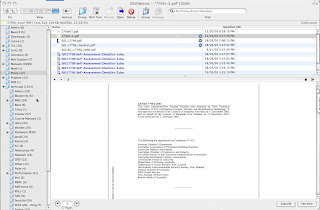
You can preview the document in the bottom pane, before deciding whether open it in the default viewer. DEVONthink is fast, handles huge quantities of data, supports sub-folders, will import entire folders of documents, and will let you get documents back out in the same format that they went in (mostly - it just handed me back a Word document where some of the formatting was a bit off. Nothing too bad, but not perfect, either). It can store web archives, as well as weblocs.
What it doesn't do, and the reason that I don't use it much more, is:
I don't find that it lends itself to note taking (Devon Technologies make a different application for note taking, which I tried and did not like).
DEVONthink is excellent for the structured management of particular types of document (I wish it was more flexible about exactly what documents it will take). It's not good for organizing odd scraps: it's like using a compactus to store loose pieces of paper.
Circus Ponies Notebook (version 2.1, price for a standard license $US49.95, academic licenses and family packs available) is perfect for note taking, and adequate for managing a few PDFs, but it is not suited to heavy duty document management. The interface is a note book, like this:
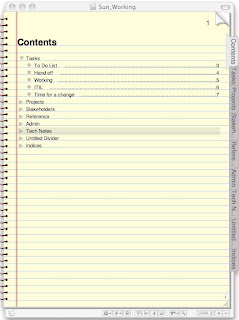
The sections can be expanded and collapsed:
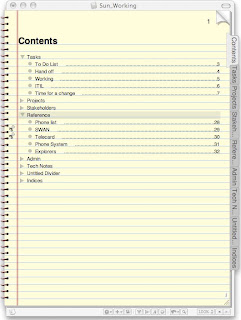
The tabs down the right hand side can be added and deleted, the colour and style of the "paper" can be changed (also fonts and just about anything else visual). You can import certain types of documents, such as Word or text into Notebook, but the formatting may not be preserved very well (and you can't get "the same" document back out again). Alternatively, you can just drag a document in, and it will be handled as an attachment: you will be able to see a link to it, and possibly a preview, depending on format, and if you want to open the file it will open in the default viewer.
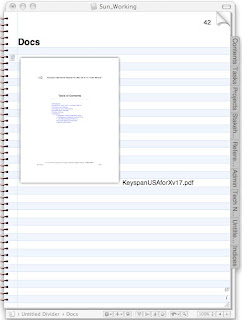
This is fine for small quantities of information, but not for thousands of documents. I use Notebook for a few specific tasks: day to day notes - anything that might otherwise get written on a piece of paper, from shopping lists to phone messages. I also use it to capture small pieces of text such as aphorisms and quotations. I sometimes draft documents in Notebook, and it is invaluable for storing the output of various diagnostic commands and bits of log file from the systems that I am working on - odd chunks of unformatted data that I will need later. There is always a working notebook open on my desktop, and things often get parked there until I can deal with them properly. A key contribution of Notebook to my smooth daily work flow is the ability to keep multiple Notebooks, and open and close them independently. That means that I can keep a Notebook called 'Acme Industries", in which I track whatever I am doing for Acme, and another Notebook for "Big Competitor", in which I manage whatever I am doing for them. When I arrive on a customer's site I just open the appropriate Notebook, making sure that any inappropriate Notebooks are closed. This prevents customer's seeing one another's information by shoulder surfing while I am working, and gives me the added bonus that when I close a job, I just archive the Notebook along with the rest of the project documentation.
Circus Ponies Notebook is a great application, and I highly recommend it when used for the right tasks. But it is not the organizer of my dreams.....
Which brings us to the next candidate, Journler.
Journler (testing version 2.0.2) seems to be targeted more at note taking, blogging and keeping a diary than at document management. It is free for personal use, which is extremely generous of the developer; a non-personal use license is only $US24.95. The interface is attractive:
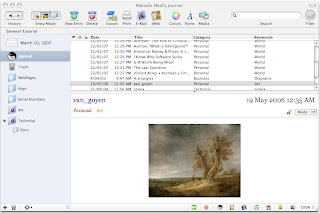
and almost everything from the Category names to the folder icons can be customised. Journler appears stable (no crashes during testing), it supports subfolders, encryption and AppleScript, and for the purposes it declares in its introduction it is probably very good. But a document stored in Journler may not be retrievable in the original format: a Photoshop file (.psd)or spreadsheet (.xls) cannot be exported in that format, only as .rtf, ,pdf , .html, .txt or .rtfd. Journler has features I do not need, and lacks features I do, and so I must pass it by. I note that there is a new major release due later this month, and I certainly look out for it; however, a quick look at the beta suggests that the handling of different document formats is no better, and that support for encryption has been removed!
Voodoo Pad
Voodoo Pad Pro (tested version 3.0, price $US49.95) is a wiki. I like wikis in their place, but document management is not it. Voodoo Pad allows you to link files to a web page, but the linked files remain in their original location on the hard drive. This is good, in that that the format doesn't get changed, and you can get the same document back out at a later date, but bad in that you can't tell which files "belong" to Voodoo Pad (I suppose I could create a dedicated subdirectory for files I want to manage with Voodoo Pad, but then I have to be careful to drop input files there. No, I don't think so.)
There is encryption support, but no document preview - everything opens in an external viewer.
If I had a few days to tinker with the application, I'm sure I could get reasonable functionality, but "out of the box", it's just too raw. I also think it is over priced. Next.
Mori
Mori (tested version 1.5.1, proce $US39.95) bills itself as a digital notebook. It doesn't go out of its way to look like a paper notebook, such as Circus Ponies Notebook, but it does allow you to keep (and open) more than one "notebook" at a time. For me this is a very important feature, and Mori also supports nested folders. The interface is good, with a highly customizable toolbar:
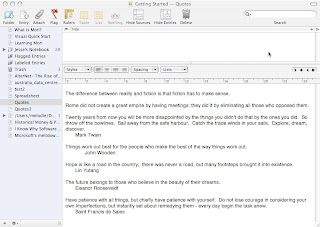
I do like the rulers. But there is no encryption, and the implementation of HTML support is very weak. Many web pages that I imported rendered very badly in Mori. For example, here's a page rendered by Yojimbo:
and here's the same page rendered by Mori:
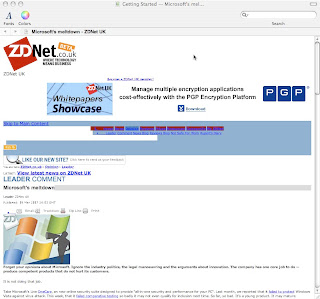
I had expected better. Mori has no print-to-PDF workflow, and it can't import either Excel (.xls) or Open Office (.sxw). It can link to these file types, and open them in their default viewers, but naturally the files are not indexed or searchable. File export supports .rtf, .webarchive. .xml, .doc, .rtfd,. html, OPML and .txt, which is better than some competing applications, but still not flexible enough for my needs.
As a digital notebook, Mori is pretty good, but for serious document storage or handling anything where formatting is critical it just can't cut it. Still, it has some excellent features, and will suit many users perfectly. I have to say that if I had found Mori when I was first shopping for a notebook application, I might have bought it instead of Circus Ponies Notebook, though Mori can be a bit slow sometimes, particularly when rendering HTML. However, Circus Ponies Notebook does have one feature that really works for me: an "index page", like this:
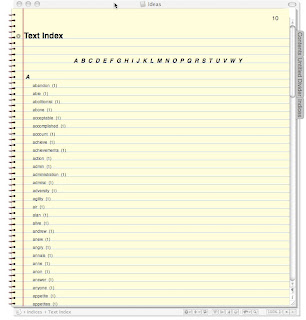
The automatically created index "page" can be used to look at the actual words in the document and how often they occur. I can see that not everyone will find this feature useful, but as a former librarian, sometimes I need to see the available words to know what to search for, if you get my drift. So at least for now, I shall continue to use Circus Ponies Notebook, while keeping a look out for further developments in Mori.
And I think that's enough for this post - more, much more, in a few days. Many thanks to those who have commented or emailed suggestions for other apps to look at: my list is getting longer!
Part 2
I would like to start this post by discussing the two applications that I use regularly: DEVONthink Pro and Circus Ponies Notebook.
I've been using these two applications, or their earlier incarnations, since 2004. I bought licenses for both products early in my life as a Mac user. I can't be certain that I would buy them if I were converting to Mac this year, instead of 2004: at the time they were the best apps I could find to meet the needs I had at that point. Since then I have got used to them, and they feel "normal" to me. My working habits have adapted to the applications, to some extent, and once something has become "normal" in one's frame of reference, it takes a seismic shift to change that view. I haven't found an application sufficiently better than either DEVONthink or Notebook to make me willing to go through the upheaval of changing.
DEVONthink Pro is currently at version 1.3, price $US79.95. I use it principally for the management of technical documents. When I was still running Linux and Windows (dual boot), I maintained a common file system where I kept technical documents in a simple tree structure, with a basic HTML contents page for each major node. This enabled me to retrieve things in a browser, but gave me no indexing. I always seemed to have a big "unfiled" component, where I hadn't had time to update the HTML, and I had to be rigorous about subject filing if I wanted to be able to find anything. When I started testing DEVONthink, that entire repository got imported first up, and we really never looked back.
The interface for DEVONthink Pro offers several different views. I use this one most of the time:

You can preview the document in the bottom pane, before deciding whether open it in the default viewer. DEVONthink is fast, handles huge quantities of data, supports sub-folders, will import entire folders of documents, and will let you get documents back out in the same format that they went in (mostly - it just handed me back a Word document where some of the formatting was a bit off. Nothing too bad, but not perfect, either). It can store web archives, as well as weblocs.
What it doesn't do, and the reason that I don't use it much more, is:
- Store Open Office files, Omnigraffle files or Excel spreadsheets.
- Support any sort of encryption.
- Support tagging (though it does have a classification feature, but this is not the same thing). It does have 7 "Labels" available, which you can redefine, but 7 is not enough for my purposes.
I don't find that it lends itself to note taking (Devon Technologies make a different application for note taking, which I tried and did not like).
DEVONthink is excellent for the structured management of particular types of document (I wish it was more flexible about exactly what documents it will take). It's not good for organizing odd scraps: it's like using a compactus to store loose pieces of paper.
Circus Ponies Notebook (version 2.1, price for a standard license $US49.95, academic licenses and family packs available) is perfect for note taking, and adequate for managing a few PDFs, but it is not suited to heavy duty document management. The interface is a note book, like this:

The sections can be expanded and collapsed:

The tabs down the right hand side can be added and deleted, the colour and style of the "paper" can be changed (also fonts and just about anything else visual). You can import certain types of documents, such as Word or text into Notebook, but the formatting may not be preserved very well (and you can't get "the same" document back out again). Alternatively, you can just drag a document in, and it will be handled as an attachment: you will be able to see a link to it, and possibly a preview, depending on format, and if you want to open the file it will open in the default viewer.

This is fine for small quantities of information, but not for thousands of documents. I use Notebook for a few specific tasks: day to day notes - anything that might otherwise get written on a piece of paper, from shopping lists to phone messages. I also use it to capture small pieces of text such as aphorisms and quotations. I sometimes draft documents in Notebook, and it is invaluable for storing the output of various diagnostic commands and bits of log file from the systems that I am working on - odd chunks of unformatted data that I will need later. There is always a working notebook open on my desktop, and things often get parked there until I can deal with them properly. A key contribution of Notebook to my smooth daily work flow is the ability to keep multiple Notebooks, and open and close them independently. That means that I can keep a Notebook called 'Acme Industries", in which I track whatever I am doing for Acme, and another Notebook for "Big Competitor", in which I manage whatever I am doing for them. When I arrive on a customer's site I just open the appropriate Notebook, making sure that any inappropriate Notebooks are closed. This prevents customer's seeing one another's information by shoulder surfing while I am working, and gives me the added bonus that when I close a job, I just archive the Notebook along with the rest of the project documentation.
Circus Ponies Notebook is a great application, and I highly recommend it when used for the right tasks. But it is not the organizer of my dreams.....
Which brings us to the next candidate, Journler.
Journler (testing version 2.0.2) seems to be targeted more at note taking, blogging and keeping a diary than at document management. It is free for personal use, which is extremely generous of the developer; a non-personal use license is only $US24.95. The interface is attractive:

and almost everything from the Category names to the folder icons can be customised. Journler appears stable (no crashes during testing), it supports subfolders, encryption and AppleScript, and for the purposes it declares in its introduction it is probably very good. But a document stored in Journler may not be retrievable in the original format: a Photoshop file (.psd)or spreadsheet (.xls) cannot be exported in that format, only as .rtf, ,pdf , .html, .txt or .rtfd. Journler has features I do not need, and lacks features I do, and so I must pass it by. I note that there is a new major release due later this month, and I certainly look out for it; however, a quick look at the beta suggests that the handling of different document formats is no better, and that support for encryption has been removed!
Voodoo Pad
Voodoo Pad Pro (tested version 3.0, price $US49.95) is a wiki. I like wikis in their place, but document management is not it. Voodoo Pad allows you to link files to a web page, but the linked files remain in their original location on the hard drive. This is good, in that that the format doesn't get changed, and you can get the same document back out at a later date, but bad in that you can't tell which files "belong" to Voodoo Pad (I suppose I could create a dedicated subdirectory for files I want to manage with Voodoo Pad, but then I have to be careful to drop input files there. No, I don't think so.)
There is encryption support, but no document preview - everything opens in an external viewer.
If I had a few days to tinker with the application, I'm sure I could get reasonable functionality, but "out of the box", it's just too raw. I also think it is over priced. Next.
Mori
Mori (tested version 1.5.1, proce $US39.95) bills itself as a digital notebook. It doesn't go out of its way to look like a paper notebook, such as Circus Ponies Notebook, but it does allow you to keep (and open) more than one "notebook" at a time. For me this is a very important feature, and Mori also supports nested folders. The interface is good, with a highly customizable toolbar:

I do like the rulers. But there is no encryption, and the implementation of HTML support is very weak. Many web pages that I imported rendered very badly in Mori. For example, here's a page rendered by Yojimbo:

and here's the same page rendered by Mori:

I had expected better. Mori has no print-to-PDF workflow, and it can't import either Excel (.xls) or Open Office (.sxw). It can link to these file types, and open them in their default viewers, but naturally the files are not indexed or searchable. File export supports .rtf, .webarchive. .xml, .doc, .rtfd,. html, OPML and .txt, which is better than some competing applications, but still not flexible enough for my needs.
As a digital notebook, Mori is pretty good, but for serious document storage or handling anything where formatting is critical it just can't cut it. Still, it has some excellent features, and will suit many users perfectly. I have to say that if I had found Mori when I was first shopping for a notebook application, I might have bought it instead of Circus Ponies Notebook, though Mori can be a bit slow sometimes, particularly when rendering HTML. However, Circus Ponies Notebook does have one feature that really works for me: an "index page", like this:

The automatically created index "page" can be used to look at the actual words in the document and how often they occur. I can see that not everyone will find this feature useful, but as a former librarian, sometimes I need to see the available words to know what to search for, if you get my drift. So at least for now, I shall continue to use Circus Ponies Notebook, while keeping a look out for further developments in Mori.
And I think that's enough for this post - more, much more, in a few days. Many thanks to those who have commented or emailed suggestions for other apps to look at: my list is getting longer!
Subscribe to:
Posts (Atom)
Addthis


